BACKING UP AND RETRIEVING FILES
29
WD MY CLOUD PERSONAL CLOUD STORAGE
USER MANUAL
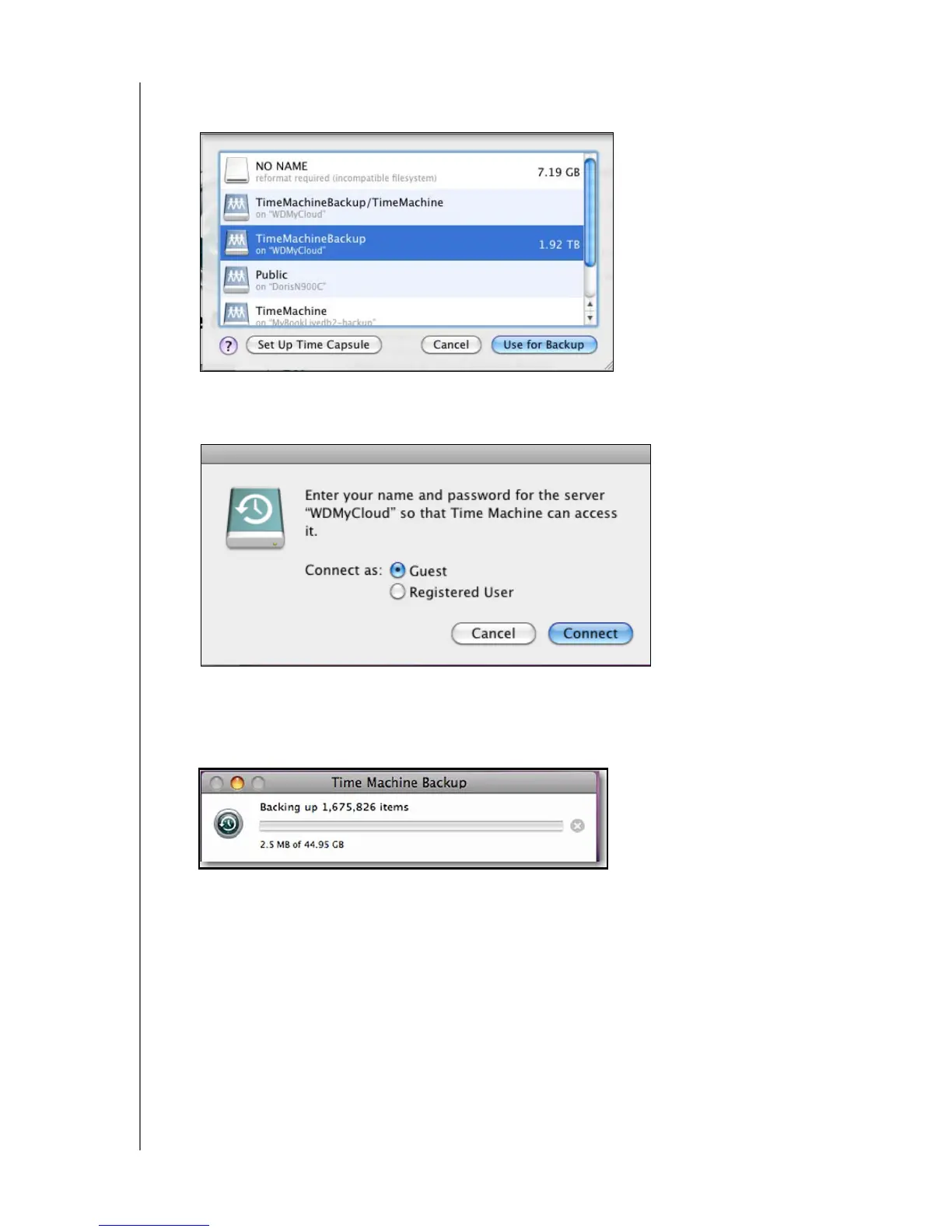
4. Slide the Time Machine button to ON and click Select Disk. Select the WD My Cloud
device where you want the backups stored:
5. Click Use for Backup. A page prompts for your user name and password.
6. Select Guest and click Connect:
The Preferences page redisplays.
Time Machine begins backing up your files. The first backup may take some time, but
subsequent backups are faster because Time Machine only backs up new or changed
items. A status bar displays the progress of the backup:
Time Machine backs up your computer every hour and keeps the following backup sets:
Every hour for 24 hours
Every day for the past month
Weekly until the WD My Cloud device is full.
Note: If a backup is interrupted, for example, if the computer goes into sleep
mode, or the WD My Cloud is disconnected, the backup will resume
automatically once the computer is available.
If you change the name of the WD My Cloud, previously set Time Machine
backups delay or fail. To fix the problem, resume backing up by
re-selecting the device in the Time Machine Preferences page.




 To Next Page