LEONARDO DATALOGGER
User manual
10
Firmware Update
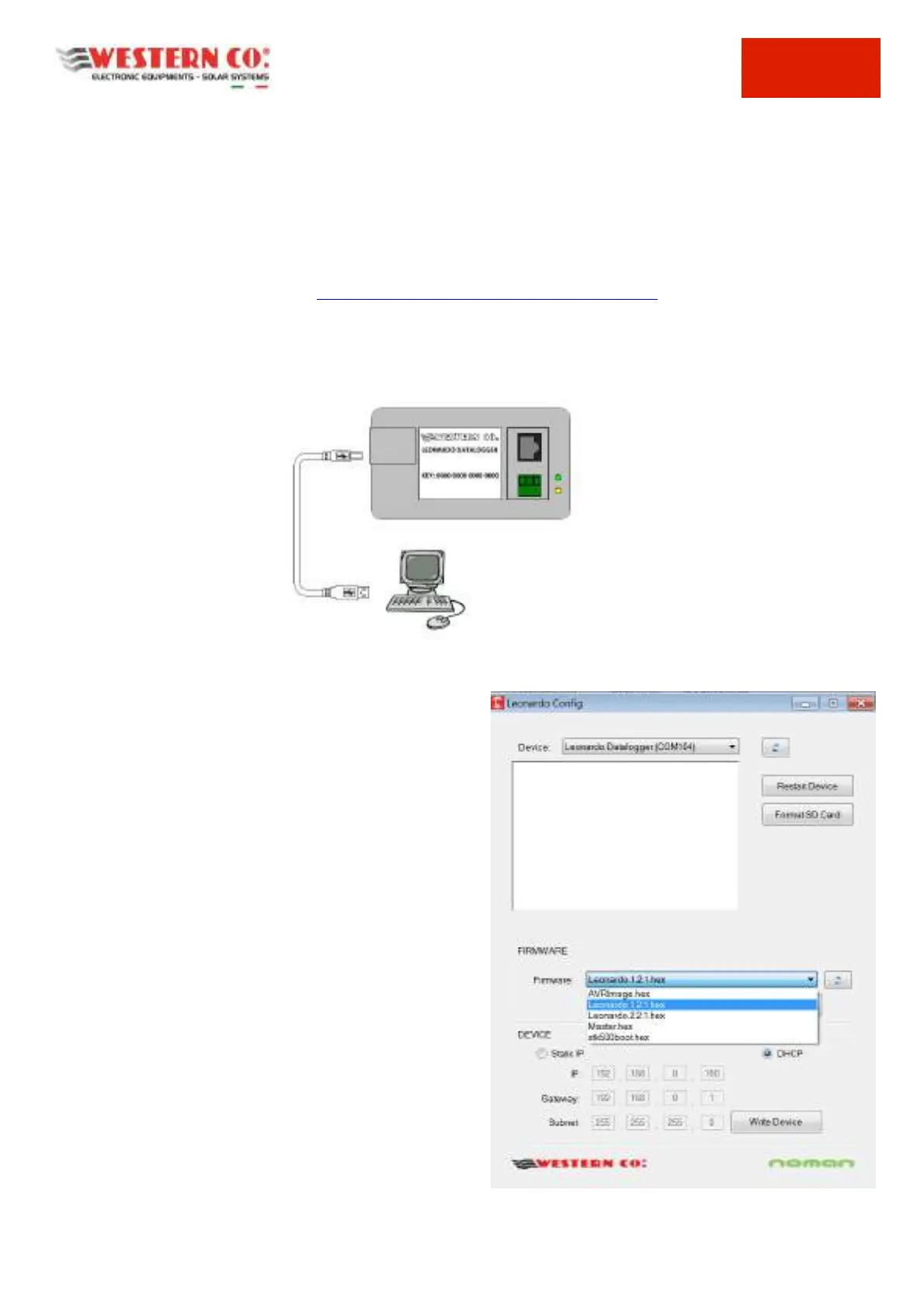
A configuration and updating software called LEONARDO CONFIG is available (Pic. 14)
This software allows:
1. to upgrade to the latest firmware available for the Leonardo Datalogger;
2. to set a static IP address—in case the automatic assignment of DHCP addresses on your Internet access router
would not be available;
3. to format SD card inside Leonardo Daalogger.
The software can be downloaded from
http://www.leonardosystem.com/monitoraggio/.
To install the software, perform the following steps:
- unzip the archive to a known folder on the disk. (e.g. C:\Leonardo);
- verify that the version of .NET Framework 4.5 is present on Windows;
- connect the Leonardo Datalogger to PC (Pic.13), via USB cable, and (whether needed) load the related drivers from
the C: \ Leonardo \ drivers folder ;
Pic.13 Connection to the PC
- run the file "LeonardoConfig.exe" (Pic.14).
Select the device from the Device drop-down menu (e.g.
Leonardo Datalogger (COM104)). If the device is not found
automatically you can load the drivers from the folder
C:\Leonardo\drivers
1. Firmware Update:
1. Select the firmware in the Firmware drop-down menu;
(e.g. Leonardo.1.2.1.hex)
2. Click on Write Firmware and wait for the firmware to
be updated;
3. Finally click on Write Device to set the default DHCP
service;
2. Static IP address setting:
Click on Static IP and enter the parameters: IP, Gateway and
Subnet mask. Then click on Write Device, in order to assign a
static IP to the Datalogger.
3. Format SD Card:
Click on “Format SD Card” and wait for the successful
procedure.
Pic.14 Leonardo Config SW



 To Next Page