EasyManua.ls Logo

Widex USB LINK - User Manual

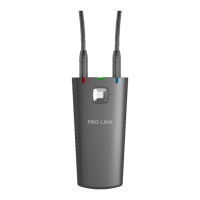
Widex USB LINK
36 pages
Print Icon
To Next Page IconTo Next Page
Loading...
1
Widex USB Link
User instrUctions

Questions and Answers

  • G
    garrettcassandraJul 31, 2025
    Why is wireless programming not working on my Widex Hearing Aid?
    • D
      Deanna MelendezAug 1, 2025
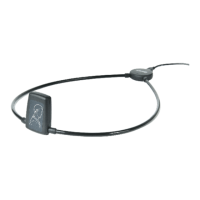
      If wireless programming for your Widex Hearing Aid isn't working, it might be due to several reasons: 1. The hearing aids may be out of range. Try repositioning the Widex USB Link so it's close to the hearing aids, using the neck loop. 2. Compass may not be detecting the hearing aids. Place the hearing aids on the table inside the neck loop, near the USB Link unit, ensuring it's correctly positioned. 3. The hearing aids might not be functioning. Insert fresh batteries and turn them on.
  • J
    joshua84Aug 14, 2025
    What to do if Widex Hearing Aid USB Link LED indicator does not flash?
    • L
      Luke GarnerAug 14, 2025
      If the LED indicator on your Widex USB Link isn't flashing, it could be due to: 1. A failed driver installation, or connecting the Widex USB Link before completing the installation. Reinstall the driver, ensuring you don't connect the USB Link until installation is complete. 2. The Widex USB extension cable might be disconnected. Reconnect the cable. The LED should flash when you click ‘Detect wireless’ if connected correctly.

Summary

Symbols and Indicators

Flashing Green Light Status

Status of the Widex USB Link communicating with instruments.

Not for General Waste Symbol

Symbol indicating the device is not for general household waste disposal.

User Manual Reference Symbol

Symbol indicating to consult the user manual for additional information.

Non-ionizing Radiation Symbol

Symbol indicating the presence of non-ionizing radiation.

Introduction to Widex USB Link

Installation and Connection Guide

Step 1: Install USB Driver

Install the driver from Compass CD, select 'setup.exe', and click Next.

Step 2: Connect USB Link

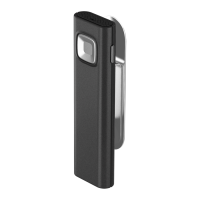
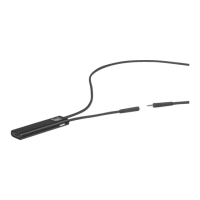
Connect USB extension cable to PC and USB Link. Max cable length 16½ feet.

Step 3: Found New Hardware Wizard

Follow prompts to install software automatically and complete the setup.

Using the Widex USB Link

Activate USB Link in Compass

Add Widex USB Link as an interface in Compass Setup for wireless fitting.

Detect Hearing Aids

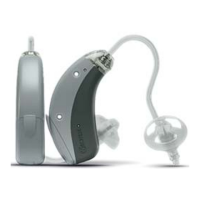
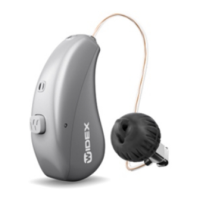
Insert batteries, turn on hearing aids, place USB Link unit to detect.

Fit Hearing Aids

Assign hearing aids to left/right ear in Compass and use Play buttons to identify.

Interrupting the Fitting Process

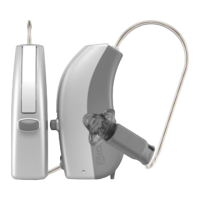
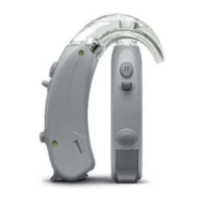
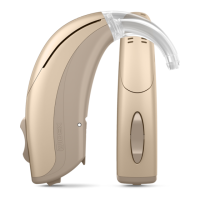
Compatible Hearing Aids for Wireless Fitting

Safety Warnings and Precautions

Troubleshooting Guide

LED Indicator Not Flashing

Troubleshoot driver installation, connection, and cable issues for the LED.

Wireless Programming Failures

Resolve issues with wireless programming by checking aid positioning and range.

Regulatory Information

Electromagnetic Emissions Compliance

Details compliance with RF emissions and harmonic emissions standards.

Electromagnetic Immunity Standards

Details compliance with immunity tests for ESD, transients, surge, voltage dips.

EMC Compliance Standards List

Lists applicable EMC/EMI standards like FCC Part 15 and EN standards.

Hearing Aid Dispenser Guidance

User Pre-Purchase Guidance

FCC Compliance Statement

Industry Canada Compliance Statement

Widex USB LINK Specifications

General IconGeneral
CompatibilityWidex Hearing Aids
ConnectionUSB
Operating System CompatibilityWindows
TypeProgramming device
FunctionalityConnects hearing aids to fitting software

Related product manuals