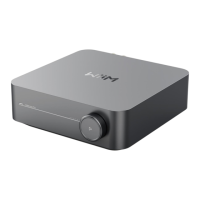
WIIM AMP USER MANUAL VERSION 1.0 10/29/23
29 | P a g e
10. AUDIO INPUT VIA LINE IN OR SPDIF IN
Unlock the full potential of the WiiM Amp by employing it as a network audio transmitter
via Wi-Fi or Ethernet. You can seamlessly stream analog or digital audio input from devices
like CD players, vinyl players, TVs, or computers to other WiiM connected devices, or
AirPlay compatible speakers such as HomePod or Sonos.
To set up your WiiM Amp with Line-IN:
1. Insert the line-in cable into the LINE IN port on the WiiM Amp's rear.
2. Connect the other end of the cable to your record player.
3. In the WiiM Home app, navigate to ‘Browse’ tab > Select source on device > LINE
IN, and designate LINE IN as the audio source.
4. Form a multiroom music group with your WiiM Amp. In the WiiM Home app, go to
Devices and choose the WiiM Amp linked with your LINE-IN device. Tap the group
button (depicted by a "link" icon within a box) at the upper right corner of the device
box. Select the desired WiiM Amp for audio transmission.
5. To cast audio to a wide array of AirPlay 2-enabled devices, please select from the
list of the AirPlay receivers on “Now Playing” UI or device settings.
Upon completion, the music from the connected device will play across your multiroom
music group.
You can follow the same procedure using the SPDIF input port of the WiiM device if your
source device offers a digital audio output via SPDIF.
Additionally, you can enable the "Autosense" feature on the WiiM device, allowing it to
automatically play your Line-In, HDMI, or Optical-In source upon detection of a signal. This
feature can be activated within the WiiM Home App.
The WiiM device features a built-in EQ to tailor audio input to your preferences. Moreover,
you can control audio volume remotely through the app, eliminating the need to adjust the
audio input directly.
Note that certain source devices may require a preamp. For instance, some turntables
lack a built-in preamp, necessitating connection to an external preamp before linking to
the WiiM Amp.


 To Next Page