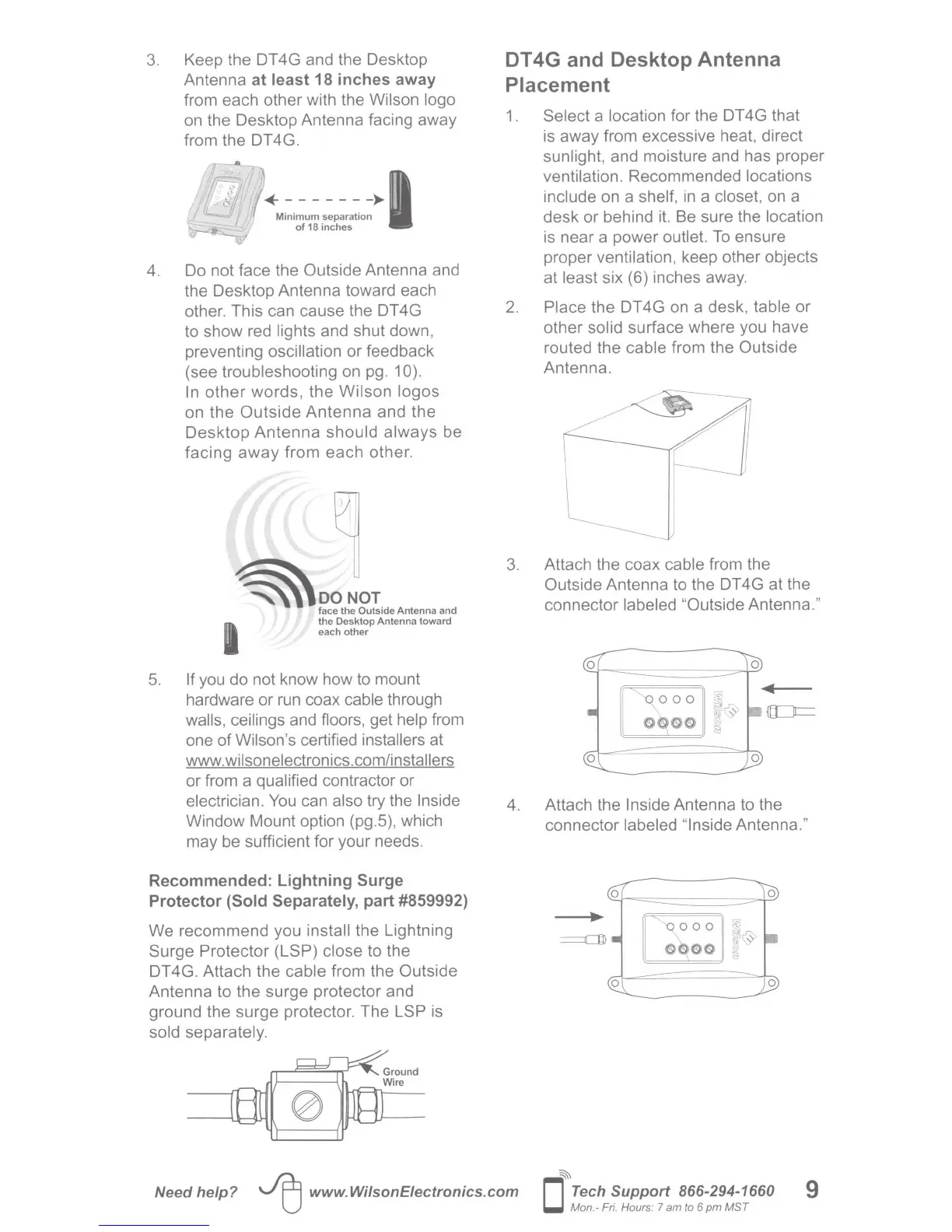
3. Keep the DT4G and the Desktop
Antenna
at least 18 inches away
from each other with the Wilson logo
on
the Desktop Antenna facing away
from the DT4G.
4. Do not face the Outside Antenna and
the Desktop Antenna toward each
other. This can cause the DT 4G
to show red lights and shut down,
preventing oscillation or feedback
(see troubleshooting on
pg
. 1 0).
In
other
words, the Wilson logos
on the Outside
Antenna
and the
Desktop Antenna should always be
facing
away
from each other.
1
~DO
NOT
face
the
Outside Antenna and
the Desktop Antenna toward
each
other
5.
If you do not know how to mount
hardware or
run
coax cable through
walls, ceilings and floors, get help from
one of Wilson's certified installers at
www.wilsonelectronics.com/installers
or from a qualified contractor or
electrician.
You
can also try the Inside
Window Mount option (pg.5), which
may be sufficient for your needs.
Recommended: Lightning Surge
Protector (Sold Separately, part #859992)
We recommend you install the Lightning
Surge Protector (LSP) close to the
DT4G. Attach the cable from the Outside
Antenna to the surge protector and
ground the surge protector. The LSP is
sold separately.
DT4G and Desktop Antenna
Placement
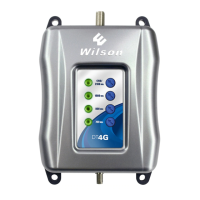
1 . Select a location for the DT 4G that
is away from excessive heat, direct
sunlight, and moisture and has proper
ventilation. Recommended locations
include on a shelf,
in
a closet,
on
a
desk or behind it. Be sure the location
is near a power outlet.
To
ensure
proper ventilation, keep other objects
at least six (6) inches away.
2.
Place the DT4G
on
a desk, table
or
other solid surface where you have
routed the cable from the Outside
Antenna.
3. Attach the coax cable from the
Outside Antenna to the DT 4G at the
connector labeled "Outside Antenna."
4. Attach the Inside Antenna to the
connector labeled "Inside Antenna
."
Need help?
~
www.WilsonEiectronics.com
~
0
Tech Support 866-294-1660
Mon
.-
Fri. Hours: 7 am to 6
pm
MST
9






 To Next Page