EasyManua.ls Logo

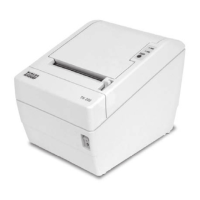
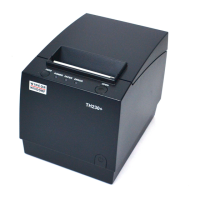
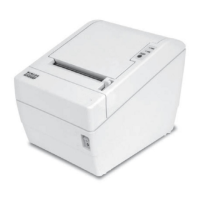
Wincor Nixdorf TH210 - User Manual

Wincor Nixdorf TH210
41 pages
Print Icon
To Next Page IconTo Next Page
Loading...
TH210
Thermal Printer
User Manual
Edition July 2015

Other manuals for Wincor Nixdorf TH210

Questions and Answers

  • M
    Makayla RuizSep 4, 2025
    Why does the LED blink twice and stay on with my Wincor Nixdorf Printer?
    • Z
      zacharysmithSep 4, 2025
      If the LED on your Wincor Nixdorf Printer blinks twice and then stays on, it could be due to low voltage. Allow the voltage to recover, or try a new power supply. If this occurs on power up, contact your authorized service representative.
  • R
    Randy HooperSep 18, 2025
    What does it mean if the LED blinks twice on Wincor Nixdorf TH210 Printer?
    • C
      Carol HouseSep 18, 2025
      If the LED on your Wincor Nixdorf Printer blinks twice and then remains off, allow the printer to finish programming.
  • E
    Erin WalkerSep 16, 2025
    Why is one side of the receipt missing from my Wincor Nixdorf Printer?
    • K
      Katherine DownsSep 16, 2025
      If one side of the receipt is missing from your Wincor Nixdorf Printer, it indicates a serious condition with the printer electronics. Stop using the printer.
  • M
    Marcus SanchezSep 14, 2025
    Why is a vertical column of print missing on my Wincor Nixdorf TH210 receipts?
    • N
      Natasha WalterSep 14, 2025
      If a vertical column of print is missing from your Wincor Nixdorf Printer, it indicates a serious condition with the printer electronics. Stop using the printer.
  • X
    Xavier LloydSep 12, 2025
    Why is my Wincor Nixdorf Printer printing inconsistently with no two-color print?
    • F
      Frederick YoungSep 13, 2025
      If your Wincor Nixdorf Printer is printing inconsistently and not producing two-color prints, the paper type used may not match the printer's settings. Print a diagnostic form and verify the paper type setting is set to 0, 1, 4, or 5.
  • M
    Michael DavidsonSep 12, 2025
    What does it mean if my Wincor Nixdorf TH210 Printer beeps and flashes a green LED?
    • D
      Danielle WalkerSep 12, 2025
      If your Wincor Nixdorf Printer beeps and flashes a green LED in various combinations, it indicates a serious condition. Stop using the printer.
  • L
    lisa67Sep 9, 2025
    Why is the LED blinking slowly and steadily on my Wincor Nixdorf TH210 Printer?
    • D
      Daniel GibsonSep 9, 2025
      If your Wincor Nixdorf Printer's LED blinks slowly and steadily, it may be due to a non-Wincor power supply or an incorrect max power setting. Try switching to a Wincor power supply and changing the max power setting. If these don't solve the issue, stop using the printer.
  • J
    Joshua CooleySep 7, 2025
    What does it mean if the LED blinks four times and stays on with Wincor Nixdorf Printer?
    • R
      Regina SolisSep 7, 2025
      If the LED on your Wincor Nixdorf Printer blinks four times and then stays on, it could mean the thermistor is out of range. Allow the print-head to cool down. If this occurs on power up, contact your authorized service representative.
  • R
    Ryan TuckerSep 5, 2025
    Why does the LED blink three times and stay on with my Wincor Nixdorf TH210 Printer?
    • C
      Cheryl WatersSep 5, 2025
      If the LED on your Wincor Nixdorf Printer blinks three times and then stays on, it could be due to high voltage. Allow the voltage to recover, or try a new power supply. If this occurs on power up, contact your authorized service representative.
  • J
    Jeffrey CareyAug 20, 2025
    What to do if the Wincor Nixdorf TH210 LED blinks five times?
    • C
      Colton PhillipsAug 21, 2025
      If the Wincor Nixdorf Printer LED blinks five times and then remains off, it could be due to the top cover being open or the paper being out. Ensure the cover is properly closed and load a new paper roll.

Summary

Introduction

About this manual

Certificates

European Conformity (CE)

Device compliance with EU directives regarding EMC and low voltage.

Underwriters Laboratories (UL)

Notes the device has received UL and cUL symbols.

FCC Radio Frequency Interference Statement

Details FCC compliance for Class B devices and potential interference.

Important Notes

User Information and Restrictions

Covers correct installation, unauthorized modifications, and authorized repairs.

Warranty Information

General Safety Information

Safety Instructions

Advises against touching hot print heads, cutters, and ESD-sensitive components.

Operational Cautions

Lists precautions for printer placement, environment, power connection, and liquid handling.

Overview

Printer Controls

Paper Feed Button

Explains the function of the paper feed button for advancing paper and accessing menus.

LED Indicator

Describes the meaning of the green LED status light.

Beep

Explains the audible feedback (beeps) from the printer.

Connector Cover

Describes the purpose of the connector cover for protection and strain relief.

Setting Up the Printer

Load or Change the Paper Roll

Step-by-step instructions for loading and changing the paper roll.

Paper Settings and Adjustments

Explains how to configure paper low notification and path width.

Mounting the Printer on a Vertical Surface

Connecting Cables

Cash Drawer Cables

How to connect cash drawer cables to the printer.

Communication Cables

Details connecting RS-232C and USB communication cables.

USB Cable Installation

Specific steps for connecting the USB cable, including warnings.

Power Supply Cable

Cable Routing

Test the Printer

Using the Printer

Configuring the Printer

Explains how to access and modify printer configuration settings.

Energy-Savings

Monochrome Paper Print Density

Paper Roll Handling

Paper Near End

Describes the LED indicator for low paper and setting adjustments.

Paper End

Explains the LED indication for no paper and the consequences of continued operation.

Maximum Power Setting

Printhead Setting

Preventing Overheating of the Printhead

Troubleshooting the Printer

Printer Tone and Green LED

Diagnoses printer issues based on LED blinking patterns and tones.

Printing Issues

Diagnoses common printing problems like light print or paper jams.

Printer Does Not Function

Troubleshoots issues where the printer does not turn on or stops functioning.

Paper and Supplies

Ordering from Wincor Nixdorf

How to order printer parts, accessories, and paper from the manufacturer.

Ordering Thermal Paper

Specifies the required dimensions and properties for thermal paper.

Qualified Paper Grades

Lists recommended paper grades from qualified manufacturers.

Ordering Miscellaneous Supplies

Cash Drawers and Cables

Lists Wincor Nixdorf compatible cash drawers and associated cables.

Communication Cables

Lists available communication cables with model and part numbers.

Wall-mount Kit

Details the part number for the printer wall-mount kit.

Documentation and Utilities

Technical Data

Standard Features

Lists key technical specifications like interfaces, memory, and print resolution.

Paper Sensing and Human Interface

Describes paper detection, audible tones, and LED status lights.

Cash Drawer Driver and Knife

Details cash drawer connection and the built-in paper cutter.

Factory-Installed Options

Lists options pre-installed on the printer, like interface and color.

Add-on Options

Lists optional accessories available for purchase, like wall mounts and power supplies.

Wincor Nixdorf TH210 Specifications

General IconGeneral
Printing MethodDirect Thermal
Print Width72 mm
Print Resolution203 dpi
Paper Width80 mm
Paper Roll DiameterUp to 83 mm
Power Supply24 VDC
TypeReceipt printer
ConnectivityUSB, RS232, Ethernet

Related product manuals