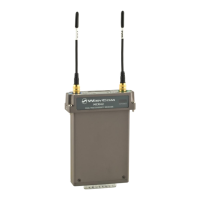
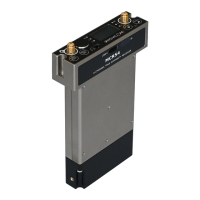
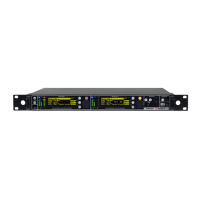
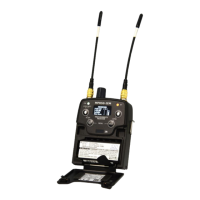
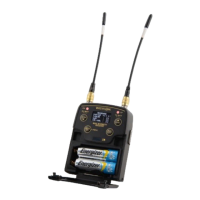
What to do if WisyCom MCR42 Receiver displays 'PLL unlocked'?
- SStephanie McdonaldSep 10, 2025
If your WisyCom Receiver displays 'PLL unlocked', it indicates an error during frequency tuning. In this case send to repair at Wisycom Repair Centre.
What to do if WisyCom MCR42 Receiver displays 'PLL unlocked'?
If your WisyCom Receiver displays 'PLL unlocked', it indicates an error during frequency tuning. In this case send to repair at Wisycom Repair Centre.
What to do if WisyCom Receiver shows 'TX of RX2 Battery Low'?
If your WisyCom Receiver displays 'TX of RX2 Battery Low', this indicates low battery level on TX2. You should change the batteries. Alternatively, recharge the batteries.
What to do if WisyCom Receiver shows 'Rear panel error'?
If the WisyCom Receiver shows a rear panel error, it means the receiver isn’t recognizing the rear panel. Try reconnecting the rear panel.
What to do if WisyCom MCR42 Receiver shows 'Low voltage level'?
If the WisyCom Receiver indicates a low voltage level, replace the battery or power supply.
What to do if WisyCom Receiver shows 'Param mem header'?
If the WisyCom Receiver displays 'Param mem header', it means that during the initialization phase, the CRC-16 check of device data detects an error. Check in the info menu if the Serial take on the ‘UNCAL’ value. In this case, send the receiver to the Wisycom Repair Centre for recalibration.
Why does my WisyCom Receiver show 'PLL unlocked'?
If your WisyCom Receiver shows 'PLL unlocked', it indicates an error during frequency tuning. The suggested solution is to send it to the Wisycom Repair Centre.
What does 'CH mem header' mean on WisyCom MCR42 Receiver?
If your WisyCom Receiver displays 'CH mem header', this indicates that during the MTK952 initialization phase, the CRC-16 check of RF data (copy1 and copy2) detected an error. The suggested solution is to send it to the Wisycom Repair Centre.
How to fix low voltage level on WisyCom MCR42 Receiver?
If you are experiencing a low voltage level with your WisyCom Receiver, the suggested solution is to replace the battery or power supply.
What to do if WisyCom Receiver displays 'CH mem header'?
If the WisyCom Receiver displays 'CH mem header', it means that during the MTK952 initialization phase, the CRC-16 check of RF data detects an error. In this case send to repair at Wisycom Repair Centre.
What to do if WisyCom MCR42 Receiver shows rear panel error?
If your WisyCom Receiver displays a rear panel error, it means the receiver isn’t recognizing the rear panel. Try to reconnect the rear panel to solve the problem.
High performance receiver for broadcast, 230 MHz bandwidth, digital audio output.
Miniature design, dual true diversity, digital audio block, flexible operation.
Patented PTT function for remote switching and intercom setup.
Instructions for safe operation, handling, and maintenance of the apparatus.
Warnings regarding headphone output levels and battery usage.
Extreme RF performance, frequency agility, digital AES3 output, multi-companding.
High immunity, wide bandwidth, audio performance, reliability, and durability.
Schematic and functional overview of receiver blocks and signal paths.
Description of the DSP filtering, A/D conversion, and audio processing.
Description of front panel components like SMA connectors, RGB LEDs, and ON LED.
Overview of front panel buttons (MENU/SEL, PWR/EXIT, SCAN, SYNC) and the OLED display.
Detailed explanation of ON, RF, and AUDIO/AF LED status meanings.
Specific functions of MENU/SEL, PWR/EXIT, SYNC, and SCAN buttons during navigation.
How to navigate menus using SEL/Exit and arrow buttons, and saving parameters.
Visual representation of the main menu hierarchy including Infrared, Preset, and Advanced.
Instructions on how to select the 'Advanced' menu.
Overview of advanced settings like Power On, Edit RX1/RX2, and LINE mode.
Description of the main status screen displaying receiver information and levels.
How to access and use the circular menu for parameter viewing.
Details on 'By name' and 'By Ch/Gr' screens in the quick menu.
Explanation of RF bars, squelch levels, and audio level indications.
Configuration options for infrared connection and preset management.
Information displayed in the 'Info' menu, including model, serial, and version.
List of advanced settings like Version, FW, App, DSP, HW rev, and Errors.
Configuring receiver power-on state and editing receiver names.
Setting up group, channel, and modifying frequencies.
Disabling or setting the RF squelch level.
Selection of different expander types (ENR-Wisy, ENC-Wisy, ENR/ENC-1.2).
Options for Tone Squelch ON, OFF, and ADVANCED modes.
Adjusting maximum audio output levels for LINE, MIC, AES3, and COM.
Changing signal phase and using the automatic scan function.
Enabling calibration tone and selecting output mode (Analog/AES3).
Adjusting headphone volume, L/R balance, and mixing RX1/RX2 signals.
Selecting signal source for headphones (LINE or TSQ>LINE).
Configuring Quick Menu display options and LED modes.
Steps for synchronizing the receiver with other devices.
How errors are displayed, listed, and their associated codes.
Solutions for warning conditions like low voltage or battery.
Solutions for alarm conditions such as invalid device ID or PLL unlocked.
Details on slot-in kits for cameras and top feed connection options.
Description of connections for BPA42-PTT and BPA42-HPN sockets.
Detailed pinouts and specifications for the BPA42-PTT stand-alone socket.
Detailed pinouts and specifications for the BPA42-HPN stand-alone socket.
Details on the BPA42BAG socket, including cable pinouts and options.
Listing of slot-in kits and their compatibility with different cameras.
Descriptions of audio, power, and data cables for the system.
Contents of the BPA42-K kit and available antenna models.
UPK300E/UPK Mini programming kit and BCA42 battery supply module.
Back panels, belt clips, carrying cases, and camera shoe mounts.
Cable connections for stand-alone mounting with AES3 output.
Cable connections for stand-alone mounting with analog audio output.
Connecting the receiver for slot-in mounting with analog audio input.
Connecting the receiver for slot-in mounting with digital AES3 audio input.
Overview of functions available with the MCR4x Manager software.
Step-by-step instructions for connecting the receiver via IRDA interface.
How to change names for receivers and presets using the manager software.
Procedure for modifying group names and descriptions.
How to assign custom names and expander types to channels.
Operations for reading, modifying, and saving channel configurations.
Procedures for reading/saving channel data to/from files.
Steps to select the firmware file and start the update process.
Confirming the update and the process of writing the new firmware.
Entering bootloader mode and monitoring the flash memory writing process.
Verifying new firmware version and restarting the device.
Details on frequency ranges, switching windows, and channel configurations.
Specifications for modulation, sensitivity, selectivity, and noise reduction.
AF bandwidth, distortion, SNR ratios, and LED indicator functions.
Power supply requirements, device dimensions, and weight.
Compliance with FCC rules regarding interference.
Information for Italian users on product disposal and recycling.
Declaration of compliance with European EMC directives and standards.