Chapter 4 BIOSSettings 9
Chapter 4 – BIOS Settings
YourXi3ModularComputer(ModelX7A)includesaBIOS(BasicInput/OutputSystem)facilitywhichisalow-levelsoftware
thatisconstantlyrunningwhileyoursystemison.TheBIOShasseveralfunctions,butperhapsmostimportantlyitchecksthe
hardwaretomakesureeverythingisworkingproperly,thenproceedstoloadtheOperatingSystem.MostX7Aownersshould
notneedtointeractwiththeBIOS,butithassomesettingsthatmaybeimportanttoyoudependingonhowyouuseyour
computer.
Accessing the BIOS Settings
ToaccesstheBIOSsettingsmenu,dothefollowing:
• Turnonorrestartyourcomputer.
• PresstheDEL(Delete)keyrepeatedlybeforetheOperatingSystembeginsloading.
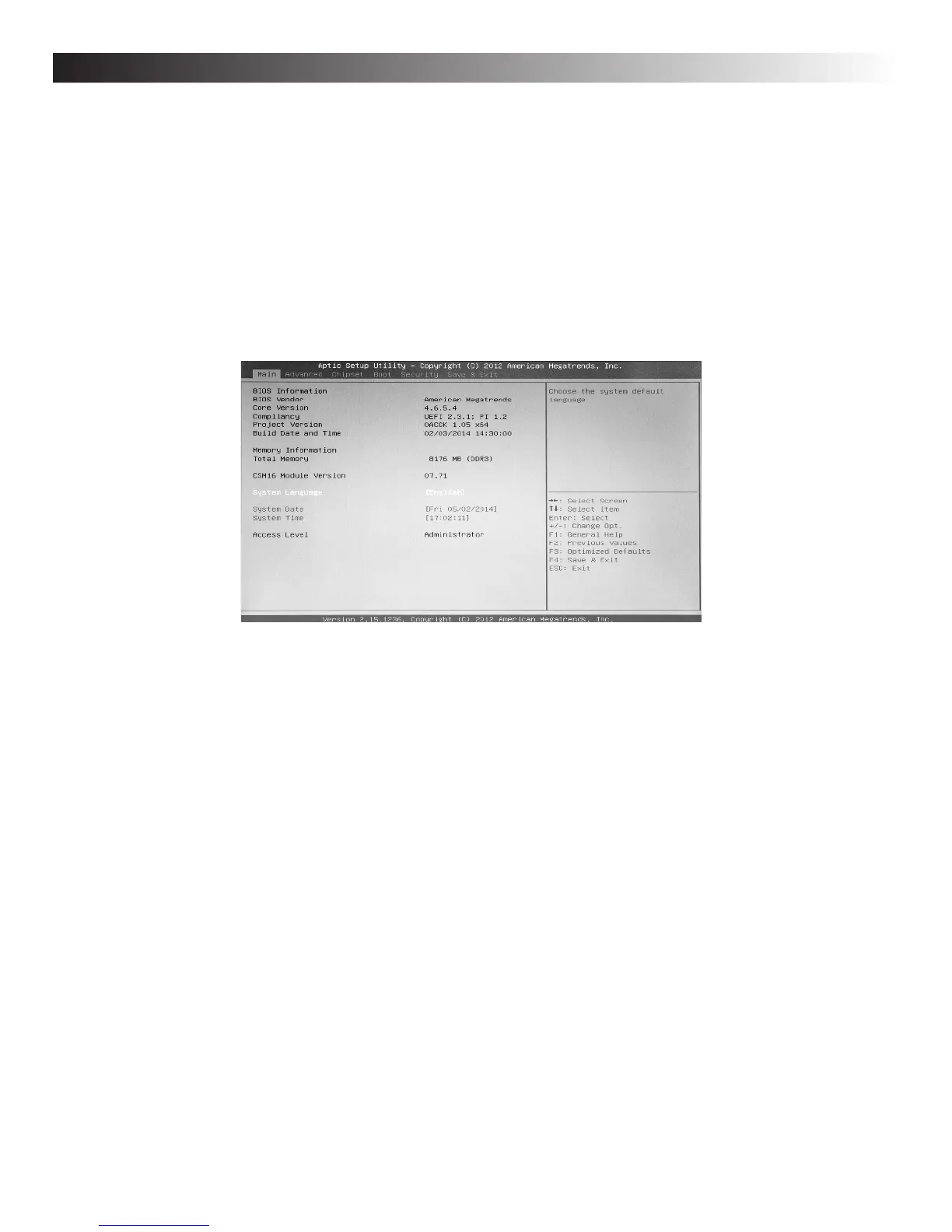
Shortly,youshouldseetheMainBIOSSetupscreen,whichlookslikethis:
Navigating the BIOS Menu
Youcanusetheleft/rightarrowkeysonyourkeyboardtonavigatebetweenscreens,andtheup/downkeystonavigatebe-
tweenindividualsettingsitems.Aseachitemisselected,somehelpandexplanationoftheitemisdisplayedintheright-hand
paneofthescreen.
Changing the Boot Device Priority
IfyourcomputerisnotloadingitsOperatingSystemproperly,orifyouhaveattachedanewdevice(e.g.aremovableDVD-
ROMorUSBdrive)andwanttobootfromthatdeviceinstead,youmayneedtochangeyourbootdevicesettingstogetthe
desiredresult.
• Navigatetothe“Boot”menuscreenusingyourleft/rightarrowkeys
• OntheBootscreenyouwillseethecurrentpriorityorderedlistofdevicesthatthesystemwillattempttoloaditsOperat-
ingSystemfrom:
•(Ifapplicable)Pluginyourbootdevicewithpoweroff,thenaccessBIOSthenexttimeyour“PowerOn”your
computer.
•YourprimaryinternalSSDwillappearinthelistsomethinglikethis:“(xx)GB SATA III 6G mSATA w/E”.
•AndaUSBdrive(thumbdrive)maylooklikethis:“USB KEY”or“USB HDD”.
•AndaNetworkBootDevice(i.e.“PXEBoot”)willlooklikethis:“[Qualcomm Atheros Boot]”.
• Youcanchangethepriorityorderofdevicesbyusingtheup/downarrowkeystohighlightadeviceandthenselectingthe
appropriateBootdevice.


 To Next Page