Chapter 4 BIOSSettings 10
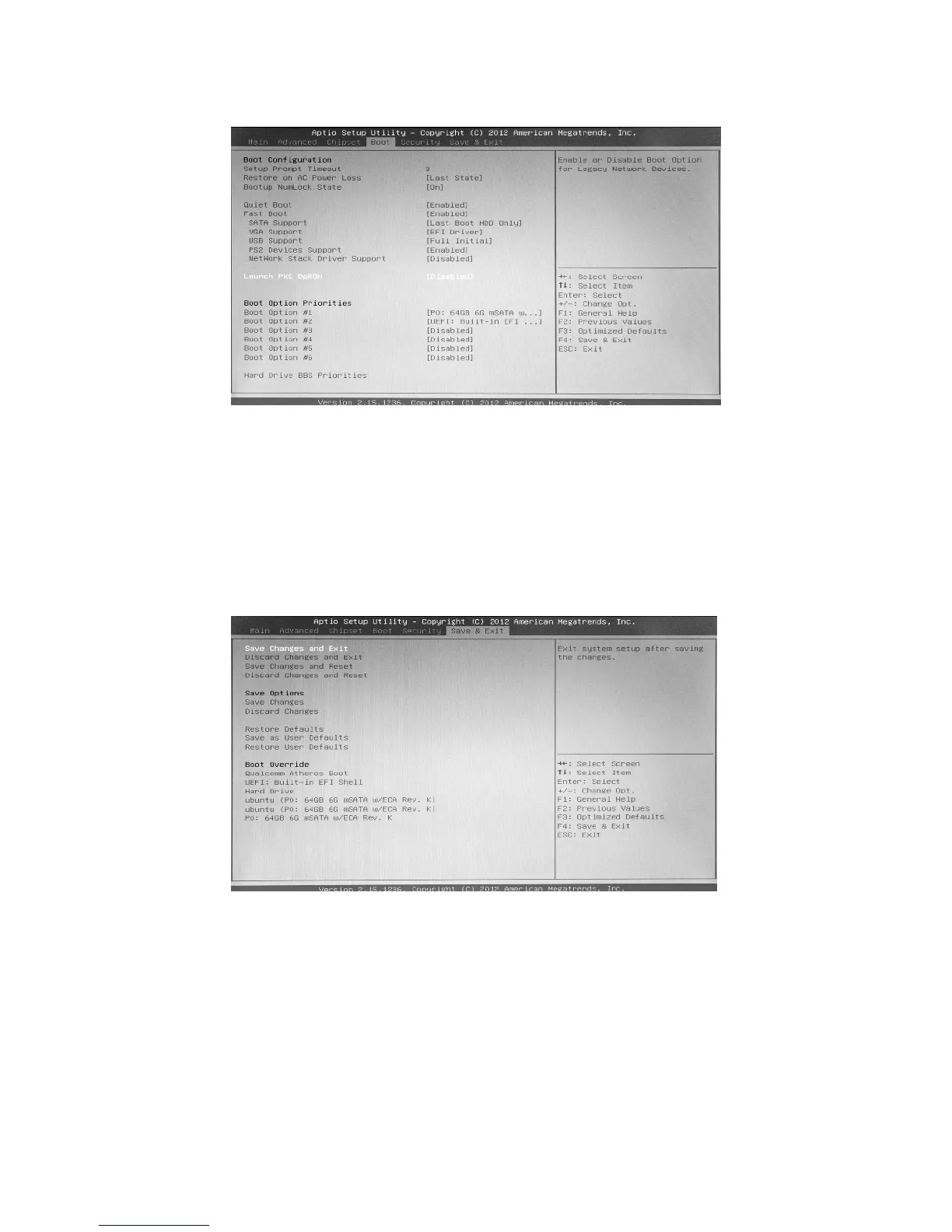
Note:Tobootfromanexternaldevice,select“HardDriveBBSPriorities”listingandmovethedevicetoBootOption#1inthat
listthenpressEscapetogobacktotheBootMenu.AlsomovedevicetoBootOption#1underBootOptionPrioritiesthen
saveandexit.(Donotselectthe“UEFI:”versionofdevice).
TIP: Ifyouwanttojustmakeaone-timechangetoselectadifferentbootdevice,youcanalsodothisusingthe“booton
thefly”methodandavoidgettingintotheBIOSSetupmenu.Specifically,insteadofpressingtheDEL(Delete)keyasabove,
presstheF7keyinstead.Abootdevicemenuwillappear.Justselectthebootdeviceyouwantfromthelist.
Saving Your Settings and Exiting the BIOS Setup Utility
WhenyouaresatisfiedwithyournewBIOSsettingsandreadytotestthem,simplytogglethroughtheon-screenmenutothe
“Save&Exit”Tab,thenhighlight“SaveChangesandExit”,pressEnterandselect“Yes”onthescreen.Followingthesesteps
willsaveallofyourBIOSchangesandre-bootyourX7AModularComputernormally.


 To Next Page