Chapter 1 Gettingstarted 2
Step Two (Connect Your Mouse and Keyboard)
ConnectyourkeyboardcabletoanyUSBportonthebackofyour
X7AModularComputer.Next,connectyourComputerMousecable
toadifferentUSBportonyourX7AModularComputer.{NOTE: If your
keyboard and mouse share a combo USB cable, connect this to any USB
port. Additionally, you can also use a wireless keyboard and/or mouse with
the X7A Modular Computer; if you choose to do so, insert the wireless
USB keyboard and/or mouse module(s) into any USB port(s) on the back
of the X7A Modular Computer.}
Step Three (Connect Your External Hard Drive)
Ifyouwillnotbeusinganexternalharddrive,skipthisstep.If,however,
youwillbeusinganexternalharddrive,connectthisdeviceintothe
appropriateportonthebackofyourX7AModularComputer:USBor
eSATAp.{NOTE: When we refer to external hard drives in this Step,
we are NOT referring to USB sticks or thumb drives. This is especially
noteworthy as a USB thumb drive cannot be used to launch a Windows
Operating System. Additionally, although it is possible to launch
openSUSE and other Linux Operating Systems with a USB thumb drive,
we strongly recommend against doing so as this will seriously degrade
the performance of the Operating System. Additionally, if you are using an
eSATA hard drive and it is not powered via a separate power cord, you will
need to connect the eSATA hard drive to your X7A Modular Computer with
an eSATAp cable, which provides power to your drive.}
Step Four (Connect to the Network)
IfyouintendtosurftheWorldWideWeboruseemail,youwillneedanetworkconnection.FormanyX7AModularComputer
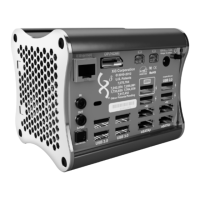
owners,thiswillinvolveplugginganEthernetcableintotheEthernetPortonthebackofyourcomputer.(Seephotoon
Page1forlocationoftheEthernetPort.)If,however,youwanttoconnecttoanetworkwirelessly,youwillneedawireless
connectionforyourX7AModularComputer,suchasawirelessnetworkadaptor,whichcanbepluggedintooneofthe
unusedUSBPortsonthebackofyourcomputer.
Step Five (Connect the Power Cord and Power Adaptor)
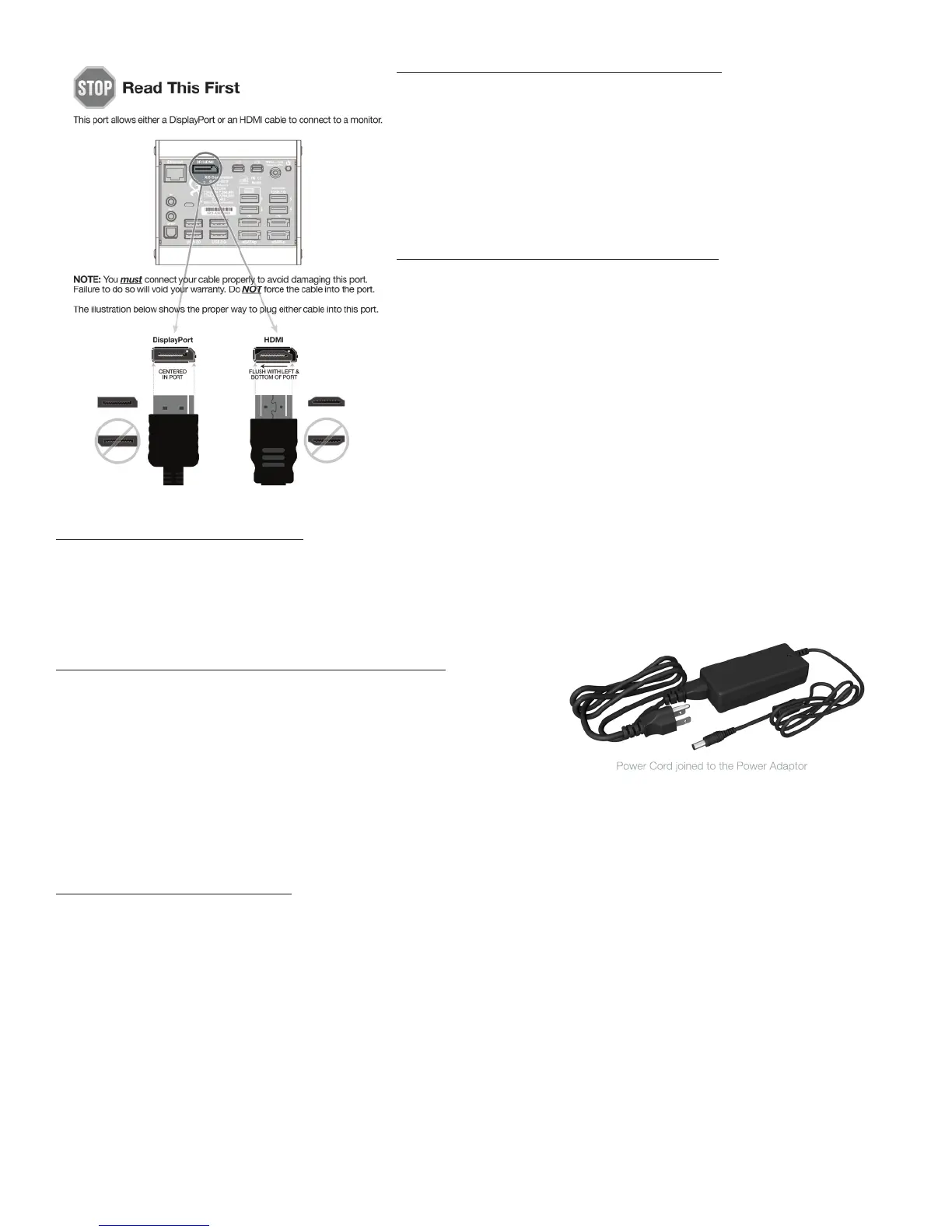
FirstjointhePowerCordtothePowerAdaptorasshownintheillustration
totheright.NextconnectthesmallroundendofthePowerCordtothe
PowerCordport(labeled19Vdc)foundonbackoftheX7AModular
Computer.Theninsertthethree-prongACplugdirectlyintoanelectrical
walloutlet(orasurgeprotector/powerstrip).WhenyourPowerCord/
PowerAdaptorareproperlyconnectedtoyourX7AModularComputer
andissimilarlypluggedintoanelectricaloutletorviasurgeprotector/powerstrip,agreenindicatorlightonthePower
Adaptorwillbegintoglow,signifyingthatitisreceivingpower.Similarly,anorangeLEDindicatorlightinsidetheX7AModular
Computerwilllightupwhenthecomputeritselfisreceivingpower.{NOTE: If either indicator light does not come on, make
sure all power cord connections are connected properly.}
Step Six (Turn Your Computer On)
Asshownintheillustrationonpage1ofthisUserManual,thePowerButtonisfoundintheupperright-handcornerofthe
backoftheX7AModularComputer.BrieflydepressthisPowerButtontoturnonyourX7AModularComputer.{NOTE: You
should also turn on your computer monitor/display at this time.}
Your Operating System
ThestandardOperatingSystemfortheXi3ModularComputer(ModelX7A)isopenSUSELinux.However,baseduponyour
preferences,youmayhavepurchasedyourcomputerwithadifferentOperatingSystempre-installed,suchasWindows
®
or
evenanInternet-basedoperatingsystem.{NOTE: The X7A Modular Computer will work with any 32- or 64-bit Operating
System designed for x86-based computers, such as variants of UNIX
®
, AIX
®
, other Linux Operating Systems, and even Web-
or Cloud-based Operating Systems.}


 To Next Page