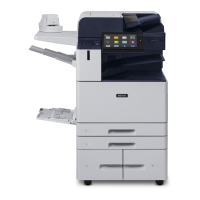
1. At the printer control panel, press the Home button.
2. Touch Jobs, then from the list, touch the secure fax job required.
3. Touch Print, then enter the passcode.
4. Touch Release All Fax Jobs.
All secure faxes print.
5. To return to the Home screen, press the Home button.
DDeelleettiinngg aa SSeeccuurree FFaaxx
To delete a secure fax:
1. At the printer control panel, press the Home button.
2. Touch Jobs, then from the list, touch the secure fax job required.
3. Touch Delete, then enter the passcode.
4. Touch OK.
5. To return to the Home screen, press the Home button.
PPoolllliinngg aa RReemmoottee FFaaxx MMaacchhiinnee
Fax Polling allows you to store a fax document on the printer and make it available for other fax
machines to poll. You can also retrieve faxes stored on other fax machines. To use this feature, both
the polling printer and the remote printer must have the Fax Polling feature.
Storing a Fax for Polling
You can store faxes for polling as Non-Secure or Secure. When you select Secure Storage, you create a
list of remote device fax numbers that are allowed to access secure faxes.
Storing a Fax for Non-Secure Polling
1. Load your original documents.
2. At the printer control panel, press the Home button, then touch Fax.
3. If the entry screen is displayed, touch Polling, or touch Add Recipient, then touch Polling.
4. Touch Store Polling Files.
5. Touch Non-Secure Storage, then touch OK. To confirm, touch Update Setting.
6. Touch Send. The original documents are scanned and stored for non-secure polling.
Storing a Fax for Secure Polling
1. Load your original documents.
2. At the printer control panel, press the Home button, then touch Fax.
3. If the entry screen is displayed, touch Polling, or touch Add Recipient, then touch Polling.
4. Touch Store Polling Files.
5. Touch Secure Storage.
148
Xerox
®
AltaLink
®
C81XX Series Color Multifunction Printer
User Guide
Xerox® Apps


 To Next Page
 Loading...