EasyManua.ls Logo

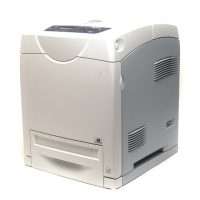
Xerox DocuPrint 3055 - User Manual

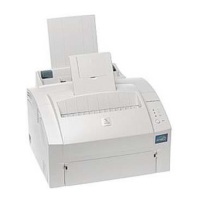
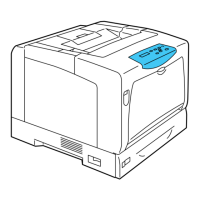
Xerox DocuPrint 3055
240 pages
Print Icon
To Next Page IconTo Next Page
Loading...
DocuPrint 3055/2065
User Guide

Table of Contents

Other manuals for Xerox DocuPrint 3055

Questions and Answers

  • Z
    Zachary JordanSep 8, 2025
    What to do if Xerox DocuPrint 3055 Printer display is blank?
    • B
      Brittney BlackSep 8, 2025
      If the display on your Xerox printer is blank: * The printer may be in Power Saver mode. Press the button on the control panel to exit this mode. * Check if the power cord is firmly plugged into the power outlet, and reboot the printer. * If the problem still persists, the printer may be at fault. Contact our Customer Support Center or your dealers.
  • C
    Cynthia BrownSep 7, 2025
    How to fix Xerox DocuPrint 3055 Printer when printing takes too much time?
    • M
      Megan JamesSep 7, 2025
      If printing with your Xerox printer is taking too long, consider these solutions: * If the [Graphics] tab > [Print Mode] on your print driver is set to [High Quality], changing it to [Standard] may improve print speed. * Change the printing method for TrueType fonts under the [Detailed Settings] tab > [Font Settings] on your print driver. * For large data or slow printing, enabling [Print Page Mode] on your print driver may help. To use [Print Page Mode], install additional memory to the printer.
  • J
    janice20Aug 22, 2025
    How to fix paper jams inside Xerox DocuPrint 3055 Printer?
    • K
      kgarciaAug 22, 2025
      To address paper jams inside your Xerox Printer, adhere to the guidance displayed in the error message to access the relevant cover and pinpoint the precise location of the jam. Clear any paper present in the bypass tray, ensuring to properly close the bypass tray cover. Extract the obstructed paper by following the designated procedure for each specific jammed area.
  • J
    Joshua SandersSep 4, 2025
    How to resolve streaks appear inside or outside of halftone images on Xerox DocuPrint 3055 Printer?
    • J
      Joshua BradySep 4, 2025
      If streaks appear inside or outside of halftone images, or if a shadow is printed around solid-filled images from your Xerox printer: * The paper that had been stored unwrapped for an extended period of time (especially in low humidity condition) may be used. Load fresh paper. * The paper might not be appropriate for the printer. Load appropriate paper.
  • M
    martinezjenniferSep 3, 2025
    What to do if Xerox DocuPrint 3055 does not feed paper from the bypass tray?
    • S
      Scott SilvaSep 3, 2025
      If your Xerox printer is not feeding paper from the bypass tray, it might be because the [Paper/Output] tab > [Paper Source] is set to [Auto]. The bypass tray cannot be auto-selected by the printer.
  • E
    Emily ZamoraSep 1, 2025
    What to do if Xerox DocuPrint 3055 Printer prints 1-sided when 2-sided printing is requested?
    • B
      Brad MerrittSep 1, 2025
      If your Xerox printer prints only on one side when you've requested 2-sided printing, the duplex unit (optional) may not be installed properly. Check if the duplex unit is plugged correctly into the connector on the printer.
  • D
    Dr. Jose KerrAug 31, 2025
    How to resolve equally spaced smears appear on Xerox Printer output?
    • J
      Joseph KellyAug 31, 2025
      If you notice equally spaced smears on your Xerox printer's output, consider these solutions: * The paper path may not be clean. Print a couple of sheets to remove dirt from the paper path. * The interior of the printer may not be clean. Clean the interior of the printer. * The print cartridge or fuser unit may be damaged or deteriorated and might need replacement.
  • L
    lisa66Aug 30, 2025
    What to do if there is a risk of injury or burns when removing jammed paper in Xerox DocuPrint 3055?
    • T
      Tyler BallAug 30, 2025
      To prevent injury or burns when removing jammed paper from your Xerox Printer, avoid reaching deep inside the machine to remove paper or paper pieces. Also, do not attempt to remove paper wrapped around the heat roller. Immediately turn off the printer and contact your local Xerox representative for assistance.
  • T
    Thomas SalazarAug 28, 2025
    What to do if Xerox DocuPrint 3055 output is partially blanked-out?
    • A
      Amanda AdamsAug 29, 2025
      If your Xerox printer's output is partially blanked-out or vertical white streaks appear, consider these potential causes: * The paper might not be appropriate for the printer. Load appropriate paper. * The paper might be damp. Load fresh paper. * The print cartridge or feed rolls might not be installed correctly. Correctly install these components. * The printer's interior may not be clean. Clean the interior of the printer. * Dew condensation may have formed in the printer. On the control panel, set the interval that the printer switches to the Sleep mode to more than 60 minutes, and let the printer stand with its power on.
  • R
    reginadavisAug 27, 2025
    What to do if Xerox DocuPrint 3055 Printer output is blank?
    • M
      Mary LopezAug 27, 2025
      If your Xerox printer's output is blank, consider the following: * Multiple sheets might have been fed at once. Fan the paper and reload it in the tray. * The print cartridge might be damaged or deteriorated and may need replacement. * The high-voltage power supply may be at fault. Contact our Customer Support Center or your dealers.

Summary

DocuPrint 3055;2065 Features

Security Features

Details on Communication Encryption, Control Panel Lock, Print User Control, and Data Reception Control.

Safety Notes

Electrical Safety

Provides essential safety instructions for electrical connections and usage of the printer.

General Safety Icons

Explains various safety symbols and their meanings for safe operation.

1 Printer Environment Settings

1.1 Supported Operating Environments

Details on local and network connection methods for the printer.

1.2 Connecting a Cable

Instructions for connecting the printer via parallel, USB, or network cables.

1.3 Setting the Network Environment

Guide to configuring TCP/IP settings, including IP address, subnet mask, and gateway.

1.5 Configuring the Printer Using CentreWare Internet Services

Information on accessing and using the printer's web-based management interface.

1.6 Installing a Print Driver

Steps for installing and uninstalling printer drivers and related software.

2 Basic Operation

2.1 Main Components and Functions

Overview of the printer's main unit, covers, trays, and connectors.

Control Panel

Detailed description of the printer's control panel buttons, lamps, and LCD display.

2.2 Switching On;Off the Power

Procedure for safely powering the printer on and off.

2.5 Cancelling;Checking a Print Job

Steps to cancel print jobs from the computer or control panel and check their status.

3 Print

3.1 Printing from a Computer

Basic procedure for sending print jobs from Windows applications.

3.2 Printing on Envelopes

Instructions for loading and printing on various types of envelopes.

3.3 Printing on Transparencies

Guide for loading and printing documents on transparencies.

4 Paper

5 Control Panel Menus

5.2 Setting the Common Menus

Detailed settings for Print Language, Report/List, Meter Reading, and Admin Menu options.

6 Troubleshooting

6.1 Clearing Paper Jams

Step-by-step guide to removing paper jams from all printer areas.

6.6 Error Messages and Error Codes

List of error messages and codes with their corresponding causes and remedies.

7 Maintenance

A Appendix

Xerox DocuPrint 3055 Specifications

General IconGeneral
BrandXerox
ModelDocuPrint 3055
CategoryPrinter
LanguageEnglish

Related product manuals