EasyManua.ls Logo

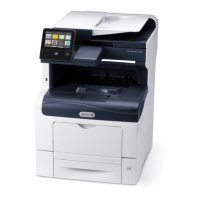
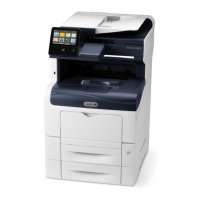
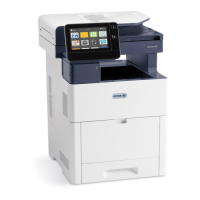
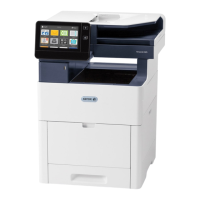
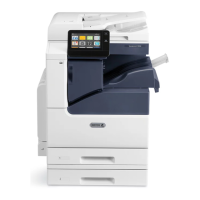
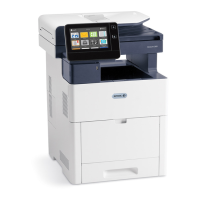
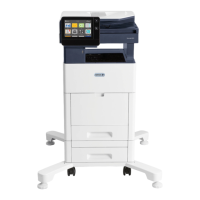
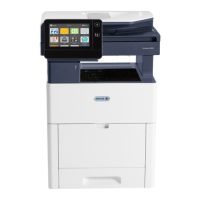
Xerox VersaLink C405 - User Manual

Xerox VersaLink C405
272 pages
Print Icon
To Next Page IconTo Next Page
Loading...
Version 1.4
October 2019
702P05813
Xerox
®
VersaLink
®
C405 Color
Multifunction Printer
User Guide

Table of Contents

Other manuals for Xerox VersaLink C405

Questions and Answers

  • J
    jason13Jul 27, 2025
    What to do if my Xerox All in One Printer does not power on?
    • D
      Debra CollinsJul 27, 2025
      If your Xerox All in One Printer doesn't power on, there are several things you can check: 1. Ensure the power switch is turned on by pressing the Power/Wake button on the printer's control panel. 2. Verify the power cord is securely plugged into the outlet. If not, power off the printer and plug the cord in securely. 3. Try performing a full reset: power off the printer, unplug the power cord, wait 30 seconds, plug it back in securely, and then press the Power/Wake button. 4. Check the outlet by plugging in another electrical appliance to see if it works. You could also try a different outlet. 5. Confirm that the power source matches the printer's specifications, as detailed in the Electrical Specifications.
  • D
    Dawn ShepherdAug 1, 2025
    Why Xerox VersaLink C405 All in One Printer does not turn on?
    • G
      Gwendolyn MillerAug 2, 2025
      Your Xerox All in One Printer may not turn on due to several reasons: * The power switch might not be turned on. Make sure to press the Power/Wake button on the printer's control panel. * The power cord might not be correctly plugged into the outlet. Ensure it is securely plugged in. * The printer might require a full reset. Power it off, unplug the power cord for 30 seconds, plug it back in, and then press the Power/Wake button. * The outlet connected to the printer may have an issue. Test the outlet with another appliance or try a different outlet. * The printer might be connected to an outlet with incorrect voltage or frequency. Check the Electrical Specifications for the correct power source requirements.
  • A
    allenkristyAug 9, 2025
    How to fix Xerox VersaLink C405 All in One Printer that won't power on?
    • E
      Elizabeth TorresAug 9, 2025
      To fix a Xerox All in One Printer that won't power on: * First, ensure the power switch is on by pressing the Power/Wake button on the printer's control panel. * Next, check that the power cord is securely plugged into the outlet. If it isn't, power off the printer and plug it in properly. * If that doesn't work, try a full reset: power off the printer, unplug the power cord for 30 seconds, plug it back in securely, and press the Power/Wake button. * Also, test the outlet by plugging in another device or trying a different outlet. * Finally, verify that the power source matches the printer's electrical specifications.
  • A
    Adrian KingAug 14, 2025
    How to troubleshoot Xerox VersaLink C405 All in One Printer when it doesn't power on?
    • M
      Miranda HicksAug 14, 2025
      To troubleshoot a Xerox All in One Printer that doesn't power on, start by checking these items: 1. Ensure the power switch is activated by pressing the Power/Wake button on the printer control panel. 2. Confirm the power cord is securely connected to the outlet. If not, power off the printer before securing the connection. 3. Attempt a full reset by powering off the printer, unplugging the power cord for 30 seconds, plugging it back in, and then pressing the Power/Wake button. 4. Test the power outlet with another device or try using a different outlet. 5. Verify that the power source voltage and frequency match the printer's electrical specifications.
  • T
    Theodore RogersAug 20, 2025
    What causes Xerox VersaLink C405 not to power on?
    • M
      micheleliAug 20, 2025
      A Xerox All in One Printer may fail to power on due to: * The power switch not being turned on. Press the Power/Wake button on the printer's control panel. * The power cord not being properly connected to the outlet. Ensure it is securely plugged in. * The need for a full reset. Power off the printer, unplug the power cord for 30 seconds, plug it back in, and then press the Power/Wake button. * A faulty outlet. Test the outlet with another device or try a different outlet. * Incompatible voltage or frequency from the power source. Check the Electrical Specifications for the correct requirements.

Summary

Safety

Electrical Safety

Guidelines for safe use of electrical components and power connections.

Operational Safety

Safe operating procedures, handling of hot parts, and printer placement.

Getting Started

Control Panel

Overview of the touch screen display, buttons, and status indicators.

Power Options

How to power on, restart, sleep, or power off the printer.

The Embedded Web Server

Accessing and using the printer's web interface for administration.

Installation and Setup

Steps for initial printer setup, location selection, and connection methods.

Connecting the Printer

Details on connecting via USB, wired network, or wireless network.

Xerox Apps

Copy

Making copies, adjusting color balance, saturation, and page layout.

Scan To

Methods for scanning documents to email, USB, network folders, or desktop.

Printing

Paper and Media

Maintenance

Troubleshooting

General Troubleshooting

Solutions for common issues like printer not powering on or frequent resets.

Paper Jams

Locating and minimizing paper jams in various printer areas.

Print-Quality Problems

Identifying and resolving issues like faded printouts and inconsistent margins.

Copy and Scan Problems

Troubleshooting poor copy or scan quality, including lines, spots, and color issues.

Fax Problems

Solutions for issues related to sending and receiving faxes correctly.

Apps Features

Xerox VersaLink C405 Specifications

General IconGeneral
Print TechnologyLaser
FunctionsPrint, Copy, Scan, Fax
Scan ResolutionUp to 600 x 600 dpi
Copy ResolutionUp to 600 x 600 dpi
Fax Speed33.6 Kbps
Maximum Paper Capacity1, 250 sheets
Paper Output250 sheets
Automatic Document Feeder50 sheets
Duplex PrintingAutomatic
Display5-inch color touchscreen
Memory2 GB
Print SpeedUp to 36 ppm
Print ResolutionUp to 600 x 600 dpi
Media SizesA4, A5, A6, B5, Legal, Letter, Executive, Folio
ConnectivityUSB, Ethernet, Wi-Fi
Mobile PrintingApple AirPrint, Google Cloud Print, Mopria
Weight23.1 kg
Processor1.05 GHz Dual-core

Related product manuals