EasyManua.ls Logo

Xerox VersaLink C600 - User Manual

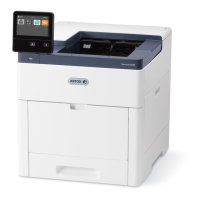
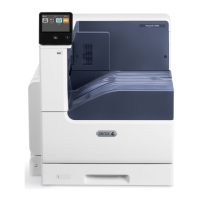
Xerox VersaLink C600
203 pages
Print Icon
To Next Page IconTo Next Page
Loading...
VERSION 4.0
M
ARCH 2019
702P05432
Xerox
®
VersaLink
®
C600 Color Printer
User Guide

Other manuals for Xerox VersaLink C600

Questions and Answers

  • J
    John PattersonAug 17, 2025
    What to do if my Xerox Printer does not power on?
    • J
      Justin Bates DVMAug 17, 2025
      If your Xerox printer isn't powering on, first ensure the power switch is turned on by pressing the Power/Wake button on the printer's control panel. Check that the power cord is securely plugged into both the printer and the outlet. Try performing a full reset by powering off the printer, unplugging the power cord for 30 seconds, and then plugging it back in before powering on. Verify the outlet is functioning correctly by plugging in another electrical appliance or trying a different outlet. Finally, ensure the printer is connected to a power source that matches the electrical specifications listed in the Electrical Specifications.
  • K
    Katelyn MaynardAug 19, 2025
    What causes Xerox VersaLink C600 Printer jams?
    • D
      David StantonAug 19, 2025
      Xerox Printer jams can be caused by using paper of the wrong size, thickness, or type, so ensure you are using the correct paper. Another cause is loading paper in the wrong tray, so make sure paper is loaded into the correct tray. Also, the tray may be loaded with mixed paper, so load the tray with only one type and size of paper.
  • T
    tleAug 22, 2025
    How to troubleshoot Xerox Printer that does not power on?
    • G
      gilmoreseanAug 23, 2025
      To resolve the issue of your Xerox Printer not powering on, first, ensure the power switch is turned on by pressing the Power/Wake button on the control panel. If that doesn't work, verify that the power cord is securely plugged into both the printer and the outlet. If problems persist, try a full reset: power off the printer, unplug the power cord for 30 seconds, then plug it back in and power on. Test the outlet with another appliance and try a different outlet. Finally, ensure the power source matches the printer's electrical specifications.
  • D
    Dustin ReyesAug 25, 2025
    What to do if my Xerox VersaLink C600 does not print?
    • C
      Catherine ReedAug 26, 2025
      If your Xerox Printer is not printing, first check if it’s in Power Saver mode and press the Power/Wake button. If the Status LED is blinking amber, follow the control panel instructions to clear the error. Ensure the printer has paper in the tray and that the correct paper is loaded for the job. Select a paper tray containing the correct paper from the print driver. Finally, check if any toner cartridges are empty and replace them if needed.
  • L
    Laura MyersAug 28, 2025
    Why Xerox VersaLink C600 resets or powers off frequently?
    • S
      Sean LangAug 28, 2025
      If your Xerox printer frequently resets or powers off, ensure the power cord is correctly plugged into both the printer and the outlet. A system error may have occurred, so try turning the printer off and on again. If the problem continues, contact your Xerox representative. If the printer is connected to an uninterruptible power supply, power it off and connect the power cord to a suitable outlet instead.
  • A
    Alisha SmithAug 30, 2025
    How to fix automatic 2-sided printing problems on Xerox VersaLink C600?
    • R
      Richard CrawfordAug 30, 2025
      If you are experiencing automatic 2-sided printing problems with your Xerox Printer, ensure that you are using a supported paper size and weight. Envelopes, cardstock, and labels are not suitable for 2-sided printing. Also, confirm that your printer model supports automatic 2-sided printing and that the 2-Sided Print option is selected in the print driver's Printing Options tab.
  • J
    jessica15Sep 2, 2025
    Why is my Xerox VersaLink C600 Printer making unusual noises?
    • P
      Patrick JonesSep 2, 2025
      If your Xerox printer is making unusual noises, it could be due to an obstruction or debris inside the printer. Power off the printer and attempt to remove any visible obstructions or debris. If you cannot remove the obstruction, contact your Xerox representative.
  • H
    hensonmarcusSep 5, 2025
    What to do if condensation has formed inside Xerox VersaLink C600 Printer?
    • T
      Thomas WestSep 5, 2025
      If condensation has formed inside your Xerox printer, it might be because the printer has been sitting in a cold room. Allow the printer to operate for several hours at room temperature. Alternatively, the relative humidity of the room may be too high. Reduce the humidity in the room or move the printer to a location where the temperature and relative humidity are within the operating specifications.
  • C
    Cassandra RomeroSep 7, 2025
    How to fix Xerox VersaLink C600 pulling multiple sheets together?
    • M
      Marc MedinaSep 8, 2025
      If your Xerox printer is pulling multiple sheets together, it could be because the paper tray is too full; remove some of the paper, ensuring not to load above the maximum fill line. Uneven paper edges can also cause this issue, so remove the paper, align the edges, and reload it. If the paper is moist from humidity, remove it and load new, dry paper. Too much static electricity can also be a factor, so try loading a new ream of paper. Finally, ensure you are using Xerox-approved paper.
  • L
    Lauren McgrathSep 12, 2025
    What to do if the paper tray will not close on my Xerox VersaLink C600 Printer?
    • M
      Mia GeorgeSep 12, 2025
      If the paper tray on your Xerox printer will not close, it could be because the tray is extended for legal-size paper, causing it to protrude. Also, check for any debris or objects blocking the tray, or if the tray is blocked by the table or shelf it's on. If the paper lift plate at the back of the tray is not locked down, replace the tray.

Summary

Safety

Electrical Safety

Ensures safe operation with electrical components, covering general guidelines and power cord safety.

Operational Safety

Provides guidelines for safe printer operation, including handling, ozone release, and location advice.

Getting Started

Connecting the Printer

Guides on establishing USB, wired network, and wireless network connections for the printer.

Installing the Software

Instructions for installing printer drivers and necessary software on different operating systems.

Xerox Apps

Printing

Selecting Printing Options

Configure print settings like 2-sided printing, page layout, and print quality via the driver.

Paper and Media

Maintenance

General Precautions

Essential safety warnings and precautions to follow before performing printer maintenance.

Troubleshooting

General Troubleshooting

Common printer issues like not powering on or frequent resets, with probable causes and solutions.

Paper Jams

Guidance on locating, minimizing, and clearing paper jams from different areas of the printer.

Print-Quality Problems

Troubleshooting steps for common print quality issues like faded colors or inconsistent margins.

Xerox VersaLink C600 Specifications

General IconGeneral
Package depth634 mm
Package width580 mm
Package height607 mm
Package weight34000 g
Country of originVietnam
Maximum resolution1200 x 2400 DPI
Optional connectivityWireless LAN
Storage temperature (T-T)-20 - 40 °C
Operating temperature (T-T)10 - 32 °C
Sustainability certificatesENERGY STAR
Operating relative humidity (H-H)10 - 85 %
Print speed (black, normal quality, A4/US Letter)53 ppm
Print technologyLaser
Duplex printing modeAuto
Warm-up time (from sleep mode)35 s
Time to first page (black, normal)4.7 s
Time to first page (color, normal)5.1 s
Duplex print speed (black, normal quality, A4/US Letter)50 ppm
Standard interfacesEthernet, USB 3.2 Gen 1 (3.1 Gen 1)
PCL fonts83
Printing colorsBlack, Cyan, Magenta, Yellow
Maximum duty cycle120000 pages per month
Recommended duty cycle0 - 17000 pages per month
Number of PostScript fonts136
Number of print cartridges4
Page description languagesHP-GL, PCL 5e, PCL 6, PDF, PostScript 3, TIFF, XPS
Paper input typePaper tray
Total input capacity700 sheets
Total output capacity500 sheets
Total number of input trays1
Maximum number of input trays2
Multi-Purpose tray input capacity150 sheets
Custom media width76 - 216 mm
Custom media length127 - 356 mm
Duplex media weight60 - 176 g/m²
Paper tray media typesBond paper, Card stock, Envelopes, Labels, Letterhead, Lightweight paper, Plain paper, Pre-Printed, Recycled paper
Paper tray media weight60 - 220 g/m²
Multi-purpose tray media typesBond paper, Envelopes, Labels, Letterhead, Plain paper, Preprinted forms, Recycled paper
Maximum ISO A-series paper sizeA4
Wi-Fi-
Cabling technology10/100/1000Base-T(X)
Security algorithms256-bit AES, SNMPv3, SSL/TLS
Ethernet LAN data rates10, 100, 1000 Mbit/s
Mobile printing technologiesApple AirPrint, Google Cloud Print, Xerox PrintBack
Supported network protocols (IPv4)TCP/IP, HTTP/HTTPS, Internet Printing Protocol, LPR/LPD, Raw Socket Printing/Port 9100, IPv4/IPv6, WSD LDAP, FTP
Supported network protocols (IPv6)IPv6
Internal memory2048 MB
Noise level (idle)33.5 dB
Sound pressure level (printing)57.4 dB
Current rating8 A
AC input voltage220 - 240 V
AC input frequency50 - 60 Hz
Power consumption (standby)85 W
Power consumption (printing)800 W
Power consumption (PowerSave)0.7 W
Cables includedAC
Included cartridge capacity (CMY)6000 pages
Included cartridge capacity (black)10000 pages
Control typeTouch
Product colorBlue, White
Market positioningBusiness
Mac operating systems supportedMac OS X 10.10 Yosemite, Mac OS X 10.11 El Capitan, Mac OS X 10.12 Sierra
Linux operating systems supportedFedora 25, RedHat EL Linux, Y, openSUSE 13.2
Other operating systems supportedHP-UX 11, IBM AIX 7.1
Server operating systems supportedWindows 2000 Advanced Server, Windows 2000 Server, Windows Server 2003, Windows Server 2003 R2, Windows Server 2003 x64, Windows Server 2008, Windows Server 2008 R2, Windows Server 2008 R2 x64, Windows Server 2008 x64, Windows Server 2012, Windows Server 2012 R2, Windows Server 2012 R2 x64, Windows Server 2012 x64, Windows Small Business Server 2003, Windows Small Business Server 2008
Windows operating systems supportedWindows 10, Windows 10 Education, Windows 10 Education x64, Windows 10 Enterprise, Windows 10 Enterprise x64, Windows 10 Home, Windows 10 Home x64, Windows 10 IOT Core, Windows 10 Pro, Windows 10 Pro x64, Windows 7 Enterprise, Windows 7 Enterprise x64, Windows 7 Home Basic, Windows 7 Home Basic x64, Windows 7 Home Premium, Windows 7 Home Premium x64, Windows 7 Professional, Windows 7 Professional x64, Windows 7 Starter, Windows 7 Starter x64, Windows 7 Ultimate, Windows 7 Ultimate x64, Windows 8, Windows 8 Enterprise, Windows 8 Enterprise x64, Windows 8 Pro, Windows 8 Pro x64, Windows 8 x64, Windows 8.1, Windows 8.1 Enterprise, Windows 8.1 Enterprise x64, Windows 8.1 Pro, Windows 8.1 Pro x64, Windows 8.1 x64
Weight and Dimensions IconWeight and Dimensions
Depth465.5 mm
Width427.4 mm
Height443.4 mm

Related product manuals