EasyManua.ls Logo

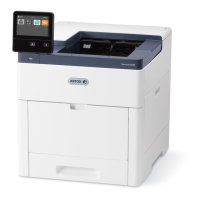
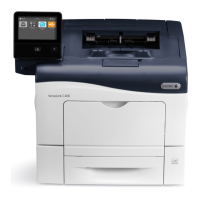
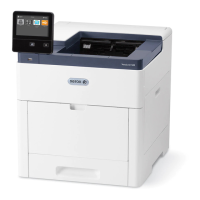
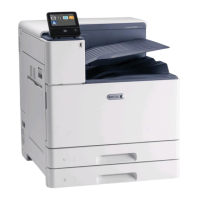
Xerox VersaLink C600N - User Manual

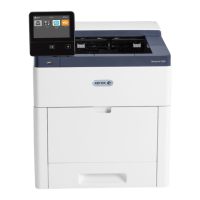
Xerox VersaLink C600N
203 pages
Print Icon
To Next Page IconTo Next Page
Loading...
VERSION 4.0
M
ARCH 2019
702P05432
Xerox
®
VersaLink
®
C600 Color Printer
User Guide

Questions and Answers

  • S
    Sheri GarrettAug 17, 2025
    What to do if my Xerox Printer does not power on?
    • B
      bmillerAug 17, 2025
      If your Xerox printer isn't powering on, first ensure the power switch is turned on by pressing the Power/Wake button on the printer's control panel. Check that the power cord is securely plugged into both the printer and the outlet. Try performing a full reset by powering off the printer, unplugging the power cord for 30 seconds, and then plugging it back in before powering on. Verify the outlet is functioning correctly by plugging in another electrical appliance or trying a different outlet. Finally, ensure the printer is connected to a power source that matches the electrical specifications listed in the Electrical Specifications.
  • B
    Brandi WaltonAug 20, 2025
    What causes Xerox Printer jams?
    • P
      patrickjohnsonAug 20, 2025
      Xerox Printer jams can be caused by using paper of the wrong size, thickness, or type, so ensure you are using the correct paper. Another cause is loading paper in the wrong tray, so make sure paper is loaded into the correct tray. Also, the tray may be loaded with mixed paper, so load the tray with only one type and size of paper.
  • D
    Dr. Keith CollinsAug 22, 2025
    How to troubleshoot Xerox VersaLink C600N that does not power on?
    • N
      Nicholas KirbyAug 22, 2025
      To resolve the issue of your Xerox Printer not powering on, first, ensure the power switch is turned on by pressing the Power/Wake button on the control panel. If that doesn't work, verify that the power cord is securely plugged into both the printer and the outlet. If problems persist, try a full reset: power off the printer, unplug the power cord for 30 seconds, then plug it back in and power on. Test the outlet with another appliance and try a different outlet. Finally, ensure the power source matches the printer's electrical specifications.
  • R
    Russell MasonAug 25, 2025
    What to do if my Xerox VersaLink C600N Printer does not print?
    • J
      James RiosAug 26, 2025
      If your Xerox Printer is not printing, first check if it’s in Power Saver mode and press the Power/Wake button. If the Status LED is blinking amber, follow the control panel instructions to clear the error. Ensure the printer has paper in the tray and that the correct paper is loaded for the job. Select a paper tray containing the correct paper from the print driver. Finally, check if any toner cartridges are empty and replace them if needed.
  • J
    Jessica CunninghamAug 28, 2025
    Why Xerox VersaLink C600N Printer resets or powers off frequently?
    • A
      Aaron ConwayAug 28, 2025
      If your Xerox printer frequently resets or powers off, ensure the power cord is correctly plugged into both the printer and the outlet. A system error may have occurred, so try turning the printer off and on again. If the problem continues, contact your Xerox representative. If the printer is connected to an uninterruptible power supply, power it off and connect the power cord to a suitable outlet instead.
  • J
    Justin KelleyAug 30, 2025
    How to fix automatic 2-sided printing problems on Xerox VersaLink C600N Printer?
    • M
      Mr. Adam ReedAug 30, 2025
      If you are experiencing automatic 2-sided printing problems with your Xerox Printer, ensure that you are using a supported paper size and weight. Envelopes, cardstock, and labels are not suitable for 2-sided printing. Also, confirm that your printer model supports automatic 2-sided printing and that the 2-Sided Print option is selected in the print driver's Printing Options tab.
  • H
    hsullivanSep 2, 2025
    Why is my Xerox Printer making unusual noises?
    • M
      mccarthydanielleSep 2, 2025
      If your Xerox printer is making unusual noises, it could be due to an obstruction or debris inside the printer. Power off the printer and attempt to remove any visible obstructions or debris. If you cannot remove the obstruction, contact your Xerox representative.
  • J
    Janice CrossSep 5, 2025
    What to do if condensation has formed inside Xerox Printer?
    • C
      Christopher ClarkSep 5, 2025
      If condensation has formed inside your Xerox printer, it might be because the printer has been sitting in a cold room. Allow the printer to operate for several hours at room temperature. Alternatively, the relative humidity of the room may be too high. Reduce the humidity in the room or move the printer to a location where the temperature and relative humidity are within the operating specifications.
  • S
    Sean MorrisSep 7, 2025
    How to fix Xerox Printer pulling multiple sheets together?
    • B
      Benjamin CostaSep 7, 2025
      If your Xerox printer is pulling multiple sheets together, it could be because the paper tray is too full; remove some of the paper, ensuring not to load above the maximum fill line. Uneven paper edges can also cause this issue, so remove the paper, align the edges, and reload it. If the paper is moist from humidity, remove it and load new, dry paper. Too much static electricity can also be a factor, so try loading a new ream of paper. Finally, ensure you are using Xerox-approved paper.
  • R
    Robert PorterSep 12, 2025
    What to do if the paper tray will not close on my Xerox Printer?
    • B
      brooke09Sep 12, 2025
      If the paper tray on your Xerox printer will not close, it could be because the tray is extended for legal-size paper, causing it to protrude. Also, check for any debris or objects blocking the tray, or if the tray is blocked by the table or shelf it's on. If the paper lift plate at the back of the tray is not locked down, replace the tray.

Xerox VersaLink C600N Specifications

General IconGeneral
BrandXerox
ModelVersaLink C600N
CategoryPrinter
LanguageEnglish

Related product manuals