EasyManua.ls Logo

Xerox VersaLink C71 Series - User Manual

Xerox VersaLink C71 Series
316 pages
Print Icon
To Next Page IconTo Next Page
Loading...
VERSION 2.0
NOVEMBER 2022
702P08828
Xerox
®
VersaLink
®
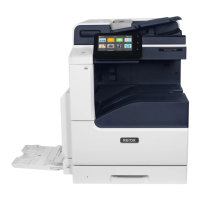
C71XX Series Color
Multifunction Printer
User Guide

Table of Contents

Other manuals for Xerox VersaLink C71 Series

Questions and Answers

  • R
    Rebekah SantosAug 19, 2025
    Why Xerox VersaLink C71 Printer does not power on?
    • D
      delacruznoahSep 12, 2025
      If your Xerox Printer doesn't power on, there are several potential causes. First, ensure that the power switch is in the On position after opening the front door. Check the printer control panel and press the Power/Wake button. Also, verify the power cord is securely plugged into the outlet, using the provided bracket. Try another electrical appliance in the outlet or a different outlet altogether. Ensure the power source matches the electrical specifications for the printer.
  • C
    Christopher WallaceAug 23, 2025
    What to do if Xerox Printer document prints from wrong tray?
    • K
      kimberly63Aug 25, 2025
      If your Xerox Printer document prints from the wrong tray, the application and print driver might have conflicting tray selections. Check the tray selected in the print driver. Access the page setup or printer settings of the application from which you are printing. Set the paper source to match the tray selected in the print driver or set the paper source to Automatically Select.
  • P
    penakristinaAug 26, 2025
    Why does my Xerox Printer reset or power off frequently?
    • G
      gail49Aug 26, 2025
      If your Xerox Printer frequently resets or powers off, it could be due to a few reasons. Ensure the power cord is correctly plugged into both the printer and the outlet. Power off the printer, confirm that the power cord is plugged in correctly to the printer and the outlet, then power on the printer. If a system error occurred, power off the printer and then power it on again. Also, if the printer is connected to an uninterruptible power supply, power it off and connect the power cord to a suitable outlet.
  • M
    Michelle AndradeAug 27, 2025
    How to fix automatic 2-sided printing problems on Xerox VersaLink C71 Printer?
    • C
      Christopher CollinsAug 27, 2025
      To resolve automatic 2-sided printing problems on your Xerox Printer, first ensure that you are using the correct paper. Do not use transparencies, envelopes, labels, or reloaded paper for automatic 2-sided printing. Also, on the print driver Printing Options tab, select 2-sided Printing.
  • A
    Angelica GibsonAug 31, 2025
    Why does my Xerox All in One Printer reset or power off frequently?
    • J
      John WoodsSep 1, 2025
      If your Xerox All in One Printer frequently resets or powers off, ensure the power cord is correctly plugged into both the printer and the outlet. Power off the printer and then power it back on, as a system error might have occurred. Avoid connecting the printer to an uninterruptible power supply; instead, use a suitable outlet. Do not connect the printer to a power strip shared with high-power devices. Plug the printer directly into the outlet or into a dedicated power strip. Also, consider adjusting or disabling the Auto Power Off feature in the settings.
  • B
    Brian RamirezSep 3, 2025
    How to fix Xerox All in One Printer that does not power on?
    • S
      sheila22Sep 3, 2025
      If your Xerox All in One Printer doesn't power on, first ensure the power switch is in the On position by opening the front door and checking. Then, press the Power/Wake button on the printer control panel. Verify the power cord is securely plugged into the outlet, using the provided bracket to secure it. Test the outlet by plugging in another electrical appliance. If it doesn't work, try a different outlet. Finally, make sure the power source matches the electrical specifications of the printer.
  • M
    Martha JohnsonSep 5, 2025
    Why is printing taking too long on my Xerox VersaLink C71 Printer?
    • R
      Rose RaymondSep 5, 2025
      If printing is taking too long on your Xerox Printer, several factors could be responsible. The printer might be set to a slower printing mode because it is set to print on heavyweight paper or envelopes. Ensure that the paper type is set properly in the print driver and at the printer control panel. The printer could be in Power Saver mode. It takes time for printing to start when the printer is coming out of Power Saver mode. The print-quality mode in the driver might be set to Enhanced, so change the print-quality mode in the print driver to Standard. If the job is complex, wait.
  • B
    Betty McbrideSep 7, 2025
    What to do if my Xerox VersaLink C71 is making unusual noises?
    • J
      Joseph DoyleSep 7, 2025
      If your Xerox Printer is making unusual noises, there might be an obstruction or debris inside the printer. Power off the printer, then remove the obstruction or debris.
  • D
    Derrick SpencerSep 9, 2025
    What to do if the paper tray will not close on my Xerox Printer?
    • R
      Russell WongSep 9, 2025
      If the paper tray on your Xerox Printer will not close, consider these points: * If the tray is extended for legal-size paper, it will protrude when inserted. * Check for any debris or objects blocking the tray. * Ensure the tray isn't blocked by the table or shelf. * If the paper lift plate at the back is unlocked, replace the tray.
  • N
    Nathan MeyersSep 12, 2025
    What to do if condensation has formed inside the Xerox VersaLink C71 Printer?
    • T
      Tiffany NguyenSep 12, 2025
      If condensation has formed inside your Xerox Printer, it might be because the printer has been sitting in a cold room. Allow the printer to operate for several hours at room temperature. Also, the relative humidity of the room might be too high, so reduce the humidity in the room or move the printer to a location with appropriate temperature and humidity levels.

Summary

Safety

Notices and Safety

Read and follow all safety instructions carefully before operating the printer to ensure safe usage.

Electrical Safety

Guidelines for safe operation related to electrical hazards, including power cord usage and grounding.

Operational Safety

Safe operating procedures to follow during normal printer use, including handling of hot parts and paper jams.

Maintenance Safety

Precautions and guidelines to ensure safety when performing maintenance or cleaning procedures on the printer.

Getting Started

Parts of the Printer

Identifies and describes the main physical components of the printer, including front, rear, and internal parts.

Power Options

Details on powering the printer on and off, and managing sleep and low-power modes.

Installation and Setup

Provides an overview of the installation process, selecting a location, and connecting the printer.

Connecting the Printer

Explains different methods for connecting the printer to a computer or network, including USB and wired/wireless.

Xerox Apps

Xerox App Gallery

Information on browsing, acquiring, and installing apps from the Xerox App Gallery to enhance printer functionality.

Address Book

Instructions for creating, editing, and managing contacts and groups for use with various printer apps.

Copy

Details on making copies, adjusting settings, and using features like Page Layout and Booklet Creation.

Scan To

Explains various methods for scanning documents and sending them to destinations like email, network folders, or USB drives.

Printing

Printing Overview

General information and requirements for sending print jobs to the printer.

Selecting Printing Options

Guides on configuring print settings in Windows and Macintosh drivers for optimal output.

Print Jobs

Information on managing print jobs, including saved, secure, and personal print jobs.

Printing Features

Details on advanced printing features like paper selection, 2-sided printing, and image adjustments.

Paper and Media

Paper and Media Overview

Description of the printer's paper trays and supported media types.

Supported Paper

Guidelines on selecting and using appropriate paper and media for best print quality and to avoid jams.

Paper Tray Settings

Instructions for configuring paper settings for individual trays, including mode and priority.

Loading Paper

Step-by-step guidance on how to load paper correctly into various printer trays.

Maintenance

General Precautions

Essential safety warnings and precautions to be followed before performing any maintenance on the printer.

Cleaning the Printer

Procedures for cleaning the printer's exterior, scanner, and internal components to maintain performance.

Adjustments and Maintenance Procedures

Guidance on performing color calibration and paper registration adjustments for optimal print quality.

Supplies

Information on consumable supplies, ordering, status, and replacing toner cartridges.

Troubleshooting

General Troubleshooting

Common printer issues and their solutions, covering power, resets, and printing problems.

Paper Jams

Locating, minimizing, and clearing paper jams from various printer areas and components.

Print-Quality Problems

Diagnosing and resolving issues related to print quality, such as light output, faded colors, or streaks.

Fax Problems

Troubleshooting common issues encountered when sending or receiving faxes.

Specifications

Printer Configurations and Options

Details on available printer configurations, options, and features like print speed.

Performance Specifications

Technical specifications related to printer performance, including warm-up time and print speeds.

Physical Specifications

Information on printer dimensions, weights, and clearance requirements for various configurations.

Regulatory Information

Basic Regulations

Information on ENERGY STAR compliance, power consumption, and environmental benefits of duplex printing.

Copy Regulations

Legal restrictions and prohibitions related to reproducing certain documents in the United States, Canada, and other countries.

Fax Regulations

Requirements and regulations for fax transmission headers and telephone line connections.

Safety Certification

Details on the safety standards and agencies that have certified the printer's compliance.

Recycling and Disposal

All Countries

General guidance on the disposal of Xerox products, noting potential regulated materials.

North America

Information on Xerox's take-back and recycling programs for equipment in North America.

European Union

Guidelines for the disposal of electrical and electronic equipment in domestic and professional environments within the EU.

Xerox VersaLink C71 Series Specifications

General IconGeneral
Print Speed (Black)Up to 71 ppm
Print Speed (Color)Up to 71 ppm
Maximum Monthly Duty CycleUp to 300, 000 pages
Print ResolutionUp to 1200 x 2400 dpi
Memory (Standard)4 GB
Print TechnologyLaser
FunctionalityPrint, Copy, Scan, Fax
ConnectivityEthernet, USB, Wi-Fi Direct
Paper SizesA4, A5, A6, B5, Legal, Letter
Mobile PrintingApple AirPrint, Google Cloud Print, Mopria

Related product manuals