EasyManua.ls Logo

Xerox VersaLink C400 - User Manual

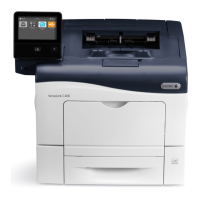
Xerox VersaLink C400
196 pages
Print Icon
To Next Page IconTo Next Page
Loading...
Xerox
®
VersaLink
®
C400
Color Printer
User Guide

Table of Contents

Other manuals for Xerox VersaLink C400

Questions and Answers

  • R
    randolphtammieAug 19, 2025
    What to do if my Xerox VersaLink C400 does not power on?
    • K
      Kathleen OwenSep 12, 2025
      If your Xerox Printer doesn't power on, there are several potential causes and solutions: * Ensure the power switch is turned on by pressing the Power/Wake button on the printer control panel. * Verify the power cord is securely plugged into the outlet. If not, power off the printer and plug the power cord in correctly. * The printer might require a full reset. To do this, power off the printer, unplug the power cord, wait 30 seconds, then plug it back in and power the printer on. * Check the outlet by plugging in another electrical appliance to see if it operates correctly. You can also try a different outlet. * Confirm that the printer is connected to a power source that matches the printer's electrical specifications.
  • L
    Larry ClementsAug 21, 2025
    Why my Xerox VersaLink C400 does not turn on?
    • J
      John GonzalezAug 21, 2025
      Your Xerox Printer might not be turning on due to a few reasons. It could be as simple as the power switch not being activated; in that case, press the Power/Wake button on the printer. Another possibility is that the power cord isn't properly connected to the outlet; make sure it's securely plugged in. In some cases, the printer might need a full reset: turn it off, unplug it for 30 seconds, and then plug it back in and turn it on. Also, the outlet itself could be faulty, so test it with another device or try a different outlet. Finally, ensure that the power source meets the electrical specifications of the printer.
  • S
    Steven GomezAug 27, 2025
    How to clear Paper jam message on Xerox VersaLink C400 Printer?
    • A
      Amanda MitchellAug 27, 2025
      If the paper jam message stays on your Xerox Printer, it could be due to: * Some paper remaining jammed in the printer. Recheck the paper path and make sure that you have removed all of the jammed paper. * One of the printer doors being open. Check the doors on the printer and close any door that is open.
  • A
    April PearsonAug 29, 2025
    How to fix a Xerox VersaLink C400 that won't turn on?
    • V
      Valerie WestAug 30, 2025
      To fix a Xerox Printer that won't turn on, start by ensuring the power switch is on. Look for the Power/Wake button on the printer's control panel and press it. Next, check the power cord to make sure it's properly plugged into the outlet. If it's loose, plug it in securely. If these steps don't work, try a full reset: turn off the printer, unplug it from the power outlet for 30 seconds, and then plug it back in and turn it on. Also, test the power outlet by plugging in another device or trying a different outlet. Lastly, verify that the power source matches the electrical specifications of the printer.
  • V
    Valerie RamirezSep 3, 2025
    How to fix Xerox VersaLink C400 Printer paper misfeeds?
    • M
      Mrs. Carolyn HarringtonSep 3, 2025
      If your Xerox printer is experiencing paper misfeeds, consider the following: * Ensure the paper is correctly positioned in the tray. Remove the paper and reposition it properly, adjusting the paper guides to match the paper size. * If the paper tray is too full, remove some paper, ensuring you do not load past the fill line. * Check that the paper guides are correctly adjusted to the paper size. * Remove any warped or wrinkled paper; smooth it out and reload it. If misfeeds persist, do not use that paper. * Replace moist paper with new, dry paper. * Use only Xerox approved paper of the correct size, thickness, and type. * Clean the feed rollers with a clean, lint-free cloth moistened with water.
  • M
    Mark ChavezSep 5, 2025
    How to resolve Xerox VersaLink C400 Printer label and envelope misfeeds?
    • K
      Kristy SanchezSep 5, 2025
      To resolve label and envelope misfeeds on your Xerox Printer: * Load label sheets according to the manufacturer's instructions, face up in the tray. * Do not use any sheet where labels are missing, curled, or pulled away from the backing sheet. * You can print envelopes from the Bypass Tray or Tray 1. * Wrinkling can occur due to the heat and pressure of the laser printing process. Use supported envelopes.
  • J
    John MurraySep 9, 2025
    Why does my Xerox Printer reset or power off frequently?
    • E
      elewisSep 9, 2025
      Your Xerox Printer may be resetting or powering off frequently because: * The power cord is not plugged into the outlet correctly. Power off the printer, confirm that the power cord is plugged in correctly to the printer and the outlet, then power on the printer. * A system error occurred. Power off the printer, then power it on again. * The printer is connected to an uninterruptible power supply. Power off the printer, then connect the power cord to a suitable outlet.
  • A
    Andrew HendricksSep 12, 2025
    What to do if Xerox Printer paper tray will not close?
    • T
      Trevor ToddSep 12, 2025
      If the paper tray on your Xerox Printer will not close, consider the following: * If the tray is extended for legal-size paper, the tray protrudes when it is inserted into the printer. * Some debris or an object is blocking the tray. * The tray is blocked by the table or shelf on which it is located. * If the paper lift plate at the back of the tray is not locked down, replace the tray.
  • F
    fjenningsSep 13, 2025
    Why Xerox VersaLink C400 Printer is making unusual noises?
    • J
      John PittmanSep 13, 2025
      If your Xerox Printer is making unusual noises, it could be due to an obstruction or debris inside the printer. Power off the printer and remove any obstruction or debris.
  • V
    vanessa61Sep 16, 2025
    What causes condensation inside Xerox VersaLink C400 Printer?
    • W
      Walter HarrisSep 16, 2025
      Condensation may form inside your Xerox Printer if: * The printer has been sitting in a cold room. Allow the printer to operate for several hours at room temperature. * The relative humidity of the room is too high. Reduce the humidity in the room or move the printer to a location within operating specifications.

Summary

Safety

Notices and Safety

Read instructions carefully to ensure safe printer operation. Testing verified with Xerox materials.

Electrical Safety

Section details general guidelines, power cord safety, and emergency turn-off procedures.

Operational Safety

Guidelines for safe operation, including handling the printer and its components.

Maintenance Safety

Procedures and warnings for performing maintenance safely. Do not use aerosol cleaners.

Printer Symbols and Meanings

Explanation of various warning and caution symbols used on the printer.

Environmental, Health, and Safety Contact Information

Contact details for environment, health, and safety information and support.

Getting Started

Parts of the Printer

Overview of the printer's front, internal, and rear views, including the control panel.

Power Options

Instructions for powering the printer on, off, and managing sleep/low-power modes.

Accessing the Printer

Steps for logging into the printer using user credentials for authentication.

Introduction to Xerox Apps

Explanation of Xerox Apps as a gateway to device features and functions.

Information Pages

Details on printing various information pages like Configuration and Startup Reports.

The Embedded Web Server

Information on accessing and using the printer's web-based administration interface.

Installation and Setup

Guide for initial printer setup, including selecting location and connection methods.

More Information Sources

List of resources for obtaining additional printer information and support.

Customize and Personalize

Customize and Personalize Overview

How to customize and personalize the device to meet workflow demands and user needs.

Customizing the Home Screen

Steps to hide, show, or rearrange apps on the printer's home screen.

Customizing Apps and Features

Modify available features, save presets, or remove customized settings applied to an app.

Xerox Apps

Xerox App Gallery

Using the gallery to find and install apps for new features and capabilities.

Device Overview and Options

Accessing printer information, status, and configuring various device settings.

Managing Jobs

Viewing, pausing, printing, or deleting current, saved, personal, and secure jobs.

Print From USB

Instructions for printing documents directly from a USB flash drive.

Printing

Printing Overview

Basic steps for printing, including driver installation and sending jobs.

Selecting Printing Options

Guide to print driver settings for Windows, Macintosh, UNIX, and mobile devices.

Printing From a USB Flash Drive

Steps to print files stored on a USB flash drive.

Printing Features

Options for print quality, image adjustments, layout, watermarks, and more.

Using Custom Paper Sizes

How to print on custom paper sizes and define them in the driver or control panel.

Paper and Media

Supported Paper

Guidelines for paper types, weights, sizes, and media that can damage the printer.

Loading Paper

Instructions for changing paper settings and loading paper into trays and bypass.

Printing on Special Paper

Guidance for printing envelopes and labels, including loading and driver settings.

Maintenance

General Precautions

Important warnings and cautions for handling the printer and performing maintenance.

Cleaning the Printer

Procedures for cleaning the printer's exterior, interior, and laser lenses.

Adjustments and Maintenance Procedures

Steps for color registration, calibration, and paper registration adjustments.

Supplies Management

Information on consumables, routine maintenance items, ordering, and status.

Managing the Printer

Viewing meter readings and printing the billing summary report.

Moving the Printer

Safe procedures for lifting, carrying, and repositioning the printer.

Troubleshooting

General Troubleshooting

Resolving common printer issues like power, printing, and connectivity problems.

Paper Jams

Locating, minimizing, clearing, and troubleshooting paper jams in various areas.

Print-Quality Problems

Identifying and solving issues related to print quality, margins, and color output.

Getting Help

Viewing error messages, using troubleshooting tools, and finding more information.

Specifications

Printer Configurations and Options

Details on available configurations, standard features, and connectivity options.

Physical Specifications

Information on weights, dimensions, and clearance requirements for the printer.

Environmental Specifications

Operating temperature, humidity, and elevation ranges for optimal performance.

Electrical Specifications

Voltage, frequency, power consumption, and ENERGY STAR qualification details.

Performance Specifications

Printer warm-up time and print speed details under various conditions.

Regulatory Information

Basic Regulations

FCC and Canadian ICES regulations, and European Union certifications.

Copy Regulations

Legal restrictions on reproducing government documents, currency, and copyrighted material.

Safety Certification

List of agencies and safety standards the device is certified against.

Material Safety Data Sheets

Links to Material Safety Data sheets for printer information.

Recycling and Disposal

All Countries Recycling Information

Information on disposal regulations for materials like lead, mercury, and perchlorates.

North America Recycling Program

Xerox take-back and reuse/recycle program details for North America.

European Union Recycling Guidelines

Disposal requirements for equipment in domestic/household and professional environments.

Other Countries Disposal Guidance

Contact local waste management authorities for disposal guidance in other countries.

Xerox VersaLink C400 Specifications

General IconGeneral
ColorYes
Print technologyLaser
Maximum resolution600 x 600 DPI
Time to first page (black, normal)8.2 s
Time to first page (color, normal)9.3 s
Print speed (black, normal quality, A4/US Letter)36 ppm
Printing colorsBlack, Cyan, Magenta, Yellow
Maximum duty cycle80000 pages per month
Recommended duty cycle0 - 5000 pages per month
Number of print cartridges4
Page description languagesPCL 5e, PCL 6, PDF 1.7, PostScript 3, TIFF, XPS
Paper input typePaper tray
Total input capacity700 sheets
Total output capacity250 sheets
Maximum input capacity1250 sheets
Total number of input trays1
Paper tray media typesBond paper, Card stock, Envelopes, Glossy paper, Labels, Lightweight paper, Plain paper, Pre-Printed, Recycled paper
Maximum ISO A-series paper sizeA4
Paper tray media weight (imperial)16 - 80 lbs
Network ready-
Wi-Fi standardsWi-Fi 4 (802.11n)
Security algorithms256-bit AES, HTTPS, IPSEC, SNMP, SSL/TLS
Mobile printing technologiesApple AirPrint, Google Cloud Print, Mopria Print Service, Xerox PrintBack
Standard interfacesUSB 3.2 Gen 1 (3.1 Gen 1), Wireless LAN
Internal memory2048 MB
Processor cores2
Noise level (ready)29.2 dB
Processor frequency1050 MHz
Maximum internal memory- MB
Sound pressure level (printing)53.1 dB
DisplayLCD
Control typeTouch
Product colorBlue, White
Display diagonal5 \
Market positioningHome & office
Current rating10 A
AC input voltage110 - 127 V
AC input frequency50 - 60 Hz
Power consumption (off)4 W
Power consumption (standby)76 W
Power consumption (printing)705 W
Sustainability certificatesENERGY STAR
Mac operating systems supportedMac OS X 10.10 Yosemite, Mac OS X 10.11 El Capitan, Mac OS X 10.12 Sierra, Mac OS X 10.2 Jaguar, Mac OS X 10.3 Panther, Mac OS X 10.4 Tiger, Mac OS X 10.5 Leopard, Mac OS X 10.6 Snow Leopard, Mac OS X 10.8 Mountain Lion, Mac OS X 10.9 Mavericks
Linux operating systems supportedSuSE Linux 10.2, SuSE Linux 10.3, SuSE Linux 11, SuSE Linux 11.1, SuSE Linux 11.2, SuSE Linux 12.0, SuSE Linux 12.3, SuSE Linux 9.3
Server operating systems supportedWindows Server 2003, Windows Server 2003 R2, Windows Server 2003 x64, Windows Server 2008, Windows Server 2008 R2, Windows Server 2008 R2 x64, Windows Server 2008 x64, Windows Server 2012, Windows Server 2012 R2
Windows operating systems supportedWindows 10 Education, Windows 10 Education x64, Windows 10 Enterprise, Windows 10 Enterprise x64, Windows 10 Home, Windows 10 Home x64, Windows 10 IOT Core, Windows 10 Pro, Windows 10 Pro x64, Windows 7 Enterprise, Windows 7 Enterprise x64, Windows 7 Home Basic, Windows 7 Home Basic x64, Windows 7 Home Premium, Windows 7 Home Premium x64, Windows 7 Professional, Windows 7 Professional x64, Windows 7 Starter, Windows 7 Starter x64, Windows 7 Ultimate, Windows 7 Ultimate x64, Windows 8, Windows 8 Enterprise, Windows 8 Enterprise x64, Windows 8 Pro, Windows 8 Pro x64, Windows 8 x64, Windows 8.1, Windows 8.1 Enterprise, Windows 8.1 Enterprise x64, Windows 8.1 Pro, Windows 8.1 Pro x64, Windows 8.1 x64
Operating temperature (T-T)10 - 35 °C
Operating relative humidity (H-H)10 - 85 %
Weight and Dimensions IconWeight and Dimensions
Depth490 mm
Width490.22 mm
Height398.78 mm
Weight25855 g

Related product manuals