EasyManua.ls Logo

Xerox VersaLink C400V - User Manual

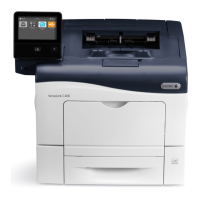
Xerox VersaLink C400V
196 pages
Print Icon
To Next Page IconTo Next Page
Loading...
Xerox
®
VersaLink
®
C400
Color Printer
User Guide

Table of Contents

Other manuals for Xerox VersaLink C400V

Questions and Answers

  • Q
    qparkerAug 19, 2025
    What to do if my Xerox Printer does not power on?
    • M
      Morgan LeeAug 19, 2025
      If your Xerox Printer doesn't power on, there are several potential causes and solutions: * Ensure the power switch is turned on by pressing the Power/Wake button on the printer control panel. * Verify the power cord is securely plugged into the outlet. If not, power off the printer and plug the power cord in correctly. * The printer might require a full reset. To do this, power off the printer, unplug the power cord, wait 30 seconds, then plug it back in and power the printer on. * Check the outlet by plugging in another electrical appliance to see if it operates correctly. You can also try a different outlet. * Confirm that the printer is connected to a power source that matches the printer's electrical specifications.
  • J
    Jacob WoodsAug 21, 2025
    Why my Xerox VersaLink C400V does not turn on?
    • H
      Heather BryantAug 21, 2025
      Your Xerox Printer might not be turning on due to a few reasons. It could be as simple as the power switch not being activated; in that case, press the Power/Wake button on the printer. Another possibility is that the power cord isn't properly connected to the outlet; make sure it's securely plugged in. In some cases, the printer might need a full reset: turn it off, unplug it for 30 seconds, and then plug it back in and turn it on. Also, the outlet itself could be faulty, so test it with another device or try a different outlet. Finally, ensure that the power source meets the electrical specifications of the printer.
  • D
    Daniel WilsonAug 27, 2025
    How to clear Paper jam message on Xerox VersaLink C400V Printer?
    • C
      Christopher EspinozaAug 27, 2025
      If the paper jam message stays on your Xerox Printer, it could be due to: * Some paper remaining jammed in the printer. Recheck the paper path and make sure that you have removed all of the jammed paper. * One of the printer doors being open. Check the doors on the printer and close any door that is open.
  • V
    Virginia MaysAug 30, 2025
    How to fix a Xerox VersaLink C400V Printer that won't turn on?
    • T
      Tracy RobinsonAug 30, 2025
      To fix a Xerox Printer that won't turn on, start by ensuring the power switch is on. Look for the Power/Wake button on the printer's control panel and press it. Next, check the power cord to make sure it's properly plugged into the outlet. If it's loose, plug it in securely. If these steps don't work, try a full reset: turn off the printer, unplug it from the power outlet for 30 seconds, and then plug it back in and turn it on. Also, test the power outlet by plugging in another device or trying a different outlet. Lastly, verify that the power source matches the electrical specifications of the printer.
  • M
    Michael LaneSep 3, 2025
    How to fix Xerox VersaLink C400V Printer paper misfeeds?
    • S
      Steve AndersonSep 3, 2025
      If your Xerox printer is experiencing paper misfeeds, consider the following: * Ensure the paper is correctly positioned in the tray. Remove the paper and reposition it properly, adjusting the paper guides to match the paper size. * If the paper tray is too full, remove some paper, ensuring you do not load past the fill line. * Check that the paper guides are correctly adjusted to the paper size. * Remove any warped or wrinkled paper; smooth it out and reload it. If misfeeds persist, do not use that paper. * Replace moist paper with new, dry paper. * Use only Xerox approved paper of the correct size, thickness, and type. * Clean the feed rollers with a clean, lint-free cloth moistened with water.
  • J
    johnsonjillianSep 5, 2025
    How to resolve Xerox VersaLink C400V Printer label and envelope misfeeds?
    • M
      Michele SullivanSep 5, 2025
      To resolve label and envelope misfeeds on your Xerox Printer: * Load label sheets according to the manufacturer's instructions, face up in the tray. * Do not use any sheet where labels are missing, curled, or pulled away from the backing sheet. * You can print envelopes from the Bypass Tray or Tray 1. * Wrinkling can occur due to the heat and pressure of the laser printing process. Use supported envelopes.
  • M
    Melissa RaySep 9, 2025
    Why does my Xerox VersaLink C400V Printer reset or power off frequently?
    • J
      Joe LeblancSep 9, 2025
      Your Xerox Printer may be resetting or powering off frequently because: * The power cord is not plugged into the outlet correctly. Power off the printer, confirm that the power cord is plugged in correctly to the printer and the outlet, then power on the printer. * A system error occurred. Power off the printer, then power it on again. * The printer is connected to an uninterruptible power supply. Power off the printer, then connect the power cord to a suitable outlet.
  • B
    bcarpenterSep 12, 2025
    What to do if Xerox VersaLink C400V paper tray will not close?
    • A
      Abigail LoganSep 12, 2025
      If the paper tray on your Xerox Printer will not close, consider the following: * If the tray is extended for legal-size paper, the tray protrudes when it is inserted into the printer. * Some debris or an object is blocking the tray. * The tray is blocked by the table or shelf on which it is located. * If the paper lift plate at the back of the tray is not locked down, replace the tray.
  • J
    Jeffrey SmithSep 14, 2025
    Why Xerox Printer is making unusual noises?
    • A
      Alice BrownSep 14, 2025
      If your Xerox Printer is making unusual noises, it could be due to an obstruction or debris inside the printer. Power off the printer and remove any obstruction or debris.
  • L
    Laura MyersSep 16, 2025
    What causes condensation inside Xerox VersaLink C400V?
    • T
      Tammy KimSep 16, 2025
      Condensation may form inside your Xerox Printer if: * The printer has been sitting in a cold room. Allow the printer to operate for several hours at room temperature. * The relative humidity of the room is too high. Reduce the humidity in the room or move the printer to a location within operating specifications.

Xerox VersaLink C400V Specifications

General IconGeneral
BrandXerox
ModelVersaLink C400V
CategoryPrinter
LanguageEnglish

Related product manuals