EasyManua.ls Logo

Xerox VersaLink B400 - User Manual

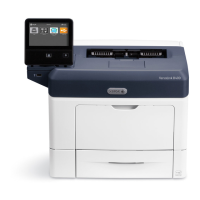
Xerox VersaLink B400
188 pages
Print Icon
To Next Page IconTo Next Page
Loading...
VERSION 1.6
NOVEMBER 2022
702P08818
Xerox
®
VersaLink
®
B400
Printer
User Guide

Table of Contents

Other manuals for Xerox VersaLink B400

Questions and Answers

  • R
    richard39Aug 14, 2025
    How to fix a Xerox VersaLink B400 Printer that does not power on?
    • S
      sotoamandaAug 14, 2025
      If your Xerox Printer isn't powering on, several factors could be at play. First, ensure the power switch is turned on, then press the Power/Wake button. Check that the power cord is securely plugged into the outlet. Sometimes, the printer needs a full reset: power it off, unplug the cord for 30 seconds, then plug it back in and power on. Verify the outlet is working by plugging in another appliance or trying a different outlet. Finally, confirm that the outlet's voltage and frequency match the printer's specifications, as detailed in the Electrical Specifications.
  • D
    Dana WhiteAug 20, 2025
    How to troubleshoot Xerox VersaLink B400 Printer that does not power on?
    • A
      Amy RoweAug 20, 2025
      If your Xerox Printer isn't powering on, first ensure the power switch is turned on, then press the Power/Wake button. Check that the power cord is securely plugged into the outlet. If issues persist, power off the printer, unplug the cord for 30 seconds, then plug it back in and power on. Try another appliance in the outlet or use a different outlet. Finally, ensure the power source matches the printer's electrical specifications.
  • S
    sarah87Aug 25, 2025
    Why does my Xerox Printer keep resetting or powering off?
    • J
      john45Aug 25, 2025
      If your Xerox Printer frequently resets or powers off, start by ensuring the power cord is correctly plugged into both the printer and the outlet. If that doesn't solve the problem, power the printer off and then on again. Also, make sure the printer isn't connected to an uninterruptible power supply; if it is, connect it to a suitable outlet. Avoid using a power strip shared with high-power devices; plug the printer directly into the outlet or a dedicated power strip. Finally, check if the Auto Power Off feature is enabled and, if so, increase the timer or disable the feature.
  • A
    Amber SchmidtAug 27, 2025
    How to troubleshoot automatic 2-sided printing problems on a Xerox Printer?
    • S
      Sarah NguyenAug 27, 2025
      If you're experiencing issues with automatic 2-sided printing on your Xerox Printer, first verify that you are using a supported paper size and weight; envelopes, cardstock, and labels are not suitable for 2-sided printing. Also, confirm that your printer model supports automatic 2-sided printing. Finally, in the print driver's Printing Options tab, ensure that '2-Sided Print' is selected.
  • R
    Robert WhiteAug 31, 2025
    Why is my Xerox VersaLink B400 printing from the wrong tray?
    • F
      figueroamichelleAug 31, 2025
      If your Xerox Printer is printing documents from the wrong tray, the application and print driver might have conflicting tray selections. Check the tray selected in the print driver. Then, go to the page setup or printer settings of the application you're printing from and set the paper source to match the tray selected in the print driver or set the paper source to Automatically Select. To have the print driver select the tray, set the tray used as the paper source to Auto Selection Enabled.
  • M
    Mary NelsonSep 2, 2025
    What to do if the paper tray will not close on my Xerox VersaLink B400?
    • J
      Jane ZavalaSep 3, 2025
      If the paper tray on your Xerox Printer won't close, consider these points. If the tray is extended for legal-size paper, it will protrude when inserted. Check for any debris or objects blocking the tray. Ensure the tray isn't obstructed by the table or shelf. At the back of the paper tray, push the paper lift down until it clicks into place before inserting the tray.
  • M
    Matthew SmithSep 6, 2025
    Why is my Xerox Printer making unusual noises?
    • C
      Christina ValenciaSep 6, 2025
      If your Xerox Printer is making unusual noises, power off the printer and remove any obstruction or debris inside.
  • D
    Daniel RiversSep 10, 2025
    How to resolve condensation inside my Xerox VersaLink B400?
    • S
      Steven StewartSep 10, 2025
      If condensation has formed inside your Xerox Printer, it may have been sitting in a cold room. Allow the printer to operate for several hours at room temperature. Additionally, the relative humidity of the room might be too high. Reduce the humidity in the room or move the printer to a location where the temperature and relative humidity are within the operating specifications.
  • E
    Edgar Thomas DDSNov 16, 2025
    What to do if my Xerox VersaLink B400 Printer does not print?
    • J
      jessica43Nov 16, 2025
      If your Xerox Printer isn't printing, there are several things to check. First, if the printer is in Power Saver mode, press the Power/Wake button. If the Status LED is blinking amber, follow the control panel instructions. Make sure the printer has paper loaded in the tray and that the correct paper is loaded for the print job; specify the correct paper size, type, and color on the printer control panel. Also, ensure that the paper settings in the print job match the paper loaded in the trays. Replace any empty toner cartridges. If no control panel indicators are lit, power off the printer, ensure the power cord is correctly plugged in, and then power it back on. If the Status LED is flashing blue, a previous print job could be the problem; delete all print jobs in the print queue on your...

Summary

Safety

Electrical Safety

Guidelines for safe use of the printer's power cord and electrical connections.

Operational Safety

Guidelines for safe operation, including handling, ozone release, and printer placement.

Getting Started

Accessing the Printer

Instructions on logging into the printer and using smart card access.

The Embedded Web Server

Overview of the web server for printer administration and configuration.

Installation and Setup

Guidance on printer installation, setup overview, and selecting a location.

Connecting the Printer

Methods for connecting the printer via USB, wired, or wireless networks.

Initial Printer Setup

Steps for initial printer setup, including using the Xerox Easy Assist app.

Installing the Software

Instructions for installing printer drivers and utilities for various operating systems.

Xerox Apps

Xerox App Gallery

Overview of the App Gallery for finding, downloading, and installing apps.

Printing

Selecting Printing Options

How to specify printing preferences like 2-sided, page layout, and print quality.

Paper and Media

Loading Paper

Procedures for loading paper into printer trays and the bypass tray.

Maintenance

Troubleshooting

General Troubleshooting

Procedures to locate and resolve common printer problems.

Paper Jams

Guidance on locating, minimizing, and clearing paper jams from various areas.

Print-Quality Problems

Troubleshooting steps for common print quality issues.

Xerox VersaLink B400 Specifications

General IconGeneral
N-up printing2, 6, 8, 9, 16
Duplex printingYes
Print technologyLaser
Maximum resolution1200 x 1200 DPI
Duplex printing modeAuto
Warm-up time (from sleep mode)5 s
Time to first page (black, normal)8 s
Print margins (top, bottom, right, left)4 mm
Print speed (black, normal quality, A4/US Letter)45 ppm
Duplex print speed (black, normal quality, A4/US Letter)28 ppm
PCL fonts83
Printer fontsPCL, PostScript
Product colorBlue, Grey
Printing colorsBlack
Country of originChina
Maximum duty cycle150000 pages per month
Recommended duty cycle0 - 15000 pages per month
Number of PostScript fonts136
Number of print cartridges1
Page description languagesHP-GL/2, HP-RTL, JPEG, PCL 5e, PCL 6, PDF, PostScript 3, TIFF, XPS
Internal memory2048 MB
Noise level (ready)30 dB
Sound power level (standby)5.3 dB
Sound power level (printing)7.5 dB
Sound pressure level (printing)56 dB
USB connectorUSB Type-A
Standard interfacesRJ-45, USB 3.2 Gen 1 (3.1 Gen 1)
Optional connectivityWireless LAN
Paper input typePaper tray
Total input capacity700 sheets
Total output capacity250 sheets
Maximum input capacity2350 sheets
Paper tray 1 input capacity550 sheets
Maximum number of input trays2
Multi-Purpose tray input capacity150 sheets
Custom media width76.2 - 216 mm
Maximum print size216 x 356 mm
Custom media length127 - 356 mm
Paper tray media typesBond paper, Card stock, Envelopes, Labels, Lightweight paper, Plain paper, Pre-Printed, Recycled paper
Paper tray media weight60 - 220 g/m²
Multi-purpose tray media typesBond paper, Envelopes, Hole punched paper, Labels, Letterhead, Plain paper, Recycled paper
Maximum ISO A-series paper sizeA4
Current rating6 A
AC input voltage220 - 240 V
AC input frequency50 - 60 Hz
Power consumption (standby)46 W
Power consumption (printing)565 W
Power consumption (PowerSave)4 W
Storage temperature (T-T)0 - 35 °C
Operating temperature (T-T)10 - 32 °C
Operating relative humidity (H-H)10 - 85 %
Mac operating systems supportedMac OS X 10.9 Mavericks
Server operating systems supportedWindows 2000 Server, Windows Server 2003, Windows Server 2008, Windows Server 2008 R2, Windows Server 2012
Windows operating systems supportedWindows 10 Education, Windows 10 Education x64, Windows 10 Enterprise, Windows 10 Enterprise x64, Windows 10 Home, Windows 10 Home x64, Windows 10 IOT Core, Windows 10 Pro, Windows 10 Pro x64, Windows 7 Enterprise, Windows 7 Enterprise x64, Windows 7 Home Basic, Windows 7 Home Basic x64, Windows 7 Home Premium, Windows 7 Home Premium x64, Windows 7 Professional, Windows 7 Professional x64, Windows 7 Starter, Windows 7 Starter x64, Windows 7 Ultimate, Windows 7 Ultimate x64, Windows 8, Windows 8 Enterprise, Windows 8 Enterprise x64, Windows 8 Pro, Windows 8 Pro x64, Windows 8 x64, Windows 8.1, Windows 8.1 Enterprise, Windows 8.1 Enterprise x64, Windows 8.1 Pro, Windows 8.1 Pro x64, Windows 8.1 x64
Cabling technology10/100/1000Base-T(X)
Security algorithms256-bit AES, FIPS 140-2, IPSec, SSL/TLS
Ethernet LAN data rates10, 100, 1000 Mbit/s
Mobile printing technologiesApple AirPrint, Google Cloud Print, Mopria Print Service, Xerox PrintBack
Supported network protocols (IPv4)HTTP/HTTPS, Internet Printing Protocol, LPR/LPD, Raw Socket Printing/Port 9100
Cables includedAC
Included cartridge capacity (black)5900 pages
DisplayLCD
Control typeTouch
Display diagonal5 \
Market positioningBusiness
Languages supportMulti
Sustainability certificatesENERGY STAR
Harmonized System (HS) code84433210
Export Control Classification Number (ECCN)EAR99
Package weight17350 g
Weight and Dimensions IconWeight and Dimensions
Depth426 mm
Width459 mm
Height339 mm

Related product manuals