VESDA-EVEP-A00-P Product Guide
50 www.xtralis.com
detector status screen.
l For static IPaddresses, set Automatically obtain IPAddress to off and set the IP Address,
Subnet Mask and Default Gateway to a valid address in the building network.
l Set the detector authentication password. Refer to Section 5.3.1 on page 51 for further information.
Connect to a detector using Xtralis VSC
1. Using the normal building network connection process, connect the PC to the network.
2. Add an Ethernet connection using Connection Manager in Xtralis VSC. Refer to Section 5.1.2 for further
information.
3. Enter the IP address of the detector previously set when enabling Ethernet connections. Where the
IPaddress is not known, it may be viewed on the detector status screen using a USBconnection.
4. Enter the Authentication Password previously set when enabling Ethernet connections.
5. Select Connection > Connect and View.
6. If the previously defined connection profile is set as the default connection, select OK, otherwise select
Details, then select the required Ethernet connection from the list of available connection profiles and
select OK.
5.2.3 Connection to a detector via VESDAnet
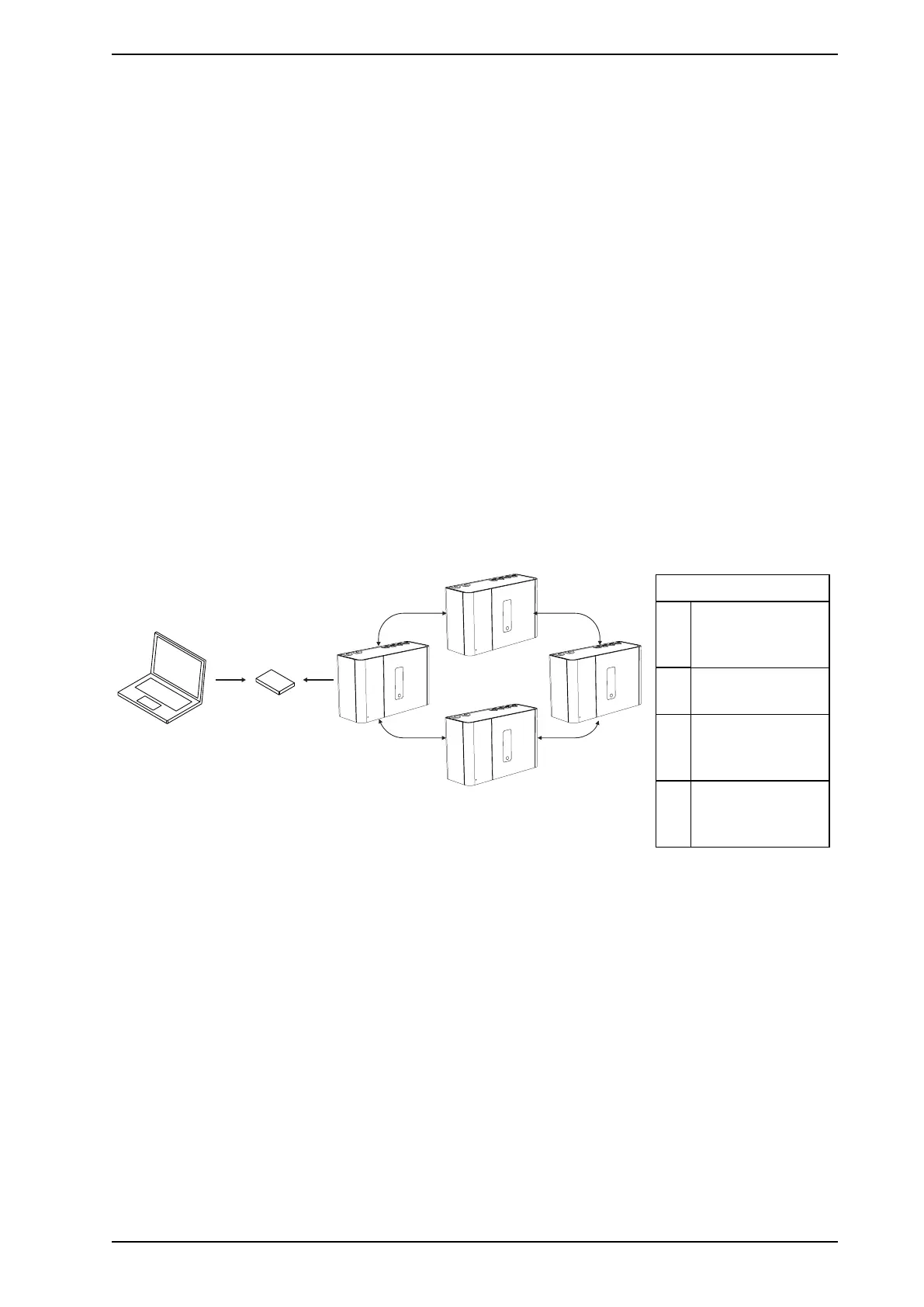
A VEP-A00 that is part of a VESDAnet network can be accessed via another VESDA-E device acting as a
gateway:
l the VEP-A00 must be physically connected to the VESDAnet, as described in Section 1.0.1.
l another VESDA-E detector can be used as a gateway to communicate between the PC with Xtralis VSC
and any device connected to the VESDAnet.
Legend
A PCor Laptop
installed with
Xtralis VSC
B Router or access
point
C VEP-A00 used as a
gateway to the
VESDAnet
D Other VESDA-E
detectors on the
VESDAnet
Figure5-10: Connection to a detector via another detector on VESDAnet
Alternatively it is possible to connect using a High Level Interface (HLI) connected between the PC or Laptop
with Xtralis VSC and the VESDAnet Socket in one of the devices on the VESDAnet.
Notes:
l The VEP-A00 detector acts as a gateway on VESDAnet and allows a PC connected to the Ethernet,
USB connections to communicate with the gateway VEP-A00 itself and any other device on VESDAnet.
l Refer to the VESDA Communications Guide for detailed information on VESDAnet.
Define a new Connection Profile (USB or Ethernet connection between the PC and the detector
which is acting as a gateway)
1. For VESDA-E detectors, follow the steps in Section 5.1.2 and add a USB or Ethernet connection.
Access the VEP-A00
1. Connect to the gateway device in Xtralis VSC using Connection Manager. The software then
automatically polls the VESDAnet for devices and lists them in the VESDAnet device list.


 To Next Page