EasyManua.ls Logo

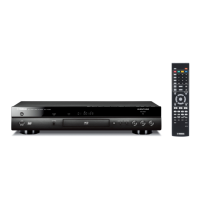
Yamaha BD-S477 - User Manual

Yamaha BD-S477
100 pages
Print Icon
To Next Page IconTo Next Page
Loading...
© 2013 Yamaha Corporation
Printed in China BD-S477/P
The laser component in this product is capable of
emitting radiation exceeding the limit for Class 1.
LASER Specification:
Class 1 LASER Product
Wave length: 790 nm (CDs)/658 nm (DVDs)/405 nm
(BDs)
Laser output: max. 1 mW
El componente láser de este producto es capaz de emitir
radiación que sobrepasa el límite establecido para la
clase 1.
Especificaciones LÁSER:
Producto LÁSER de Clase 1
Longitud de onda: 790 nm (CD)/658 nm (DVD)/405
nm (BD)
Salida de láser: máxima de 1 mW
CAUTION
Use of controls or adjustments or performance of
procedures other than those specified herein may result
in hazardous radiation exposure.
PRECAUCIÓN
El uso de los controles, los ajustes o los procedimientos
que no se especifican enste manual pueden causar una
exposición peligrosa a la radiación.
CAUTION:
INVISIBLE LASER RADIATION WHEN OPEN.
DO NOT STARE INTO BEAM.
INVISIBLE LASER RADIATION WHEN OPEN.
AVOID DIRECT EXPOSURE TO THE BEAM.
DANGER:
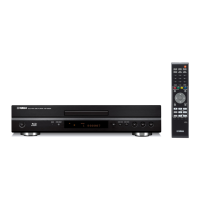
Blu-ray Disc Player
BD-S477
Owner’s Manual
Manual de Instrucciones
P
English Español
USB
00_BD-S477_P_cv.fm 1 ージ 2014年1月21日 火曜日 午後2時44分

Table of Contents

Questions and Answers

  • A
    Amy PhamSep 23, 2025
    How to enable PIP sound on Yamaha Blu-ray Player?
    • K
      Kevin YuSep 23, 2025
      To hear the sound of PIP (secondary audio) on your Yamaha Blu-ray Player, set HDMI to PCM/Reencode. To hear secondary audio, press 2ND AUDIO. Depending on the disc, you may need to set secondary audio on the top menu of the disc.
  • E
    edwardskristinAug 25, 2025
    Why my Yamaha Blu-ray Player cannot connect to the Internet?
    • K
      Kristen SalazarAug 25, 2025
      If you're having trouble connecting your Yamaha Blu-ray Player to the internet, ensure the network cable is properly connected when using a wired connection. For both wired and wireless connections, make sure your broadband router or modem is turned on and properly connected. If using a wireless connection, ensure it is properly selected in the Connection Setting.
  • A
    Andrea BrownAug 25, 2025
    Why can't I connect my Yamaha Blu-ray Player to the Internet via Wireless LAN?
    • J
      Jessica NorrisAug 26, 2025
      If you are unable to connect your Yamaha Blu-ray Player to the Internet via Wireless LAN, ensure that the wireless LAN router is turned on. If the communication distance is too long, move the Player and the wireless LAN router closer to each other. Devices that use a 2.4 GHz frequency band, such as a microwave, Bluetooth, or digital cordless device, may interrupt the communication. Move the Player away from such devices, or turn off such devices. If the Internet connection using a wireless LAN is still not successful by the above solutions, try using Ethernet by selecting Wired in Connection Setting.
  • J
    jonathan96Aug 26, 2025
    What to do if Yamaha Blu-ray Player has no power?
    • C
      Colton MartinezAug 27, 2025
      First, ensure the AC power cable is properly connected. If it is, press the power button on the front panel to turn on the Yamaha Blu-ray Player.
  • L
    Lisa RiceAug 27, 2025
    Why is my Yamaha Blu-ray Player remote control not working?
    • G
      Gina MaysAug 27, 2025
      There are several reasons why the remote control might not be working. First, make sure you are using the remote within its operating range. If that doesn't work, try replacing the batteries. Finally, check the ID settings for both the main unit and the remote control to ensure they are correctly matched.
  • J
    Jeffrey VargasSep 14, 2025
    Why can't my Yamaha Blu-ray Player detect the DLNA server?
    • D
      Deanna ObrienSep 14, 2025
      If your Yamaha Blu-ray Player cannot detect the DLNA server, verify that this Player can connect to the network normally. Turn on the connected equipment, such as broadband router or the server. Confirm the Player and the server are connected to the same router (or access point). Depending on the DLNA server, the Player may need to be permitted from the server. Depending on the DLNA server, it needs to change a firewall setting.
  • P
    Philip ObrienSep 12, 2025
    How to reset password on Yamaha Blu-ray Player if forgotten?
    • C
      Cheyenne FranklinSep 12, 2025
      To reset a forgotten password on your Yamaha Blu-ray Player, press and hold specific buttons on the front panel simultaneously when no disc is inserted and playback is stopped to set all the settings including Security settings of this Player to their default settings. After the power is turned off automatically, press the power button to turn the power on again.
  • B
    Brian WestSep 13, 2025
    Why does wide-screen video appear stretched on my Yamaha Blu-ray Player?
    • S
      suttondeannaSep 13, 2025
      Change the aspect ratio of your TV to correct the display of wide-screen or 4:3 video on your Yamaha Blu-ray Player.
  • F
    farnoldSep 5, 2025
    What to do if Yamaha Blu-ray Player remote control does not work?
    • A
      Amy BaileySep 5, 2025
      Ensure you are using the remote control within its operating range. Also, try replacing the batteries in the remote for your Yamaha Blu-ray Player.
  • T
    Tanya McintoshSep 2, 2025
    How to turn on Yamaha Blu-ray Player when there is no power?
    • R
      Richard DavisSep 2, 2025
      Ensure the AC power cable is correctly connected. Then, press the power button on the front panel of your Yamaha Blu-ray Player to turn it on.

Yamaha BD-S477 Specifications

General IconGeneral
Video OutputHDMI
Video Resolution1080p
ControlRemote control
USBYes
3D PlaybackYes
DLNAYes
USB Port1
Ethernet Port1
Disc TypesDVD, CD
Audio OutputHDMI, Optical
Supported FormatsMKV
Network ConnectivityEthernet
HDMI Output1

Related product manuals