Mobile Music Sequencer Owner’s Manual 2
Building Sections by Arranging Phrases
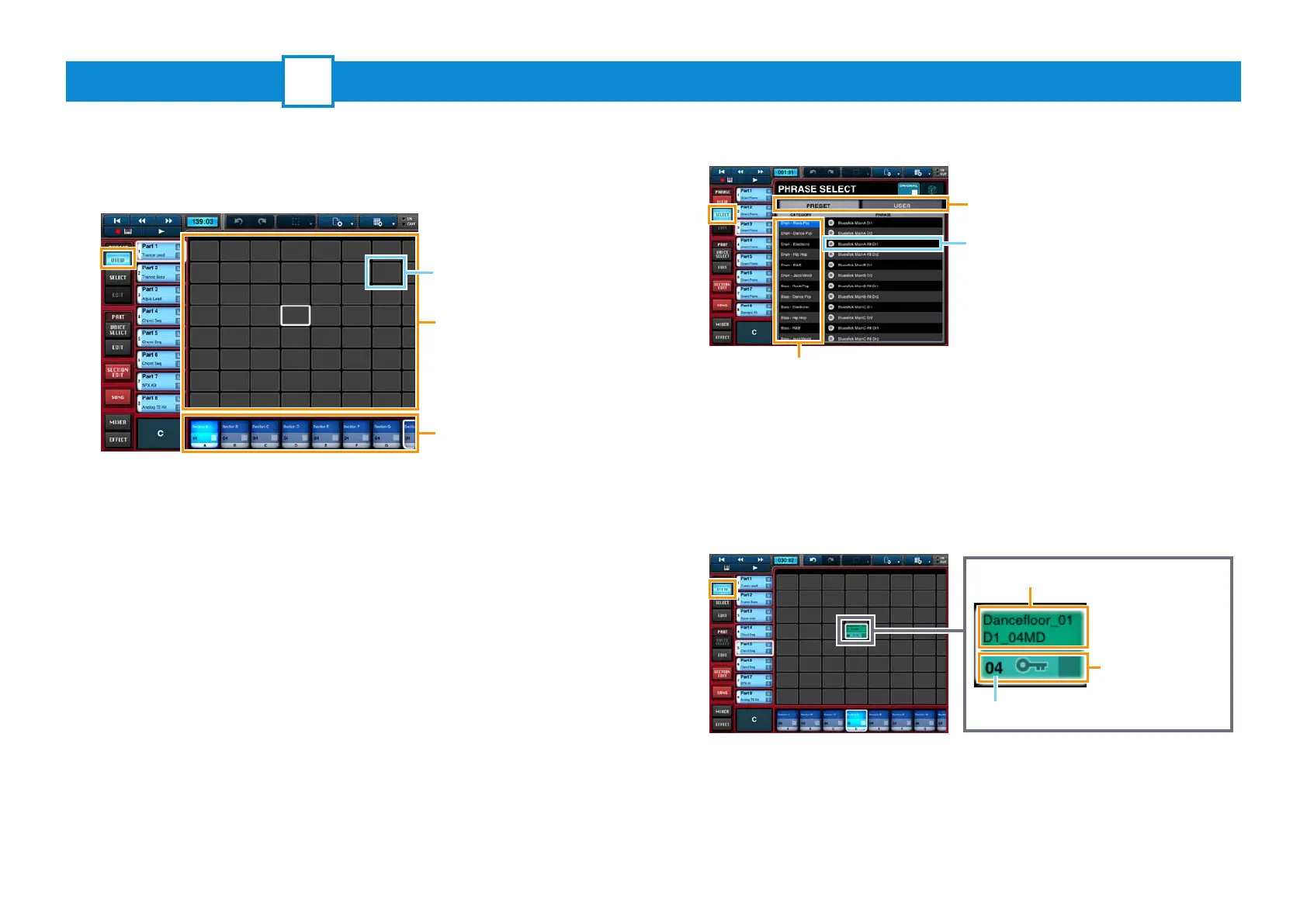
1. Tap [VIEW] from the PHRASE menu to open the Phrase
Viewer.
Phrases are arranged by placing them in cells in the Phrase Area. Each one
contains a small section of a performance on one particular instrument (or
voice).
2. Tap the Phrase Area cell in which you wish to place a
phrase.
3. Tap [SELECT] from the PHRASE menu.
4. Tap a phrase in the PHRASE SELECT pane to select it.
PRESET: Tap to display the app’s preset (i.e., built-in) phrases.
USER: Tap to display phrases that you have edited and saved.
CATEGORY: Tap to list the phrases based on instrument and music
category.
5. Tap [VIEW] from the PHRASE menu.
The phrase you selected will now be visible in the Phrase Viewer.
Repeat Steps 2 through 5 to arrange phrases as needed.
1
Phrase Viewer
Cell
PRESET, USER
Phrase Area
Phrases play when tapped so that you
can preview them while selecting.
Sections
CATEGORY
Phrase name:
Length in measures
Tap here to cut, copy,
delete, or save.
Tap to play the
phrase.



 To Next Page