Mobile Music Sequencer Owner’s Manual 5
Adding Chord Sequences to Sections
2
In Mobile Music Sequencer, chords can be set at any of a section’s beat positions
as follows.
1. In the Phrase Viewer, select a section to edit by tapping its
section button.
2. Tap [SECTION EDIT] to open the Section Editor.
3. Tap [CHORD] from the SECTION EDIT menu.
1
2
3
4
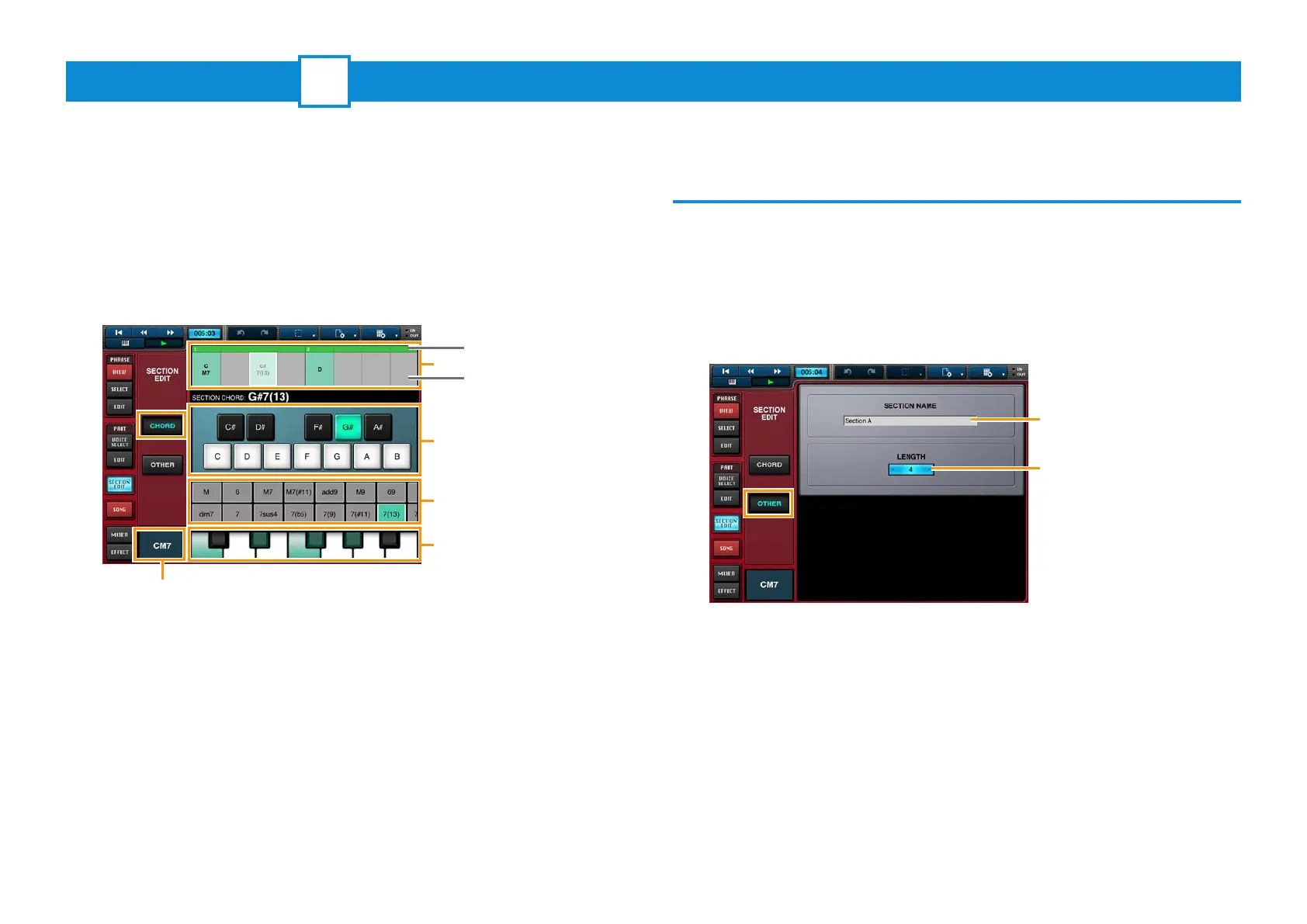
4. In Area 1, tap the beat where the chord should change.
In Area 2, tap the desired root of the chord, and in Area 3,
tap the desired chord type.
The selected chord will now be set at that beat position.
The notes that make up the selected chord will be shown on the keyboard in
Area 4.
When a section is playing, the Chord Indicator will show the current chord.
The following settings can also be made in the Section Editor.
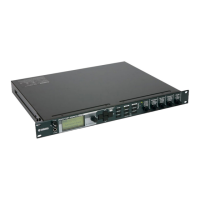
Setting the section name and length in measures
1. In the Phrase Viewer, select a section to edit by tapping its
section button.
2. Tap [SECTION EDIT] to open the Section Editor.
3. Tap [OTHER].
Measures
Beats
Chord Indicator
Tap to bring up the keyboard
and then enter a name for the
section.
Tap to set the length of the
section in measures.



 To Next Page