EasyManua.ls Logo

Yamaha P-125 - User Manual

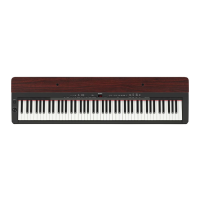
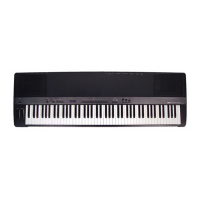
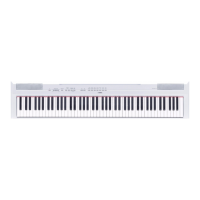
Yamaha P-125
36 pages
Print Icon
To Next Page IconTo Next Page
Loading...
P
-
125
DIGITAL PIANO
Owners Manual
EN
Appendix IntroductionReference
Before using the instrument, be sure to read “PRECAUTIONS” on pages 5 – 6.

Table of Contents

Other manuals for Yamaha P-125

Questions and Answers

  • K
    Karen BeckJul 27, 2025
    Why is my Yamaha Musical Instrument making noise?
    • M
      Mark BryantJul 27, 2025
      If you're experiencing noise from the speakers or headphones of your Yamaha Musical Instrument, this might be due to interference from a nearby mobile phone. Try turning off the phone or moving it further away from the instrument.
  • T
    thomasrussellJul 31, 2025
    What to do if Yamaha Musical Instrument pedal has no effect?
    • J
      Joshua BraunJul 31, 2025
      If the pedal of your Yamaha Musical Instrument isn't working, make sure the pedal plug is securely inserted into the [SUSTAIN] or [PEDAL UNIT] jack, as shown on page 12.
  • E
    Elizabeth CortezAug 4, 2025
    Why is the volume low on my Yamaha P-125 Musical Instrument?
    • C
      Chase AcostaAug 4, 2025
      If the overall volume of your Yamaha Musical Instrument is low or you're not hearing any sound, check the following: * Ensure the Master Volume isn't set too low; adjust it to an appropriate level using the [MASTER VOLUME] slider, as described on page 11. * Make sure the digital piano’s speakers are turned on (page 23). * Verify that headphones or a conversion adapter are not connected to the headphones jack (page 11). * Confirm that Local Control is ON; refer to the 'MIDI Reference' on the website (page 8) for details.
  • J
    Joseph DiazAug 8, 2025
    Why does Yamaha Musical Instrument footswitch produce the opposite effect?
    • R
      Ronnie RobinsonAug 9, 2025
      If the footswitch on your Yamaha Musical Instrument seems to produce the opposite effect, it might be due to reversed polarity. This can happen if the footswitch was pressed when the power was turned on. To fix this, turn off the power and turn it on again without pressing the footswitch during startup.
  • M
    Mindy BrownAug 12, 2025
    How to stop noise when using Yamaha Musical Instrument with iPhone/iPad/iPod?
    • W
      wmooreAug 13, 2025
      To eliminate potential noise when using your Yamaha Musical Instrument with an iPad, iPhone, or iPod touch app, it's recommended to turn on the device's Airplane Mode.
  • W
    William SimmonsAug 17, 2025
    Why doesn't the master volume slider change the headphone volume on my Yamaha P-125?
    • E
      elizabethlittleAug 17, 2025
      If moving the [MASTER VOLUME] slider on your Yamaha Musical Instrument doesn't change the headphone volume, check if you've set the external speaker volume to “Fixed.” If so, change it to “Variable,” as explained on page 23.
  • C
    Cheryl BlakeAug 21, 2025
    Why does my Yamaha P-125 turn off suddenly?
    • S
      schwartzdavidAug 21, 2025
      If your Yamaha Musical Instrument turns off unexpectedly, it might be due to using an incorrect AC adapter.

Summary

Precautions

For AC Adaptor Safety

Guidelines for safe usage of the AC adaptor, including warnings and cautions.

Instrument Safety Precautions

Essential safety warnings for operating the P-125, covering electrical hazards, water exposure, and fire prevention.

Manuals and Documentation

Key Operation Guide

Explains how to use the buttons and keys to set functions, play songs, and control operations.

Included Accessories

Lists the items provided with the digital piano, such as the owner's manual and adaptor.

Control Panel Overview

Power and Basic Controls

Description of power switch, volume slider, and metronome/rhythm buttons.

Performance and Song Controls

Buttons for recording, playback, tempo adjustment, and song navigation.

Voice Selection and Connectivity

Buttons for choosing instrument sounds and connection ports for headphones and pedals.

Initial Setup

Power Requirements and Connection

Instructions for connecting the AC adaptor and ensuring proper power supply.

Powering On and Standby

Procedure for turning the instrument on, setting it to standby mode, and adjusting volume.

Auto Power Off Function

Details on the automatic power-off feature and how to disable or enable it.

Master Volume and Intelligent Acoustic Control

Adjusting overall volume and utilizing IAC for optimized sound at low volumes.

Operation Confirmation Sounds

How to enable or disable audible feedback for setup changes and operations.

Headphone Usage and Stereophonic Optimizer

Connecting headphones and enhancing the listening experience with the Stereophonic Optimizer.

Pedal Functions and Optional Unit

Using the sustain pedal and connecting the optional pedal unit for enhanced performance.

Voice Selection and Playback

Selecting Individual Voices

How to select different instrument sounds using voice buttons and variations.

Table EQ for Speaker Optimization

Adjusting speaker output for optimal sound when placed on a table or desk.

Sound Boost Feature

Enhancing the audibility of quiet notes for clearer playing.

Layering Voices (Dual Mode)

Combining two different instrument voices to create a richer sound.

Splitting the Keyboard (Split Mode)

Dividing the keyboard into two sections, each with a different voice.

Playing Duo Mode

Enabling two players to perform simultaneously on the keyboard.

Metronome for Practice

Starting and Stopping Metronome

How to activate and deactivate the metronome for practicing tempo.

Tempo, Beat, and Volume Settings

Adjusting metronome speed, time signature, and overall volume.

Performance Settings

Tuning and Transpose Adjustments

Fine-tuning the instrument's pitch and transposing keys to different pitches.

Reverb and Touch Sensitivity

Setting reverb types and adjusting how playing dynamics affect sound.

Playing Back Songs

Voice Demo Songs

Listening to demonstration songs for each instrument voice.

Preset and External Songs

Playing built-in preset songs and songs loaded from external sources.

Quick Play Feature

Controlling the playback start point of songs, including silences.

Practicing Individual Song Parts

Isolating and practicing the left or right hand parts of a song.

Rhythm Accompaniment

Selecting and Using Rhythms

Choosing accompaniment patterns and starting playback.

Rhythm Volume, Tempo, and Options

Adjusting rhythm volume, tempo, and controlling intro/ending features.

Recording Performances

Quick Recording Method

Capturing keyboard performances as user songs in SMF format.

Recording Left and Right Parts Separately

Recording performances for the left and right hands independently.

Deleting User Songs and Parts

Managing stored user song data by deleting entire songs or specific parts.

Modifying Recorded Song Settings

Adjusting parameters such as voice, tempo, and reverb after recording.

Connecting External Equipment

External Speaker and Smart Device Connections

Connecting to powered speakers and mobile devices like iPads/iPhones.

Computer Connectivity and USB Audio

Connecting to a computer via USB for MIDI data and audio interface functions.

Data Management

Audio Data Handling

Playing back and recording audio data through the USB audio interface.

Backup and Initialization Procedures

Saving instrument settings and restoring the device to factory defaults.

Troubleshooting Common Issues

Technical Specifications

Detailed Voice List

Quick Operation Guide

Guarantee Information

Yamaha P-125 Specifications

General IconGeneral
InterfaceUSB
Foot pedal inputYes
Headphone outputs2
MIDI-keyboard number of keys88 keys
Product colorWhite
Sound effectsReverberation
Maximum polyphony (notes)192
Power source typeAC
Power consumption (typical)9 W
Built-in memory capacity100 KB
Weight and Dimensions IconWeight and Dimensions
Depth295 mm
Width1326 mm
Height166 mm
Weight11800 g

Related product manuals