EasyManua.ls Logo

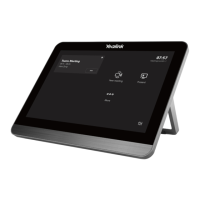
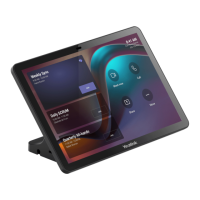
Yealink CTP18 - User Manual

Yealink CTP18
12 pages
Print Icon
To Next Page IconTo Next Page
Loading...
www.yealink.com
Quick Start Guide (V1.0)
English | 简体中文
CTP18
Collaboration Touch Panel

Other manuals for Yealink CTP18

Questions and Answers

  • M
    Matthew BeckerAug 19, 2025
    What to do if I forget the admin password for my Yealink Conference System?
    • J
      Justin BrennanAug 20, 2025
      To regain access to advanced settings on your Yealink Conference System after forgetting the administrator password, reset your system.
  • N
    Nicholas GardnerAug 21, 2025
    Why can't the far site hear me on my Yealink Conference System?
    • J
      Jessica LewisAug 22, 2025
      If the far site cannot hear your audio during a call using the Yealink Conference System, ensure your audio input device is correctly connected and that the speaker at the far site isn't covered or damaged. Also, check if your microphone is muted and ask the far site to verify their volume isn't set to 0.
  • A
    Amanda StoneAug 23, 2025
    Why is the voice quality poor on my Yealink Conference System?
    • S
      Samuel ThompsonAug 23, 2025
      If you are experiencing poor voice quality, such as intermittent voice, echo, or other noise, with your Yealink Conference System, try adjusting your distance from the microphone. Ensure the audio pickup device is stationary. Network congestion or old cables may also be factors; contact your network administrator or replace old cables.
  • D
    Daniel HernandezAug 26, 2025
    Why is the audio unclear on my Yealink Conference System during a call?
    • S
      Stacy CraigAug 26, 2025
      If you cannot hear the audio clearly during a call on your Yealink Conference System, try adjusting the speaker volume. If the audio from the far site is muffled, they may be in a highly reverberant room—advise them to speak closer to their phone. Check your audio codec priority, enable noise suppression, and ensure the device is clean and free of dust.
  • R
    Robin WareAug 27, 2025
    Why can't I receive calls on my Yealink Conference System?
    • M
      millerlauraAug 28, 2025
      If you cannot receive calls on your Yealink Conference System, ensure your network is available or contact your network administrator. Also, verify that your account is registered and that Do Not Disturb (DND) mode is disabled.
  • R
    Richard JohnsonAug 29, 2025
    How to fix Yealink Conference System remote control not working?
    • D
      Drew BallAug 29, 2025
      If your Yealink Conference System does not respond to the remote control, replace the batteries, ensure they are correctly installed, and aim the remote control directly at the sensor when performing tasks.
  • J
    Jennifer FloresAug 31, 2025
    What to do if the picture is blank on my Yealink Conference System monitor?
    • B
      Bianca ThomasAug 31, 2025
      If the picture is blank on the monitor connected to your Yealink Conference System, press any key on the remote control to wake the system if it's in sleep mode. Ensure the system is powered on and that the HDMI cable is securely connected to both the system and the monitor, and that the monitor is also powered on.
  • L
    Lorraine SchultzSep 2, 2025
    How to prevent monitor burn-in on Yealink Conference System?
    • C
      Cheryl WilliamsSep 2, 2025
      To prevent monitor burn-in on your Yealink Conference System, configure the automatic sleep time or use a screen saver. Additionally, decrease the monitor's sharpness, brightness, and contrast settings if they are set to their maximum values.
  • C
    clarkstephanieSep 4, 2025
    Why can't I share content on my Yealink Conference System?
    • M
      Michael SanchezSep 5, 2025
      If you cannot share content from your Yealink Conference System, ensure your PC is properly connected and turned on. If you're using a VCH50/VCH51 video conferencing hub or WPP20 wireless presentation pod, try replacing it. If using a WPP20, ensure it's connected to the video conferencing system to obtain the Wi-Fi profile and that the wireless AP feature of the video conferencing system is enabled.
  • J
    john07Sep 6, 2025
    Why is the video quality poor on my Yealink Conference System?
    • R
      ronniefowlerSep 6, 2025
      If the video quality is poor on your Yealink Conference System, adjust the monitor resolution and camera parameters like brightness and white balance. Check call statistics for packet loss and contact your network administrator if necessary. Avoid high-intensity indoor light or direct sunlight on the camera.

Summary

CTP18 Connection

Assemble your CTP18

Step-by-step guide for assembling the CTP18 unit.

CTP18 Connection

Method 1. Connect the CTP18 with endpoint directly

Direct connection method for VCS and MeetingEye endpoints.

Method 2. Connect the CTP18 with the endpoint by Wired LAN

Wired LAN connection method for VCS/MeetingEye/MeetingBar endpoints.

CTP18 Connection

Pair the CTP18 with endpoint

Instructions for pairing the CTP18 with endpoints based on version.

Method 3. Connect the CTP18 with endpoint Wirelessly

Wireless connection method for VCS and MeetingEye endpoints.

CTP18 Installation

Put on a table

Instructions for placing and adjusting the CTP18 on a table.

Mount on a wall

Step-by-step guide for wall mounting the CTP18.

Start to Use the CTP18

Safety Instructions

General Requirements

General guidelines for safe installation, storage, and operation.

Environmental Requirements

Recommendations for placing the device in a suitable environment.

Operating Requirements

Guidelines for safe operation, power supply, and handling.

Cleaning Requirements

Instructions for safely cleaning the device.

Troubleshooting

Common issues and solutions for the CTP18 device.

FCC Statement

IC Statement

Radiation Exposure Statement

Contact Information

About Yealink

Technical Support

Yealink CTP18 Specifications

General IconGeneral
Aspect ratio16:10
Display diagonal8 \
Display resolution1280 x 800 pixels
Touchscreen technologyCapacitive
Built-in speaker(s)No
Ethernet LANYes
Mounting typeWall/Tabletop
Product colorBlack, Grey
RJ-45 ports quantity1
Cables includedLAN (RJ-45)
Power source typeDC
Power consumption (typical)7 W
Weight and Dimensions IconWeight and Dimensions
Depth100 mm
Width202 mm
Height151 mm

Related product manuals