Need help?
Do you have a question about the Yealink Teams CTP18 and is the answer not in the manual?
Defines terminology used for Yealink products in the guide.
Lists other relevant documents available on Yealink Support.
Outlines changes made in guide versions.
Details the physical components and ports of the CTP18.
Explains how to power on the CTP18 touch panel.
Guides on connecting the CTP18 to a MeetingBar device.
Describes the main interface and elements of the touch panel idle screen.
Instructions on how to wake the CTP18 from standby mode.
Steps for signing into Microsoft Teams directly on the touch panel.
Procedure for signing into Teams using a web browser.
How to sign out of the Microsoft Teams account from the touch panel.
Guide to starting new meetings and joining scheduled or ad-hoc calls.
Features for participant management, audio, video, captions, and recording.
Methods for sharing content from PC or presentation pods via VCH51 or WPP20.
Instructions for using the CTP18 in Bring Your Own Device mode.
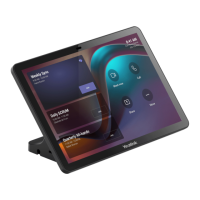
The Yealink CTP18 Teams® Collaboration Touch Panel is a dedicated control device designed to enhance the user experience with Yealink MeetingBar A20/A30 video conferencing systems. It serves as a central hub for managing meetings, sharing content, and adjusting device settings, integrating seamlessly with Microsoft Teams environments.
The CTP18 primarily functions as a touch-enabled interface for controlling the MeetingBar A20/A30. It allows users to initiate and manage Microsoft Teams meetings, share various types of content, and configure camera and device settings. The touch panel pairs with the MeetingBar A20/A30 device using a Microsoft online account, ensuring a synchronized and intuitive control experience.
Upon successful pairing, the CTP18 displays a home screen that provides quick access to essential functions. This includes the current time, the logged-in account profile, and options to initiate a "Meet now" conference, join a meeting by calling a number, or access more advanced device configurations. A schedule view is also available, displaying upcoming conferences when logged into a Teams account, complete with meeting themes, times, and moderators.
The device supports a "Waking the System" feature, where tapping the touch panel screen will wake up the connected MeetingBar. If the monitor supports CEC (Consumer Electronics Control), the MeetingBar can even wake up automatically when a user approaches.
Signing into Microsoft Teams is a core function, allowing users to access their Teams account directly on the touch panel or via a web sign-in process. This enables full integration with Teams functionalities, including scheduled meetings and contact lists. The CTP18 also provides a clear procedure for signing out of the Teams account, which will disable control over the device.
Meeting Management: The CTP18 offers comprehensive meeting management capabilities. Users can create new meetings at any time without prior reservation by tapping "Meet now" or by navigating through "More > Meet now." Participants can be added by searching for their account information.
Joining meetings is flexible, with options for "One-touch Join" for scheduled Teams meetings (from a Teams phone, client, or Outlook), "Call Meeting Number Join" for dialing into a meeting number (requires a configured calling plan), and "Proximity Join." Proximity Join allows users to move a Teams meeting from their mobile phone or laptop to the nearby MeetingBar by selecting "Add a room," provided Bluetooth is activated and "Proximity join" is enabled in settings.
During a meeting, the CTP18 allows for detailed participant management, including adding participants via an "Invite someone" field or a dial pad, and removing participants. Audio control features include muting/unmuting the microphone, muting individual participants, and adjusting the speaker volume. Video management allows users to turn the local camera on/off and control the streaming of incoming video from other participants.
A notable feature is "Turning on Live Captions," which adds real-time captions to the meeting display, enhancing accessibility. The CTP18 also supports "Recording a Meeting" for capturing audio and video in cloud-based Teams meetings, which are then saved for secure sharing.
Content Sharing: Content sharing is a robust feature, allowing users to present from their computer when the device is idle or in a conference. The system supports sharing one content stream at a time, with subsequent shares replacing the previous one. For optimal experience, using two screens for content sharing is recommended.
Two primary methods for content sharing are supported:
Whiteboard Integration: The CTP18 integrates with Microsoft Teams' whiteboard feature, enabling collaborative digital canvas sessions. Participants can share a whiteboard, which is powered by whiteboard for the web, allowing for real-time collaboration. The touch panel provides tools for pan and zoom, various pen colors (black, red, green, blue), an eraser, and options to add text or notes. Users can also stop presenting the whiteboard or mute the microphone directly from the whiteboard interface.
Wired BYOD (Bring Your Own Device) Mode: The CTP18 supports a Wired BYOD mode, transforming the MeetingBar A20/A30 into peripherals (camera, speaker, microphone) for meetings held using third-party applications on a connected PC. To enter BYOD mode, users connect their PC to the VCH51 hub using USB Type-C and HDMI cables, enable "Quick Ball" and "BYOD-USB Mode" in the device settings (requiring admin password), and then select "Device Mode" on the CTP18. Exiting BYOD mode is as simple as tapping "Exit" or unplugging the cable.
Camera Settings: The CTP18 provides extensive control over the local camera. Users can adjust exposure settings (brightness, contrast, saturation, sharpness), white balance settings (auto, manual, custom), and display image properties (flip, mirror). Advanced features include enabling auto-framing and speaker-tracking for dynamic camera adjustments. Users can also adjust the hangup mode and camera pan direction, and reset the camera to default settings.
Teams Device Settings: Beyond meeting and camera controls, the CTP18 allows users to manage general Teams device settings, such as changing the system time, configuring audio settings, managing wireless microphones, Bluetooth connections, wireless network settings, and accessibility features.
The CTP18 includes several features for maintaining the device and troubleshooting common issues.
Resetting Pairing or Unpairing: Users can reset the pairing with the MeetingBar or unpair the device entirely, which is useful for reconfiguring the system or moving the touch panel to a different MeetingBar.
Getting More Information: The CTP18 provides access to more information about Microsoft Teams, a "Company Portal" for organizational resources, and an option to "Send Feedback" to Microsoft, facilitating user support and improvement suggestions.
Maintaining the Touch Panel: Basic maintenance functions include "Rebooting the Touch Panel" for resolving minor software glitches, "Viewing the Touch Panel Status" to check operational parameters, and "Resetting the Touch Panel" to factory defaults for more significant issues or re-provisioning.
Troubleshooting: A dedicated troubleshooting section addresses common problems such as the CTP18 failing to sign in, not finding the device, or needing to check the IP address of the touch panel. These features help users diagnose and resolve connectivity or authentication issues efficiently.
 General
| Display Size | 8 inches |
|---|---|
| Resolution | 1280 x 800 |
| Touch Screen | Capacitive Touch Screen |
| Connectivity | Wi-Fi, Bluetooth |
| RAM | 2 GB |
| Storage | 16 GB |
| Operating System Version | Android 9.0 |
| Wi-Fi Standards | 802.11a/b/g/n/ac |
| Bluetooth Version | Bluetooth 4.2 |
| Operating System | Android |
| Microphone | Built-in |
| Power | Power over Ethernet (PoE) |
| Teams Features | Microsoft Teams integration |
| Processor | Quad-core |
| Ports | 1 x RJ45 |
| Power Supply | PoE |
| Compatibility | Microsoft Teams Rooms |
| Interface | Touch Interface |

 To Next Page