3
6. Connect to the network
A. Connect to the wired network
PC Connection
(Optional)
PC
B. Connect to the wireless network
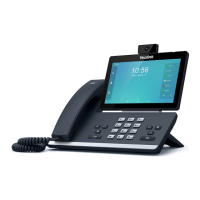
1. Tap
at the top-left corner of the touch screen.
2. Navigate to Settings->Device Settings->Wi-Fi.
3. Turn on Wi-Fi.
4. Select an available wireless network from the list of networks.
5. If the network is secure, enter its password in the Password field.
6. Tap Connect to connect to the wireless network.
7.Optional: Connect to the display
You can connect a display to the HDMI port of the phone via HDMI cable for screen projection. And
the display is plug and play.
Note: If you are connecting a PC to your phone, we recommend that you use the Ethernet cable
provided by Yealink.



 To Next Page
 Loading...