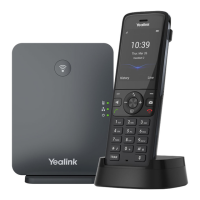
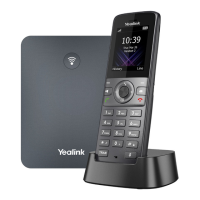
The Yealink W79P is a DECT IP phone system designed for robust and reliable communication, particularly in environments that require a durable handset. It consists of a W70B base station and a W56R ruggedized handset, offering a comprehensive solution for voice communication. The system is built for ease of use and offers a range of features for managing calls, directories, and voicemail.
Function Description
The primary function of the Yealink W79P is to provide wireless voice communication over an IP network. The W70B base station acts as the central hub, connecting to your network via Ethernet and providing the DECT radio coverage for the W56R handset. This allows the handset to operate wirelessly within a specified range, offering flexibility and mobility to users. The system supports standard telephony features such as making and receiving calls, call transfer, conferencing, and voicemail access. The ruggedized nature of the W56R handset makes it suitable for environments where a standard phone might be easily damaged, such as warehouses, construction sites, or busy offices.
Usage Features
Handset Operation:
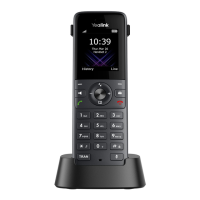
The W56R handset features a clear LCD screen that displays call information, messages, softkey functions, time, and date. It includes an alphanumerical keypad for dialing and entering text, along with dedicated keys for common functions.
- Navigation Keys: These keys allow users to move the cursor through menus and adjust the ringer volume.
- Softkeys: Context-sensitive keys that change their function based on the current screen, indicated by labels on the display. They provide quick access to features like call history, line status, and directory.
- OK Key: Confirms actions or enters the main menu.
- Power/Off Key: Used to return to the idle screen from a menu, turn the handset on or off, cancel actions, or end/reject a call.
- Answer/Talk Key: Answers incoming calls, accesses the redial list, and initiates calls.
- Message Key: Provides quick access to voicemail and missed call logs.
- Speaker Key: Toggles between earpiece, headset, and speakerphone modes, and can also answer an incoming call.
- Transfer Key: Facilitates transferring an active call to another party.
- Mute Key: Toggles the mute function on and off during a call.
- Earpiece and Microphone: Standard components for audio input and output during calls.
- Speaker: Provides hands-free audio during speakerphone calls.
- 3.5mm Earphone Jack: Allows connection of a standard 3.5mm headset for private communication.
Call Management:
The W79P offers comprehensive call management features:
- Answering Calls: Incoming calls can be answered by pressing the TALK/ANSWER key or the ACCEPT softkey. The ringer can be silenced using the SILENCE softkey.
- Managing Multiple Calls: Users can answer a second incoming call while the first is on hold, and switch between active calls using the SWAP softkey.
- Placing Calls: Calls are placed by entering the number and pressing the TALK/ANSWER key. A second call can be initiated using the NEW CALL softkey.
- Ending Calls: Calls are ended by pressing the POWER/OFF button.
- Speakerphone: Calls can be placed on or taken off speakerphone using the dedicated SPEAKER key.
- Mute Function: The MUTE key allows users to mute and unmute their microphone during a call.
- Call Transfer: The system supports both announced/warm transfers (where you speak to the recipient before transferring) and blind/cold transfers (where the call is transferred directly).
- Call Park: This feature allows users to place an active call on a system-wide hold, which can then be retrieved from any other telephone on the system.
- 3-Way Conference Call: Users can initiate a three-way conference call with an active call on the line, adding a second party to the conversation.
- Redial: The handset stores a list of recently dialed numbers, accessible via the TALK/ANSWER button for quick redialing.
- Call History: The phone maintains a history of incoming, outgoing, and missed calls, which can be viewed, detailed, added to contacts, or deleted.
Directories:
The W79P supports two types of directories:
- Local Directory: Specific to the individual handset, allowing users to store personal contacts.
- Network Directory: Maintained by the system administrator and accessible across all handsets, providing a centralized contact list.
- Adding Contacts: New contacts can be added to the local directory, including first name, last name, and multiple phone numbers (work, mobile, other).
- Searching Directories: Contacts can be searched by spelling out names using the dial pad, with dynamic search results appearing as you type.
Voicemail:
The system includes a robust voicemail system with voice-prompted instructions.
- First-Time Setup: Users must initialize their mailbox by creating a password, recording their name, and setting up a personal greeting.
- Mailbox Greetings: Various greeting types are available, including personal, extended absence, system-generated busy, out of hours, forwarded to VM, and name greetings.
- Voicemail Self-Service CommPortal: This portal allows users to manage their voicemail settings, record and change greetings, choose voicemail-to-email options, and change login credentials.
- Accessing Voicemail: Voicemail can be accessed from any internal extension or an external telephone by dialing the appropriate number and following prompts.
- Voicemail Commands: A set of commands allows users to listen to messages, send messages, work with greetings, manage mailbox settings, and switch accounts.
- Direct to Voicemail: Incoming calls can be sent directly to voicemail.
- Transfer to Voicemail: Calls can be transferred directly to another person's voicemail without ringing their phone.
Base Station Features:
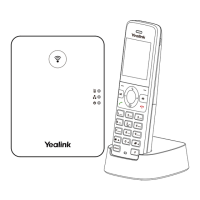
The W70B base station includes LEDs that indicate its status:
- Paging Key: Used to locate a misplaced handset, toggle registration mode, or reset the base station to factory settings.
- Registration LED: Indicates the base station's mode (paging, registration, or registered handsets).
- Network Status LED: Shows whether the network is available or unavailable.
- Power Indicator LED: Displays the power status of the base station and indicates firmware upgrades.
Maintenance Features
Powering the Base Station:
The W70B base station can be powered in two ways:
- AC Power: Connect the provided power adapter to the DC5V port on the base station and an electrical outlet. It's important to use the original power adapter (5V/600mA) to prevent damage.
- Power over Ethernet (PoE): If your network switch supports PoE (IEEE 802.3af compliant), the base station can receive power directly through the Ethernet cable, eliminating the need for a separate AC adapter.
Handset Battery Management:
- Battery Insertion: The rechargeable battery is inserted into the back of the W56R handset.
- Charging: The handset is charged by placing it in the charging cradle, which connects to a power adapter. A full charge typically takes about 3 hours, and the charging status is displayed on the handset's LCD screen.
- Firmware Updates: The system may undergo firmware updates. It is crucial not to remove power or network connectivity to the base station during these updates to avoid damage or configuration issues.
Environmental Considerations:
- Base Station Placement: The base station should be placed in an area with good radio coverage, offering approximately 1000 feet in unobstructed outdoor areas and up to 165 feet inside buildings. It should not be set up in damp rooms or near water.
Physical Maintenance:
- Belt Clip: The W56R handset comes with a belt clip that can be attached to the back of the handset for convenient carrying.
The Yealink W79P is designed to be a reliable and user-friendly communication tool, offering both the flexibility of wireless operation and the durability required for demanding environments, all while providing a comprehensive suite of telephony features.

 Need help?
 General

 To Next Page