EasyManua.ls Logo

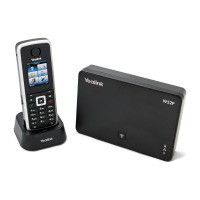
Yealink W80B - User Manual

Yealink W80B
96 pages
Print Icon
To Next Page IconTo Next Page
Loading...
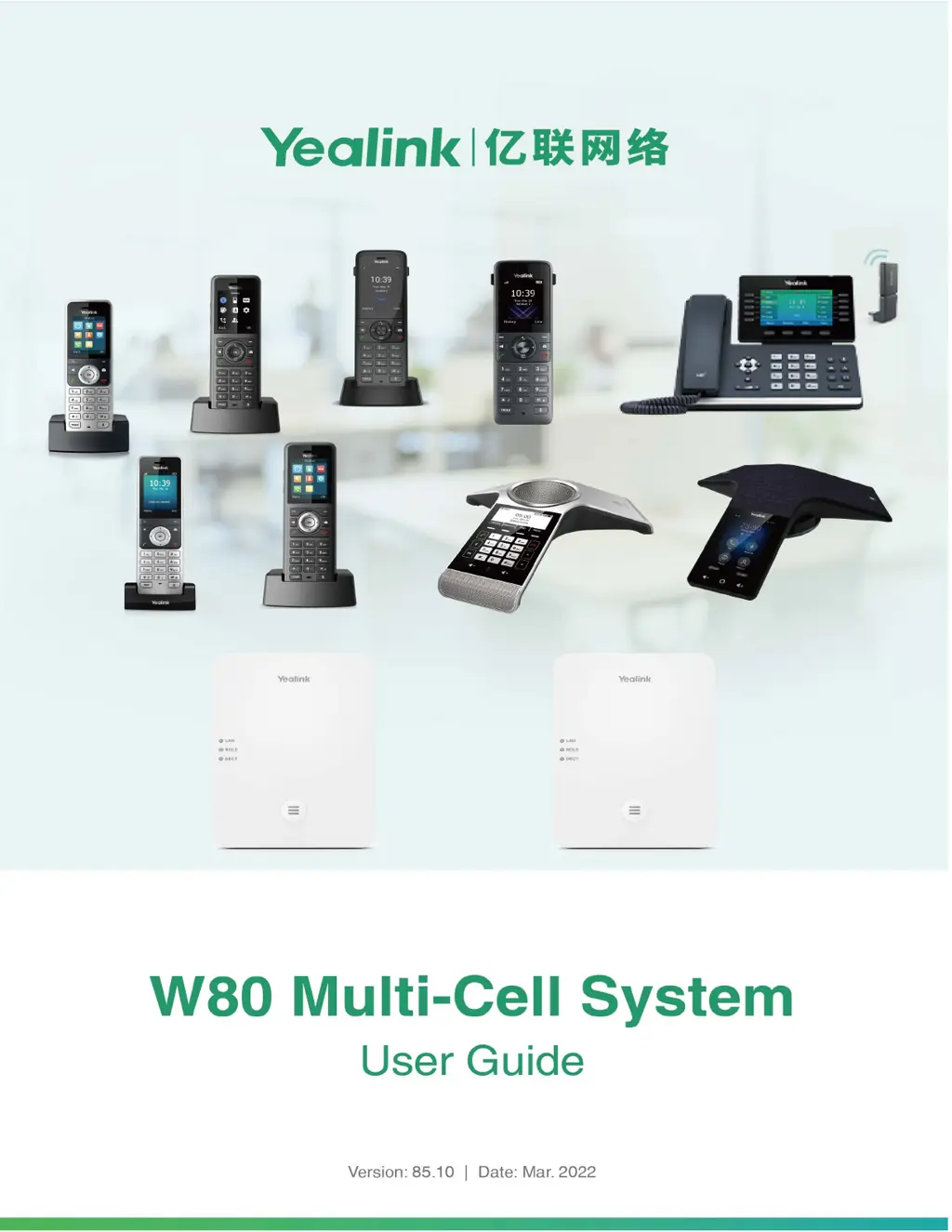
Yealink W80 DECT IP Multi-
Cell System User Guide V85.10

Table of Contents

Other manuals for Yealink W80B

Questions and Answers

  • J
    Jonathan BellAug 18, 2025
    Why doesn't my Yealink Telephone get an IP address?
    • T
      Trevor JohnsonAug 18, 2025
      If your Yealink Telephone isn't getting an IP address, check the following: * Ensure the Ethernet cable is securely plugged into the internet port and is not loose. * Verify the Ethernet cable is not damaged. * Confirm that the IP address and related network parameters are set correctly. * Make sure your network switch or hub is working. * Ensure the Wi-Fi feature is disabled.
  • J
    Jacob WhiteAug 20, 2025
    Why does my Yealink Telephone display “No Service”?
    • M
      Marcus CantrellAug 21, 2025
      If your Yealink Telephone displays “No Service”, ensure that an account is actively registered on the IP phone at Menu->Status->More->Accounts.
  • C
    Christina ReedAug 23, 2025
    Why does my Yealink Telephone have no power?
    • C
      Cory GravesAug 23, 2025
      If your Yealink Telephone has no power: * Reboot your IP phone. * Replace the power adapter.
  • L
    luissandovalAug 26, 2025
    What to do if the LCD screen is blank on my Yealink Telephone?
    • D
      Dr. Julie WardAug 26, 2025
      If the LCD screen on your Yealink Telephone is blank, verify the following: * Ensure the phone is properly plugged into a functional AC outlet. * Confirm the phone is plugged into a socket controlled by a switch that is on. * If plugged into a power strip, try plugging it directly into a wall outlet. * If your phone is PoE powered, ensure you are using a PoE-compliant switch or hub.
  • D
    Dana MorganAug 28, 2025
    How to solve IP conflict problem on Yealink Telephone?
    • O
      omanningAug 28, 2025
      To resolve an IP conflict on your Yealink Telephone, you can: * Reset another available IP address for the IP phone. * Check network configuration via the phone's user interface at Menu->Settings->Advanced Settings (default password: admin)->Network->WAN Port->IPv4 (or IPv6). If Static IP is selected, choose DHCP instead.
  • M
    Michelle SmithAug 30, 2025
    Why doesn’t my Yealink Telephone upgrade firmware successfully?
    • K
      kevincoleAug 30, 2025
      If your Yealink Telephone isn’t upgrading firmware successfully, check the following: * Ensure that the target firmware is not the same as the current firmware. * Ensure that the target firmware is applicable to the IP phone model. * Ensure that the current or the target firmware is not protected. * Ensure that the power is on and the network is available during the upgrade. * Ensure that the web browser is not closed or refreshed when upgrading firmware via the web user interface.
  • A
    Angela TaylorSep 2, 2025
    Why do I get poor sound quality during a call on my Yealink Telephone?
    • R
      Ronald BrownSep 2, 2025
      Poor sound quality during a call on your Yealink Telephone can be due to several factors: * Users being too far from the microphone or too close to sensitive microphones. * Packet loss and jitter due to network congestion. * Noisy equipment causing interference. Turn off any noisy equipment. * Line issues. Try disconnecting the old line and redialing to see if another line provides a better connection.
  • S
    Stephanie ThomasSep 4, 2025
    Why doesn’t my Yealink Telephone display time and date correctly?
    • L
      Lori AlexanderSep 5, 2025
      If your Yealink Telephone doesn’t display the correct time and date: * Check if the IP phone is configured to obtain the time and date from the NTP server automatically. * If your phone is unable to access the NTP server, configure the time and date manually.
  • M
    michael39Sep 6, 2025
    Why doesn’t my Yealink Telephone update the configuration?
    • A
      ashley52Sep 7, 2025
      If your Yealink Telephone isn’t updating its configuration: * Ensure that the configuration is set correctly. * Reboot the phone, as some configurations require a reboot to take effect. * Ensure that the configuration is applicable to the IP phone model. * Be aware that the configuration may depend on support from a server.
  • A
    Amanda HorneSep 9, 2025
    Why does the Bluetooth headset affect Yealink Telephone’s voice quality?
    • R
      Rachel MiddletonSep 9, 2025
      Your Yealink Telephone's voice quality may be affected if you use a Bluetooth headset while the 2.4 GHz band is enabled or in an environment with many other Bluetooth devices.

Summary

Getting Started

Hardware Overview

Introduces the various hardware components of the Yealink W80 system.

Menu Navigation and Interface

Explains accessing menus, submenus, and returning to the idle screen on W56H/W53H.

Screen Icons and Status Indicators

Details the meaning of various icons and indicators on the phone screens.

Battery and Character Input

Covers rechargeable battery status and methods for entering characters.

Registering the Handset

Reasons for Registration Failure

Lists common reasons why handset registration might fail.

Registering Handsets at the DECT Manager

Provides steps to register handsets with the DECT manager.

Selecting a System to Connect

Explains how to manually connect the handset to a desired system.

Call Features

Placing Calls

Details how to initiate external calls, calls from history, and directory.

Answering Calls

Explains manual and automatic call answering procedures.

Silencing or Rejecting Incoming Calls

Covers silencing, manually rejecting, or rejecting calls with DND.

Holding and Resuming Calls

Guides on placing calls on hold and resuming them.

Transferring Calls

Describes methods for transferring calls (blind, semi-attended, attended).

Conference Calls

Covers initiating and managing conference calls.

Recording Using an SD Card

Explains how to record calls using an SD card.

Advanced Call Features

Call Park and Call Retrieve

Explains parking and retrieving calls using FAC or Transfer modes.

Shared Call Appearance (SCA)

Describes using Shared Call Appearance to share a line across multiple phones.

Voice Mail

Covers leaving and listening to voice mail messages.

Directory Management

Local Directory Management

Details managing contacts in the phone's local directory.

Shared Directory Management

Explains how to manage contacts in the shared directory.

Blocklist Management

Describes adding and managing blocked callers.

Remote Phone Book Access

Covers accessing and using the remote phone book.

Call History

Call History Icons

Explains the icons used in the call history to indicate call types.

Viewing History Records

Guides on how to view detailed call history records.

Saving History Records

Details saving call history entries to local directory or blocklist.

Deleting History Records

Covers deleting single or all call records from history.

Customizing Your Phone

Handset Power and Display Settings

Covers turning handset on/off, wallpaper, and screen saver settings.

Screen Brightness and Keypad Light

Covers adjusting screen brightness and illuminating keypad keys.

Language and Time;Date Settings

Guides on changing phone language and configuring time/date.

Soft Keys and Shortcuts

Guides on customizing soft key functions and configuring shortcuts.

Phone Locking and Silent Mode

Covers manual/automatic phone locking and enabling silent mode.

Audio Settings

Volume and Ring Tone Adjustment

Details how to adjust volumes and select ring tones.

Silent Charging and Advisory Tones

Covers silencing notifications during charging and configuring advisory tones.

Vibrator and Key Tone Settings

Explains configuring vibration settings and audible key tones.

Noise Cancellation

Explains how to disable noise cancellation for improved speech.

Bluetooth Features

W59 R;W78 H Bluetooth Operation

Explains how to use Bluetooth headsets with W59R/W78H models.

Bluetooth Pairing and Management

Guides on enabling, disabling, searching, pairing, and managing Bluetooth devices.

Using Your CP930 W with PC

PC Connectivity and Audio Setup

Explains connecting CP930W to PC and setting it as an audio device.

PC Call Management

Details making calls via PC softphone and managing PC audio.

WH62;WH63 Headsets

Headset Mode Switching

Explains switching between Multi-Cell and Normal headset modes.

Headset Registration and Pairing

Guides on registering headsets and pairing them with handsets.

Headset Call Management

Explains call management functions using the headset.

Maintaining Your Phone

Troubleshooting and Warnings

Guides on checking warning details and investigating issues.

Handset Reset and Reboot

Explains how to reset handset settings and reboot the device.

Appendix

Menu Structure Diagrams

Provides menu structure diagrams for different handset models.

Input Modes and Characters

Lists input modes and corresponding characters for text entry.

Bluetooth Headset Compatibility

Lists compatible Bluetooth headsets for Yealink devices.

Yealink W80B Specifications

General IconGeneral
CategoryIP Phone
Network ProtocolSIP
Number of SIP Accounts8
Concurrent Calls8
DECT TechnologyCAT-iq2.0
Ethernet Ports2
Handsets SupportedUp to 30
Repeater SupportYes
PoE SupportIEEE 802.3af
SecurityTLS, SRTP
ProvisioningTR-069
Operating Temperature0°C to 40°C
Radio RangeUp to 50 meters indoors
CodecsOpus, G.722, G.726, G.729, iLBC
ManagementWeb GUI
Frequency Range1880 MHz to 1900 MHz (EU), 1920 MHz to 1930 MHz (US)
Power SupplyPoE
Humidity10% to 95%

Related product manuals