8
Available Devices
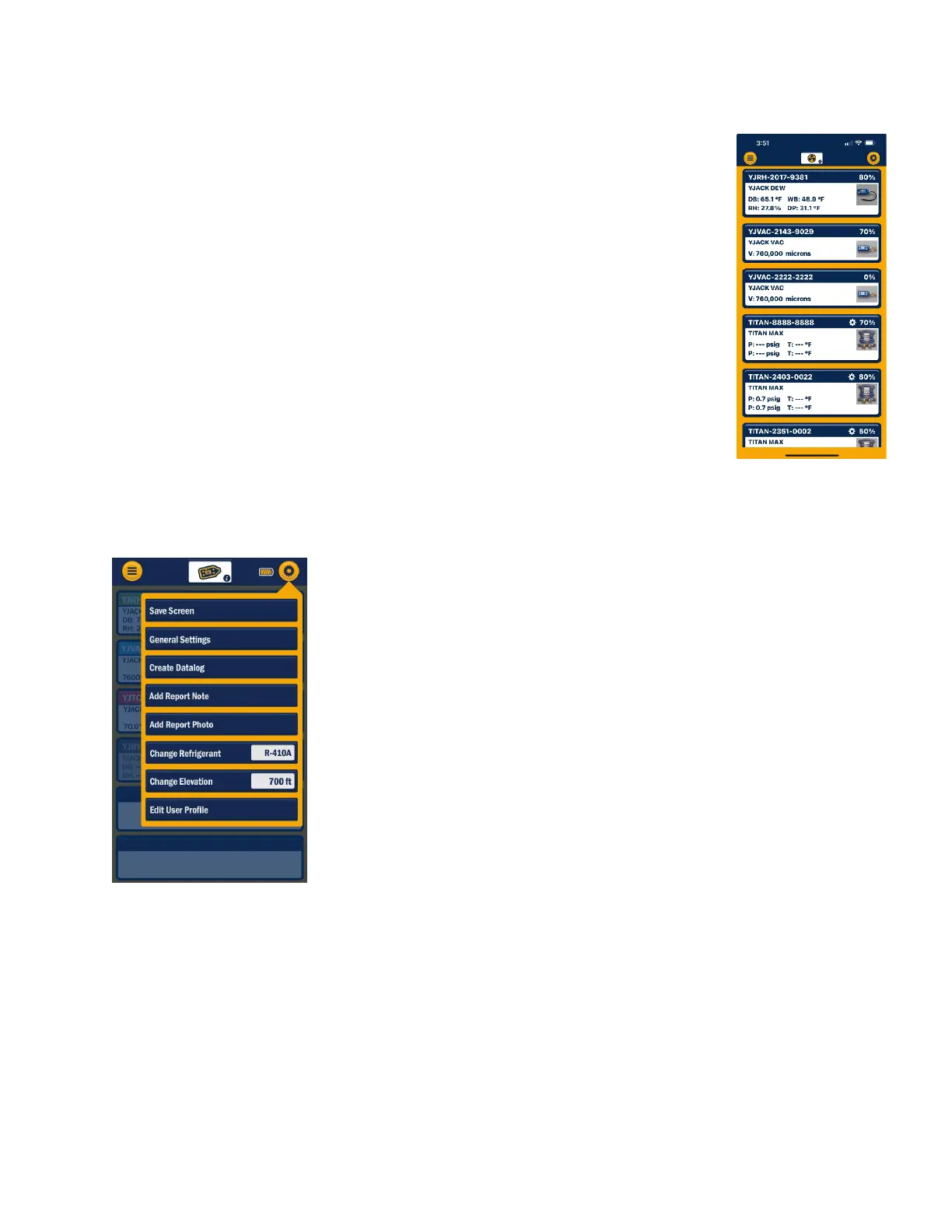
Upon selecting Available devices in the app, a list of available devices will appear. If
there are no P51-870 TITAN®, TITANMAX™ or YJACK® devices turned on and within
range, no devices will be listed, but as these devices are powered on, they will populate
on this screen. Each device that appears on the list of available devices includes some
basic information about the device. This includes the device serial number/Bluetooth®
ID, the battery level, and any readings that the device is broadcasting. Keep in mind
that the YJACK PATH® can be utilized to repeat the readings from any P51-870 TITAN®,
TITANMAX™ or YJACK® device, improving the connection range. If a device moves out
of range or is turned off, it will display on the available devices screen with a red
banner. If this occurs make sure the device is turned on and moved back within range,
possibly by relocating the YJACK PATH® device.
General Settings
Before starting any system readings session with the YJACK VIEW® app, make sure the app settings are
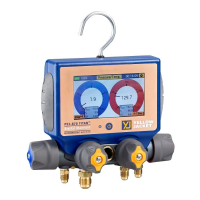
configured to your preferences. Press on the three-dot icon in the upper right corner of the screen. A list
of configurable settings will appear including General Settings, Create
Datalog, Change Refrigerant, Change Elevation, and Edit User Profile. First,
access the “General Settings.” This screen will allow you to set your
preferred units of measurement for pressure, temperature, vacuum, and
elevation. You can also turn on and off sound notifications and the screen
lock functions. Once the proper settings have been selected, press “Save.”
If you plan to start a Pressure/Temperature Session, again tap the three-
dot icon and select “Change Refrigerant.” The list of over 126 selectable
refrigerants will appear. Next to each refrigerant name, there is an outline
of a star. Pressing on the star icon will turn the star solid yellow and
classify that refrigerant as a favorite. Favorite refrigerants will always
appear at the top of the refrigerant selection screen for easy access. To
remove a refrigerant from the list of favorites, simply press on the solid
yellow star next to the desired refrigerant and it will instantly be removed
from the list of favorites. Once the favorites have been configured as
desired, and the proper refrigerant has been selected, press Save. The final app configuration setting is
to set the elevation where the service is being performed. Press on the three-dot icon once again and
select “Change Elevation.” Enter the elevation where service is being performed and press “OK.” This
will implement pressure measurement compensation when reading gauge pressure. The fourth option
from the app settings, “Create Datalog,” is discussed in more detail below. Now that the app settings
have been configured. The session type can be selected. Press on the three-line icon on the upper left
corner of the screen to bring up the session selection menu. You can select from Pressure/Temperature,
Psychrometric Air Calculations, Evacuation, Static Pressure, or Available Devices to return to the
Available Devices screen.



 To Next Page