9
Pressure/Temperature Session
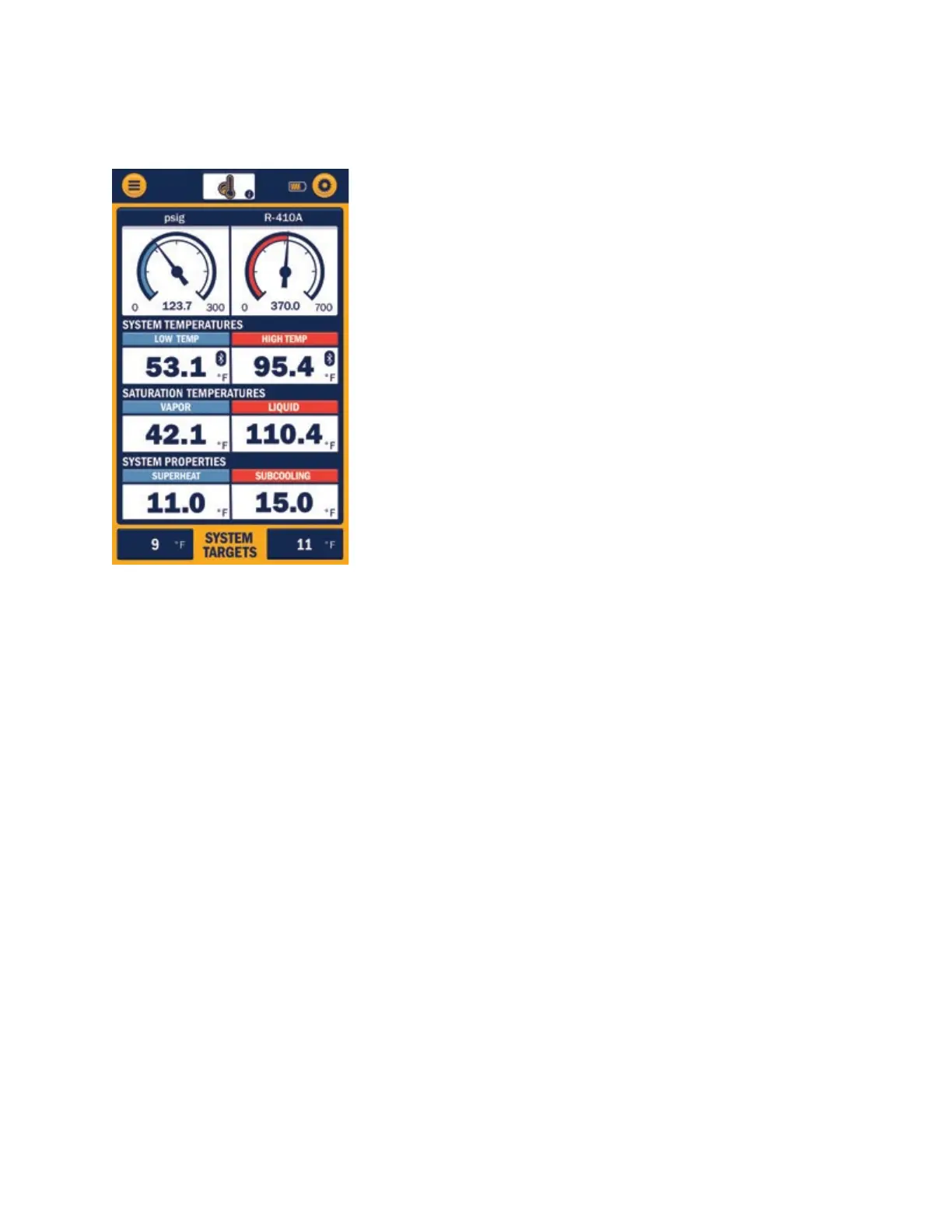
The Pressure/Temperature session type displays system pressure and temperature measurements, as
well as saturation temperatures and superheat/subcooling data. The
first time a Pressure/Temperature session is started, the system
pressure and temperature measurements will need to be assigned to
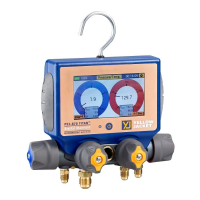
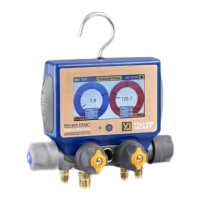
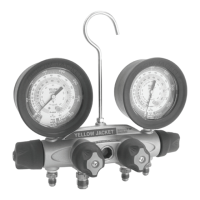
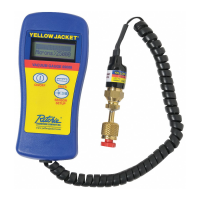
the specific P51-870 TITAN® and YJACK® devices being used. Press on
the 3 dashes within the Low-Pressure measurement box. A list of
available devices broadcasting pressure measurements will appear.
Select the device and measurement that corresponds with the low
side of the system. Above the device selection, there is also a list of
reading display options. Pressures can be displayed as a large digital
number, a simulated analog gauge, or as a line graph to show
measurement changes over time. Select the preferred graphical type
and press “Save & Close.” Follow this same procedure for the High-
Pressure measurement. Now assign the system low-side and high-
side temperatures. Press on the 3 dashes within the Low
Temperature measurement box. A list of available devices
broadcasting system temperature measurements will appear
including any YJACK® Temperature Clamp or Strap probes as well as
any wired temperature clamps plugged into a P51-870 TITAN®.
Select the device and measurement that corresponds with the low side of the system. Above the device
selection, there is also a list of reading display options. Temperatures can be displayed as a large digital
number or as a line graph to show measurement changes over time. Select the preferred graphical type
and press “Save & Close.” Repeat this process for the system high temperature reading. Below the
system pressure and temperature readings are the vapor and liquid Saturation Temperatures, which are
automatically generated once the pressures are assigned. The refrigerant that has been selected is also
displayed in this line and can be changed at any time in the app settings as outlined earlier. The next set
of data is the System Properties, which includes the system superheat and subcooling values generated
once the pressure and temperature measurements have been assigned. The last set of data is the
System Targets, where you can input the target superheat and subcooling values for reference against
the actual system readings. To adjust the datasets that appear on the Pressure/Temperature session
screen, press the caret “^” icon next to each dataset to minimize or maximize it until the desired
datasets are displayed. The system readings assignments are stored in the app memory for future
sessions, but the assignments can be changed at any time by pressing on the reading that is to be
changed.



 To Next Page