EasyManua.ls Logo

yellow jacket 40870 - User Manual

yellow jacket 40870
31 pages
Print Icon
To Next Page IconTo Next Page
Loading...
YELLOW JACKET®
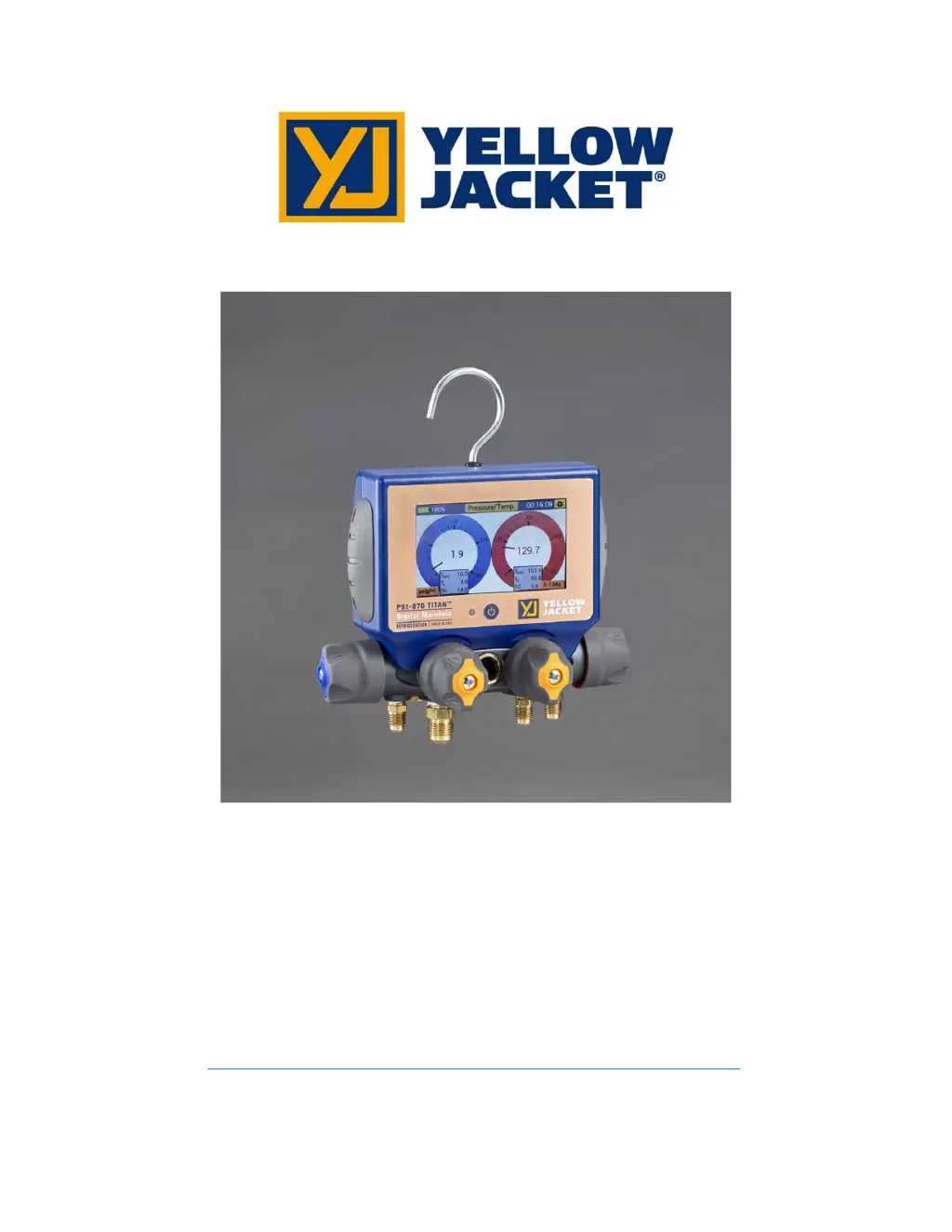
P51-870 TITAN® User Manual
P/N 40870, 40875, 40877
NOTE: These Instructions do not cover the manifold attached to the instrument.
For instructions on use of the TITAN® 4-Valve Manifold, please visit:
https://yellowjacket.com/product/titan-4-valve-test-and-charging-manifold/.
The Manifold Instructions are under the Documents tab.
REV D

Table of Contents

Questions and Answers

  • J
    Jennifer SullivanJul 28, 2025
    Why is the temperature reading incorrect or not displaying on my Yellow Jacket Measuring Instruments?
    • C
      cvillaJul 28, 2025
      If the temperature reading on your Yellow Jacket Measuring Instruments is incorrect or not displaying, first, check the temperature clamp connections on the back of the manifold to ensure the barrel connector is fully seated. Also, check the clamp connections to the system to ensure they are properly attached. Make sure T1 is attached to the system low-side, and T2 to the system high-side. For P51-860 models, ensure that Tsy mode is selected.
  • H
    hwalkerAug 1, 2025
    What to do if the screen does not display anything on Yellow Jacket Measuring Instruments?
    • D
      danielriveraAug 2, 2025
      If the screen of your Yellow Jacket Measuring Instruments is not displaying anything, it could be due to several reasons. First, verify that the manifold is sufficiently charged. If you have a P51-870 model, check the backlight auto-dimming timer. If the screen is damaged, contact technical support.
  • B
    Brenda WalkerAug 6, 2025
    Why is the vacuum reading incorrect/not displaying on my Yellow Jacket Measuring Instruments?
    • C
      christinastewartAug 6, 2025
      If the vacuum reading on your Yellow Jacket Measuring Instruments is incorrect or not displaying, check the vacuum probe connections on the back of the manifold to ensure the barrel connector is fully seated. Also, check the vacuum probe connections to the system to ensure proper attachment. For P51-870 models, make sure the vacuum probe is plugged into the A1 or A2 jacks.
  • B
    Brian BurgessAug 10, 2025
    What to do if pressure transducers won't zero on Yellow Jacket Measuring Instruments?
    • T
      Terry LeeAug 10, 2025
      If the pressure transducers on your Yellow Jacket Measuring Instruments won't zero, ensure the manifold is vented to the atmosphere. If the issue persists, the pressure transducers may be damaged, and you should contact technical support.
  • C
    Craig HartmanAug 14, 2025
    How to fix dimmed screen on Yellow Jacket Measuring Instruments?
    • A
      Anna ScottAug 14, 2025
      If the screen on your Yellow Jacket Measuring Instruments has dimmed, try tapping the power button to turn the backlight on. If the issue persists, the screen may be damaged, and you should contact technical support.
  • E
    Elijah PottsAug 19, 2025
    What to do if screen not responding to touch on Yellow Jacket Measuring Instruments?
    • T
      Tony SmithAug 19, 2025
      If the screen on your Yellow Jacket Measuring Instruments is not responding to touch, try the following steps. First, recalibrate the display. If the device is connected to a PC, disconnect it. If the issue persists, the display may be damaged, and you should contact technical support.
  • J
    Jennifer BowmanAug 23, 2025
    What to do if Yellow Jacket Measuring Instruments device is not responding to button press?
    • V
      vthompsonAug 23, 2025
      If your Yellow Jacket Measuring Instruments device is not responding to button presses, disconnect it from the PC. For P51-860 models, if the issue persists, the buttons or overlay may be damaged, and you should contact technical support.

Summary

Before You Start

Contacting Ritchie Engineering

Provides contact details for ordering, assistance, and locating distributors.

Safety Information

Crucial warnings and guidelines for safe operation and to prevent instrument damage.

Getting Started

Getting to Know Your P51-870 TITAN

Overview of the device's physical components and labeled parts.

Turning the instrument On and Off

Instructions on powering the device on and off using the power button.

Interacting with the device

How to use the touchscreen interface and navigate device menus.

Connecting and Using the Temperature Clamps

Steps for connecting and properly attaching temperature probes for measurements.

Connecting and Using the Vacuum Sensor

Instructions for connecting and utilizing the vacuum sensor for measurements.

Interpreting the Battery Life Indicator

Understanding the device's battery status, charge level, and indicators.

Charging the Battery

Procedure for charging the instrument's internal rechargeable battery.

Operating the Backlight

Adjusting screen brightness and backlight timer settings for optimal use.

Datalogging

How to gather and record live system readings for later analysis.

Interpreting the RGB LED

Explains the meaning of different LED colors and flashing schemes during operation.

Modes of Operation

Modes Menu

The main screen for selecting different operational modes like Pressure/Temperature or Evacuation.

Pressure;Temperature Mode

Detailed guide to using the pressure and temperature measurement mode for diagnosis.

Interpreting the Pressure Analog Gauges

Explanation of how to read the digital analog pressure gauges on the display.

Interpreting the Pressure and Temperature Line Graphs

How to understand the graphical representation of pressure and temperature data over time.

Operating Pressure;Temperature Mode

Steps and tips for using the Pressure/Temperature mode effectively, including settings.

Evacuation Mode

Guide to using the device for accurately monitoring system evacuation progress.

Interpreting the Evacuation Gauge

How to read the digital analog vacuum gauge in Evacuation mode.

Interpreting the Evacuation Graph

Understanding the graphical display for vacuum measurements during evacuation.

Operating the Evacuation Mode

Instructions for performing and managing system evacuations, including target settings.

Pressure Hold Mode - Pressure Decay Test

Procedure for conducting a pressure decay test to detect system leaks.

Interpreting the Pressure Decay Gauge

How to read the digital analog gauge during a pressure decay test.

Interpreting the Pressure Decay Graph

Understanding the graphical data displayed during pressure decay tests.

Operating the Pressure Decay Mode

Steps to set up and run a pressure decay test, including duration and allowable change.

Pressure Hold Mode - Pressure Rise Test

Procedure for performing a pressure rise test to check for leaks or non-condensables.

Interpreting the Pressure Rise Gauge

How to read the digital analog gauge during a pressure rise test.

Interpreting the Pressure Rise Graph

Understanding the graphical data displayed during pressure rise tests.

Operating the Pressure Rise Test

Steps to set up and run a pressure rise test, including duration and allowable change.

Settings

Settings Menus Overview

Introduction to the different configuration menus for the device settings.

General Settings Menu

Accessing refrigerant, units, and transducer zeroing/calibration settings.

Zeroing the Pressure Transducers

Procedure to reset pressure transducers for accurate atmospheric pressure readings.

Calibrating the Touchscreen

Steps to recalibrate the device's touchscreen for improved responsiveness and accuracy.

Refrigerant Settings Menu

How to select and change the system refrigerant from a list.

Unit Settings Menu

Adjusting pressure, vacuum, and temperature units for display.

Device Settings Menu

Configuring display brightness, backlight timer, auto-off timer, and logging rate.

Brightness

Adjusting the LCD backlight intensity for better visibility in different lighting.

Backlight Timer

Setting the duration the backlight stays active after the last user input.

Auto Off

Configuring the automatic power-off feature to conserve battery life.

Logging Rate

Setting the interval for data sample storage for datalogging purposes.

YJACK View App Integration

Overview

Introduction to the YJACK VIEW app's compatibility and features with the P51-870 TITAN®.

Operation of the YJACK VIEW App with the P51-870 TITAN

Steps for pairing and connecting the device with the YJACK VIEW mobile app.

Maintenance

Overview

Introduction to the basic operator maintenance procedures for the instrument.

General Maintenance

Guidelines for cleaning the instrument case and its sensitive display screen.

Replacement Parts;Optional Accessories

List of available replacement parts and optional accessories with UPC numbers.

Device Specifications

Troubleshooting Guide

P51 Troubleshooting

Common problems encountered with the P51 device and their potential solutions.

yellow jacket 40870 Specifications

General IconGeneral
Product TypeClamp Meter
Model40870
CategoryMeasuring Instruments
Capacity400A AC
Resolution0.1A
TypeDigital Clamp Meter
Resistance MeasurementYes
Continuity TestYes
DisplayLCD
Safety RatingCAT III 600V
Power SourceBattery

Related product manuals