10
Psychrometric Air Calculations
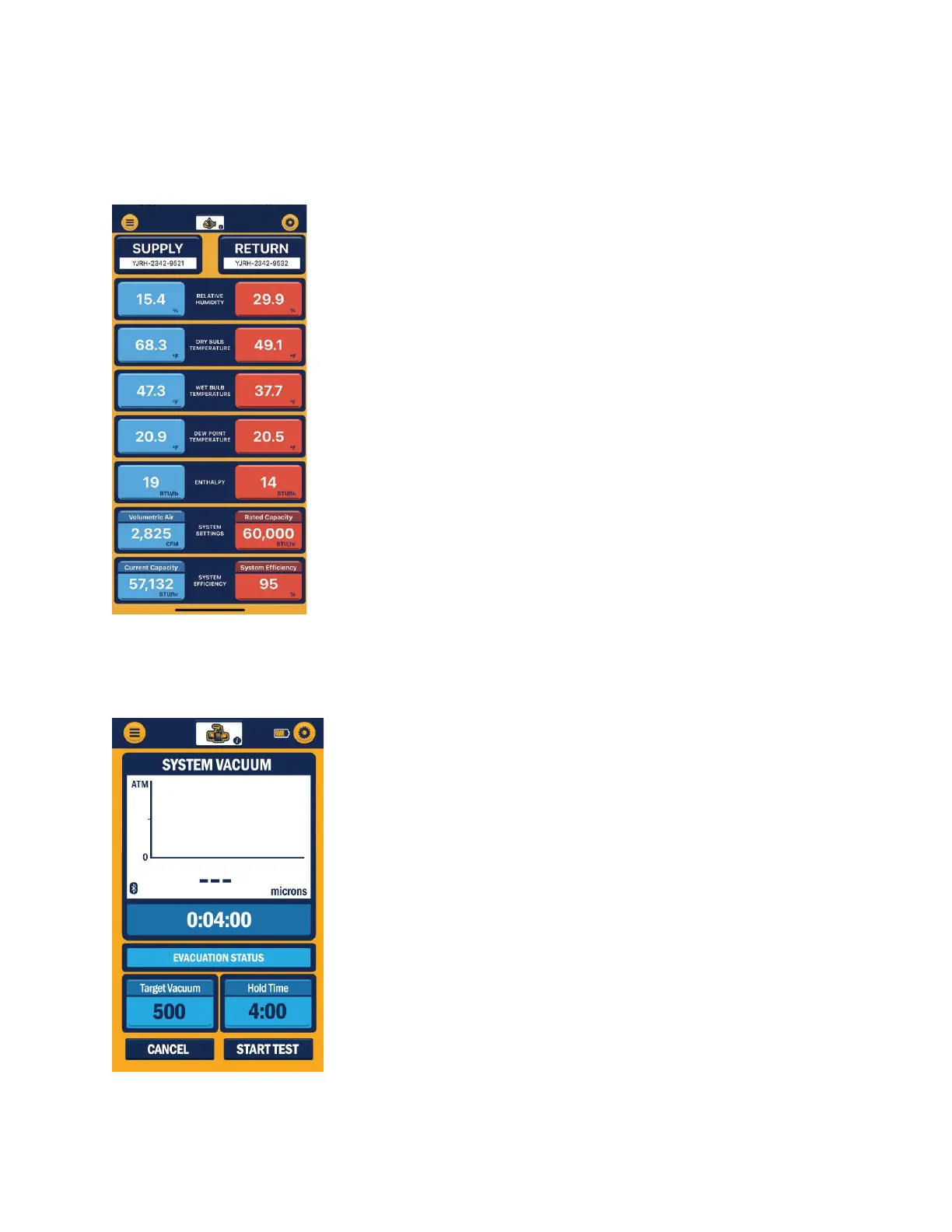
The Psychrometric Air Calculations session type displays relative humidity, dry bulb temperature, wet
bulb temperature, and dew point temperature from 2 YJACK DEW®
psychrometer probes, great for taking supply air and return air
measurements in ventilation systems. The first time a Psychrometric Air
Calculations session is started, the supply and return air measurements
will need to be assigned to the specific YJACK DEW® psychrometer probes
being used. Press on the 3 dashes within the Supply Air Relative Humidity
measurement box. A list of available devices broadcasting psychrometric
measurements will appear. Select the device that corresponds with supply
air side of the system and press “Save & Close.” Follow this same
procedure for the return air measurement. Once the readings have been
assigned, the Psychrometric Air Calculations readings screen will display
the relative humidity, dry bulb temperature, wet bulb temperature, and
dew point temperature for both the supply and return air. To adjust the
datasets that appear on the session readings screen, press the caret “^”
icon next to each dataset to minimize or maximize it until the desired
datasets are displayed. The system readings assignments are stored in the
app memory for future sessions, but the assignments can be changed at
any time by pressing on the reading that is to be changed.
Evacuation
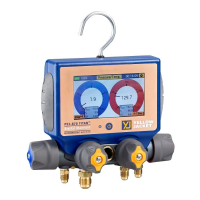
The Evacuation session type displays the system vacuum level from any vacuum probe plugged into a
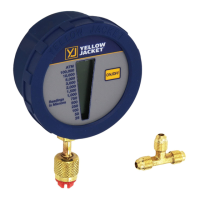
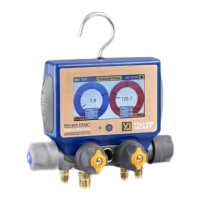
P51-870 TITAN®, TITANMAX™, or YJACK VAC®. The first time an
Evacuation session is started, the vacuum measurement will need to be
assigned to the specific vacuum probe. Press on the 3 dashes within the
System Vacuum measurement box. A list of available devices
broadcasting vacuum measurements will appear. Select the correct
device being used with the vacuum probe. Above the device selection,
there is also a list of reading display options. Pressures can be displayed
as a large digital number, a simulated analog gauge, or as a line graph
to show measurement changes over time. Select the preferred
graphical type and press “Save & Close.” Once assigned, the system
vacuum level will be displayed. If the system is initially at atmospheric
pressure, the reading is displayed as 100,000 microns (or other unit
equivalent) until the system vacuum drops below that level. From the
Evacuation reading screen, a target vacuum pressure and hold time can
also be set. To set the target vacuum pressure, press on the 3 dashes
within the Target Pressure display box. Enter the target vacuum
pressure and press “Save.” Follow the same process for the Hold Time. Once the system vacuum level
reaches the target pressure, the target pressure box will turn green and the timer corresponding to the



 To Next Page