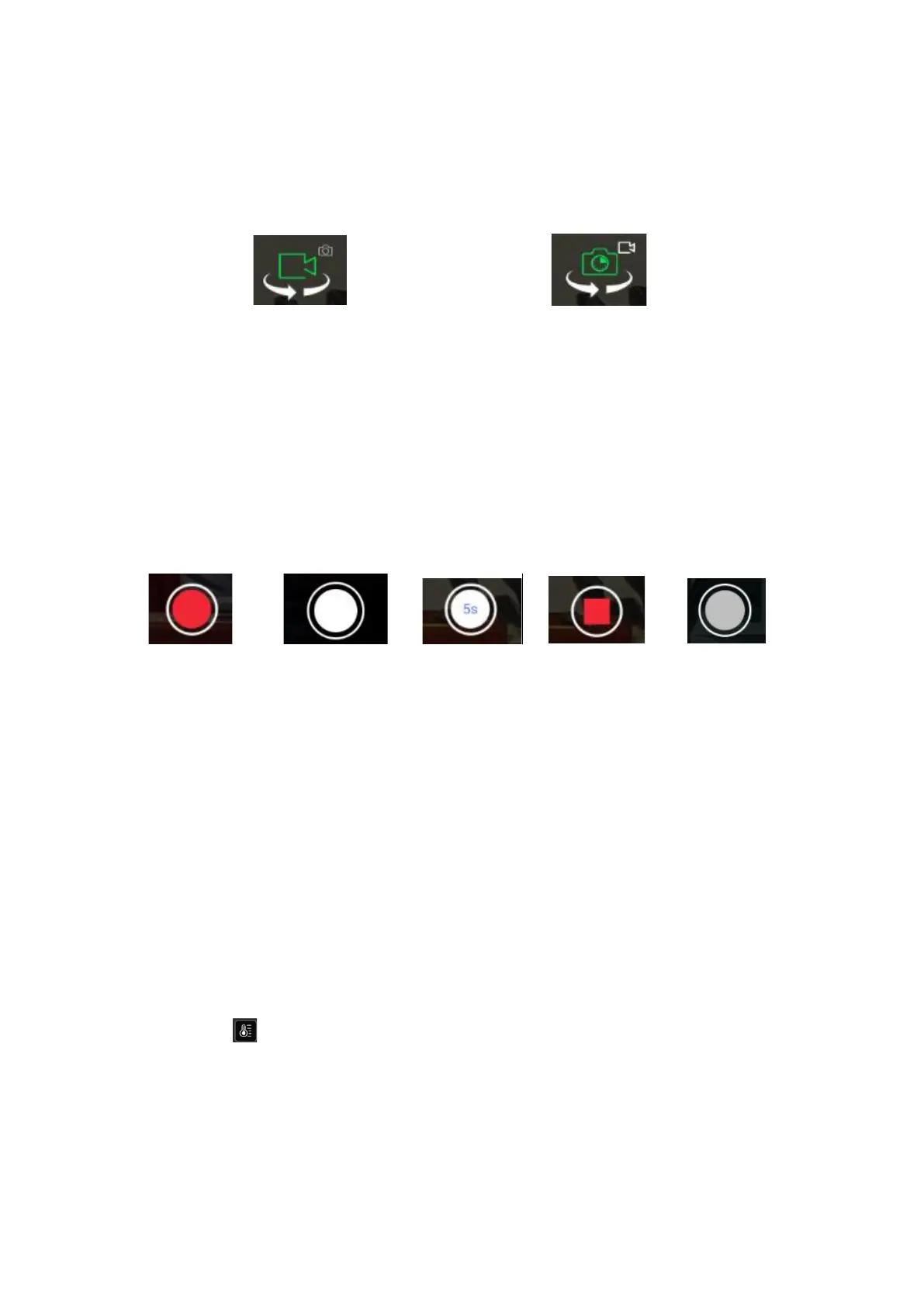
8. Video/Photo mode switch button
Switch the Camera mode between the Photo mode with the Video recording mode.
Just tap the Icon to switch the Camera work mode
Camera in video mode Camera in Photo mode
9. Shutter or Start/Stop recording soft button
In the Video Recording mode the icon is a red dot. Tap it to start recording the
video and tap again to stop recording.
In the Single Photo mode the icon is a white dot. Tap it to
capture a photo
In the Time Lapse Photo mode the icon is a white dot with time interval shown in
the center. Tap it to start the time interval shooting and tap again to stop.
If the SD card is full or the camera without insert the SD card the icon is a gray dot
that means you cannot record anything.
Five different status of the Shutter or Start/Stop recording soft button
Tap to start Tap to record Tap to start Tap to stop No SD card
Recording video one photo time interval Video recording or SD card
Shooting or time interval full
Shooting
10. Counter in photo mode/ Timer in video mode
In the photo mode the counter shows how many photos you have recorder withi
n
one Electrified time .Once you have powered off the drone the number will be reset.
In the video mode the timer shows the time you have recorded in each single video.
11. Camera setting menu button
Tap on this button to switch on the camera setting menu for advance settings
12. Temperature Measurement Range Setting Bar Switch
Tap the button to open the Temperature Measurement Range Setting Bar
Then enable the setting function by switching on the switch on the lower right
corner of the screen.


 To Next Page