Also there is a black arrow in the Yellow dot it shows which direction of the gimbal
lens is point to. When the arrow is straight up it shows the gimbal lens is point to
the front of the drone.
5. Digital Zoom ratio indicator
The Logo shows the Thermography video zoom ratio you can use the
right trim button on the ST16E.
Right trim button : Up = zoom in (Step 0.5)
Down= zoom out (Step 0.5)
Right= zoom in (Step 0.2)
Left= zoom out (Step 0.2)
6. Camera quick-access menu
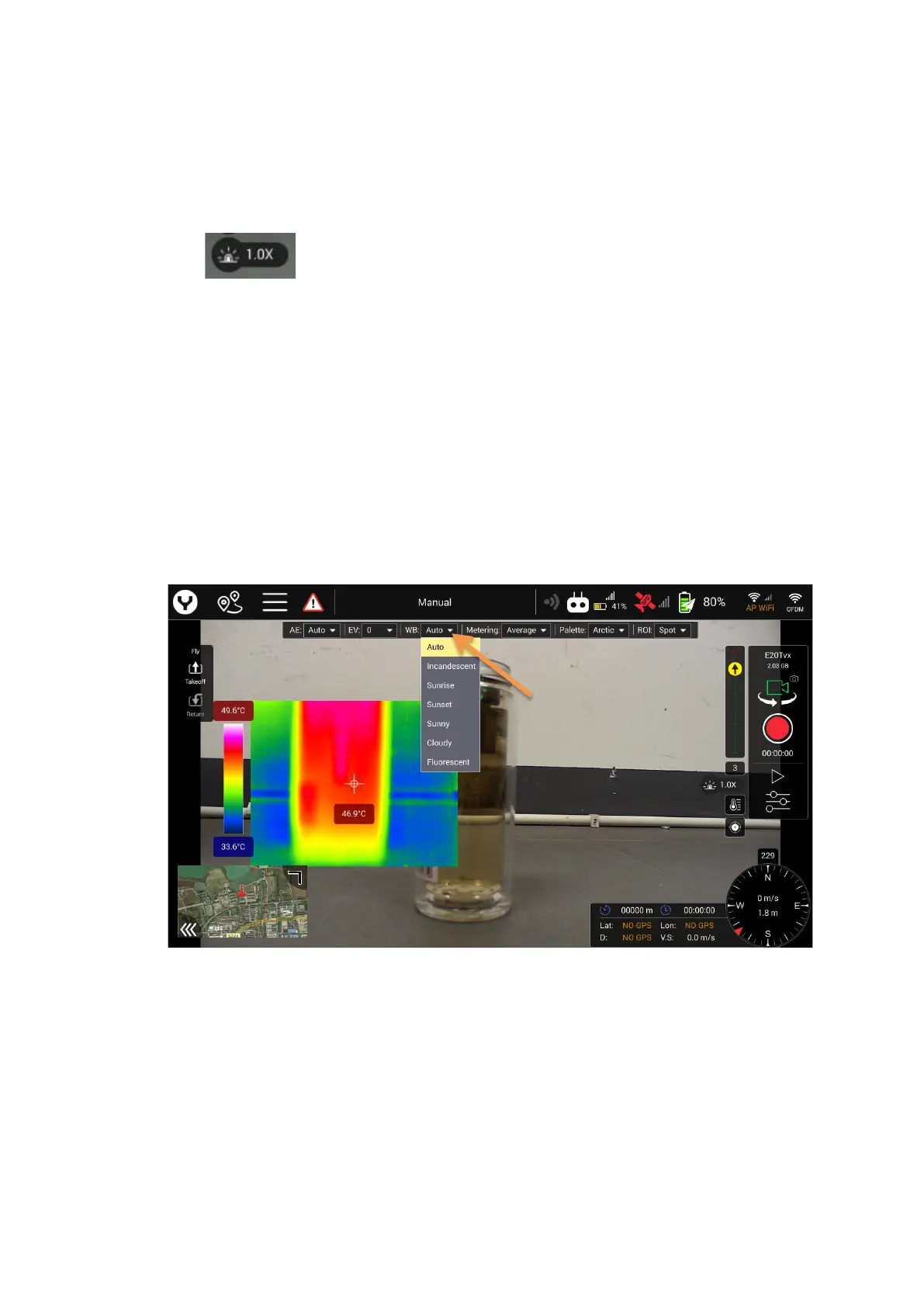
This function can view and change the most important camera parameter settings
in the main interface. To change the setting in quick-access menu, just tap on the
item you want to change, it will pop up a menu for selection.
For example: Change the White balance via the quick-access menu. Tap the WB
Item then select the option your prefer.
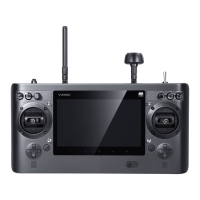
Note: the left trim on the ST16E is the Hot key for visible light camera parameter
settings.
Left trim: UP & Down = adjust the EV in the Auto exposure Mode (Step 0.5)
Left & Left = adjust the White balance Mode
7. Gimbal Type and SD card storage space
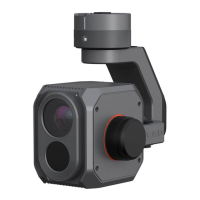
The H520E can be matched with different gimbal payload. This Indicator shows
which one the drone is carrying, also the SD card storage space.


 To Next Page