Video Link Interface
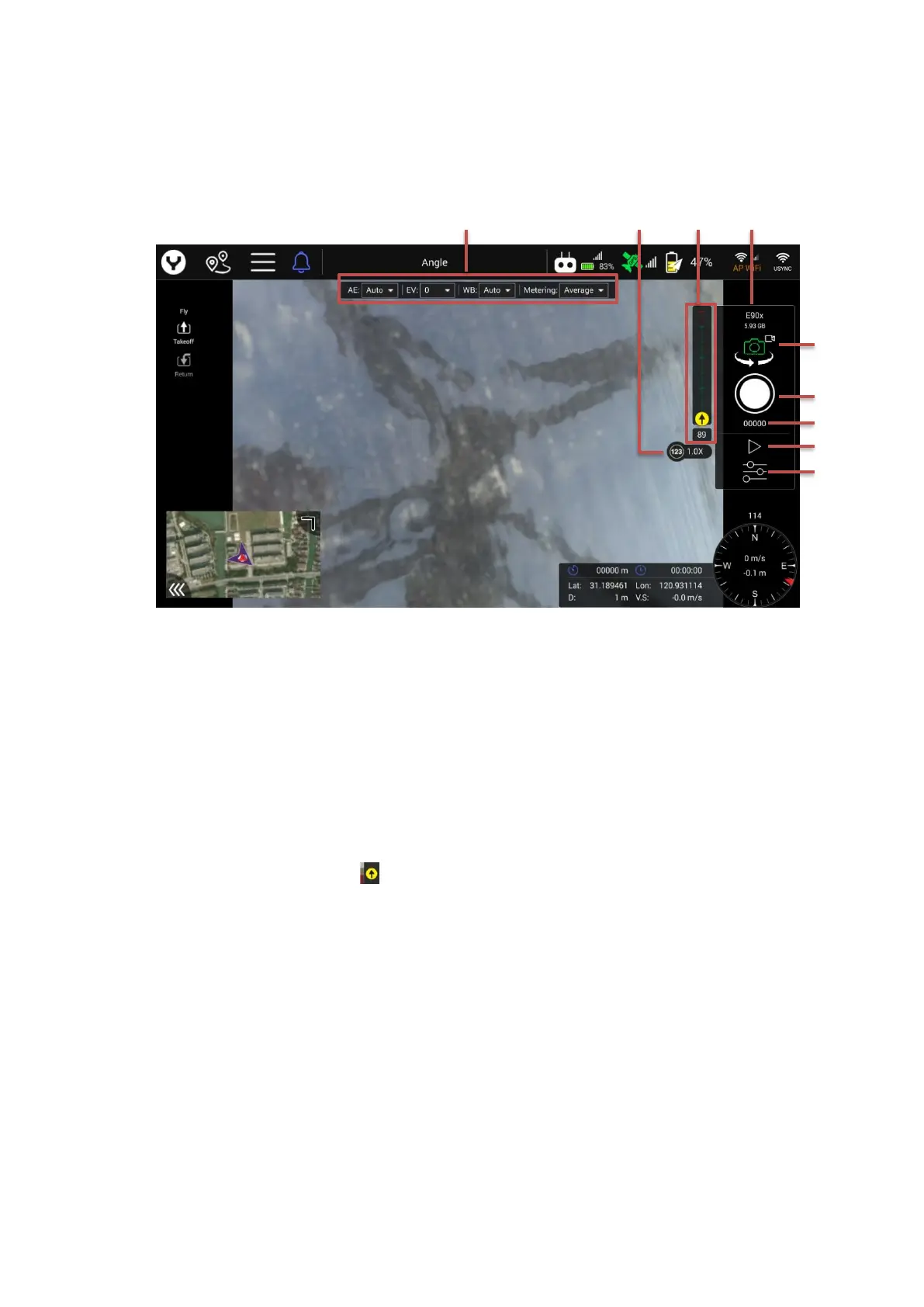
After The Main Screen has been switched to the Video Link feedback interface, the operator will
get the screen shown below:
1Camera quick access menu
The operator can adjust the camera parameter quickly by using this menu. Such as exposure
mode, white balance, etc.
Note: According to different camera type and parameter setting this menu could change.
2 Zoom Icon
This icon displays the zoom ratio of the camera
Note: According to different camera types this icon could change.
3 Gimbal attitude display
The Position of the Yellow dot in the gimbal tilt indicator bar shows the gimbal tilt attitude.
The red marks in the bar shows the gimbal is tilted up meanwhile the green marks shows the
gimbal is tilted down. For further accuracy, we can read the gimbal tilt angle in the rectangle
under the Vertical bar.
There is also a black arrow in the Yellow dot which shows which direction the gimbal lens is
pointing to. When the arrow is straight up it shows the gimbal lens is pointing to the front of
the drone.
4 Camera Type and SD card remaining capacity
Display the camera type and SD card remaining capacity.


 To Next Page