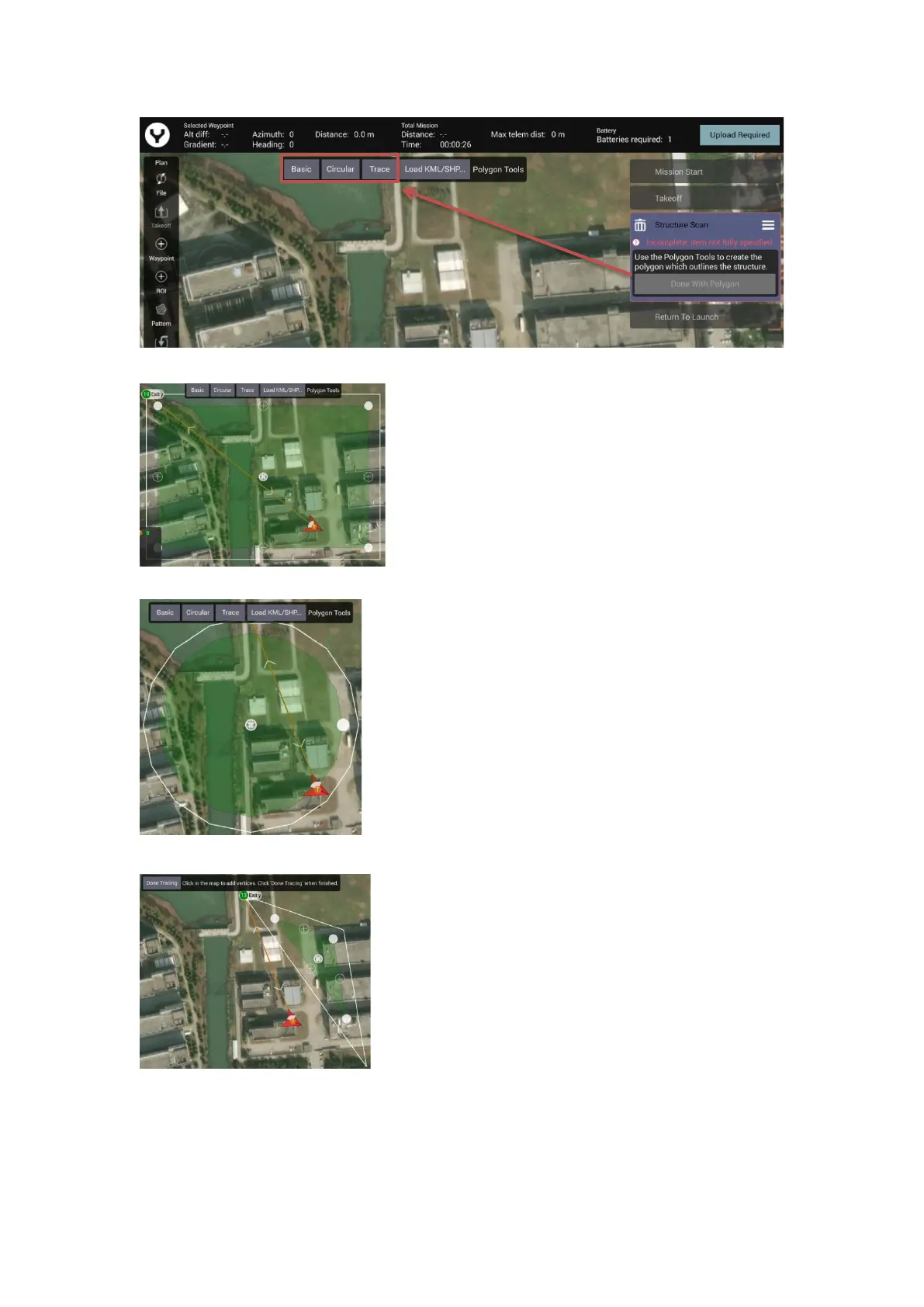
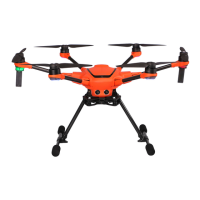
Basic preset template overview
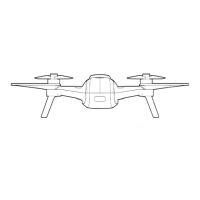
Circular preset template overview
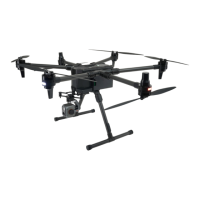
Trace preset template overview
For the Trace template tap the “Done Tracing” button first, for others please tap the “Done With
Polygon” button directly to start the further settings.
A green overlay will appear with four corners.
Tap and hold the Centre dot to drag the survey area on
the map.
Tap and hold the white vertices then drag them to adjust
the shape of the structure scan area.
Tap ‘+’ dot allows the Pilot to add more white vertices
to the edge of the structure scan area for a better fit.
Next Tap the “Circular” button, the App will generate a
circular structure scan area.
Tap and hold the Centre dot to drag the structure scan area
on the map.
Tap the white dot on the edge of the Circle to adjust the
radius of the structure scan.
Next Tap the “Trace” button, then tap on the screen to set
the vertex of your structure scan area. Once you have no less
than 3 vertices. A triangular structure scan area will be
generated automatically. The operator can add more vertices
to get a better fit.
Tap and hold the Centre dot to drag the structure scan area
on the map.
Tap and hold the white vertices then drag them to adjust the
shape of the structure scan area.
Tap ‘+’ dot allows the Pilot to add more white vertices to
the edge of the survey grid for a better fit.


 To Next Page