-11-
3.10 Managing Video & Photo Files
Navigate to the file you wish to manage. (See 3.9)
Press the 'OK' button (6) to select the file.
Press the 'Down' button (5) to view next file.
Press the 'Up' button (4) to delete the file.
Press the 'Up' and 'Down' buttons (4 & 5) to select either Yes or No.
Video only: Press the 'OK' button (6) to Play/Pause a video file.
WARNING:
Deleted files cannot be recovered. Please ensure you backup important files
before deleting them.
3.11 GPS
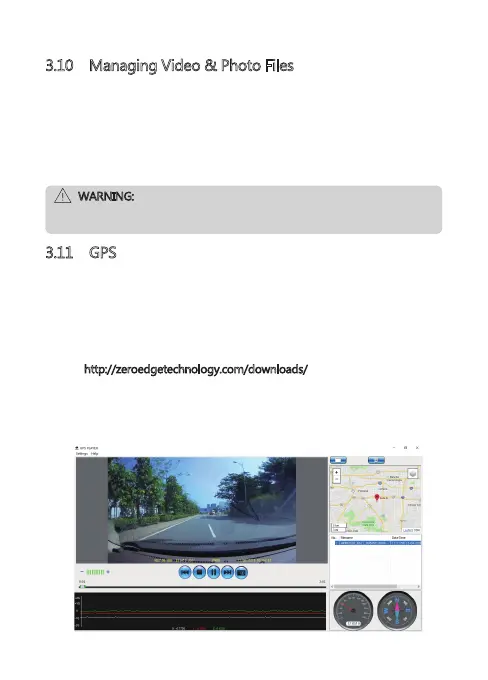
Integrated into the car mount suction cup is a GPS receiver which can pinpoint
the location of your car dash cam anywhere on Earth. Video recordings
include GPS tracking data which records location, speed, time and other
variables that can be viewed on a GPS Player.
• Ensure the USB cable is plugged into the GPS suction mount’s USB connector
(17) to enable GPS tracking.
• Go to http://zeroedgetechnology.com/downloads/
to download the
compatible GPS Player.
• Install GPS Player on your laptop or computer.
• Run the program and click 'Import files' to search and playback a video
recording.



 To Next Page