38 Rev.C 39 Rev.C
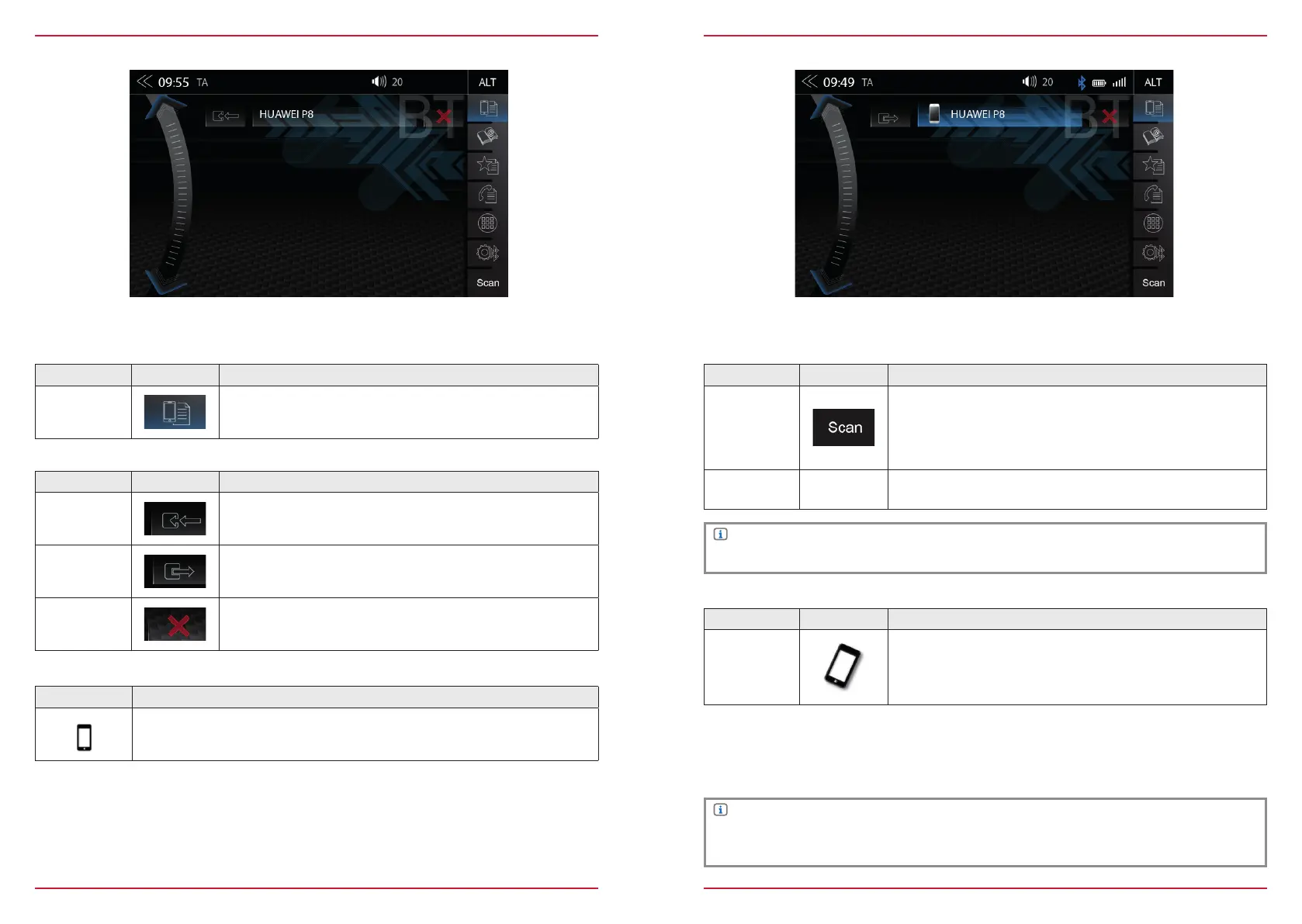
Function Icon Operation
Device
manager
Tap to pair, disconnect, or manage mobile devices
Function Icon Operation
Pair Tap to reconnect a paired Bluetooth device
Disconnect
Tap to disconnect a paired Bluetooth device
Delete
Tap to delete a Bluetooth device from the list (requires the device
to be disconnected)
DEVICE MANAGER
The BT function on the device must be activated to invoke connection process. Please pay attention
to the smartphone manufacturer's instructions regarding device pairing.
Icon Meaning
This icon indicates that the paired Bluetooth device supports HSP/HFP, and can
be used via the hands-free system.
PAIRING
Via ZENEC system
Function Icon Operation
Scan
(Search)
Tap to the SCAN icon to initiate a search for BT devices. Re-tap
to stop the search and show the device-list. Select from the list
the desired mobile device that you want to synchronize with the
ZENEC system. Once device is selected, follow the instructions.
Code Standard Code*: 0000
Via the mobile device
Function Icon Operation
Search
Make sure that the ZENEC system is in Device Manager view
otherwise the ZENEC system will not be visible to others. Follow
the instructions of the device manufacturer on pairing.
Auto Connect
Once a mobile device has been connected with the ZENEC system, it will be automatically paired
when the ZENEC system is started. On being briefly disconnected the ZENEC system will attempt to
establish a new connection.
NOTE
On pairing for the first time, be sure to permanently enable the connection confirmation on your
mobile device, otherwise malfunctions may occur during the Auto Connect process.
NOTE
*For mobile devices that do not support the SSP standard
To connect a smartphone to the Zenec device via Bluetooth, first step is to successfully complete the
pairing process.


 To Next Page