Need help?
Do you have a question about the Zksoftware SC 103 and is the answer not in the manual?
Guidance on how to swipe a card for verification and the process of card recognition.
Advice on protecting the device from environmental factors like sunlight and temperature for optimal performance.
Technical details including transaction capacity, hardware platform, communication interfaces, and access control functions.
Explains the device's capabilities as an integrated access control system supporting various verification modes and communication.
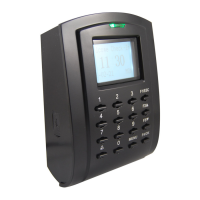
Details the physical components and layout of the SC103 terminal's front view, including LED, LCD, and keypad.
Describes the function and layout of the terminal's keypad for input and navigation, including number keys and function buttons.
Instructions on setting and formatting the date and time displayed on the terminal's home screen.
How to adjust the terminal's voice volume and enable/disable voice prompts for user guidance.
Information on administrator enrollment and the tamper switch functionality for enhanced security.
Guidelines on how to clean the device body using a dry cloth, avoiding liquids and harsh chemicals.
Procedures for restarting the terminal via the power or reset button and factory resetting to default settings.
Details on using the USB port for data transfer with a flash disk for remote data management.
Instructions for connecting the terminal to a LAN using a CAT 5 Ethernet cable and configuring network settings.
Information on connecting the terminal using serial (RS232/RS485) or Wiegand interfaces for communication.
Location and function of the power input port (DC12v) for the terminal.
Description of the port used to connect the terminal to door lock systems and accessories.
Explains the utility of USB flash drives for data transfer when PC connection is difficult or the terminal is remote.
Instructions on setting the communication key to zero for software activation and functionality.
Comprehensive guide to enrolling users, including card, password, and combined methods for user management.
Step-by-step process for enrolling users using RFID cards, including entering User ID and waving the card.
Procedure for enrolling users with password verification, including setting a 5-digit password.
How to enroll users with both card and password for enhanced security and verification.
Details on user verification messages like 'Verified', 'Card error registered', and 'Admin Affirm'.
Details the different verification options like RFID, Password, and combinations, and how to configure them.
Process of adding user details via software and syncing with the terminal for display.
Procedure for administrators to delete user accounts from the terminal, requiring confirmation.
Explains the different access levels and privileges that can be assigned to users for controlling access.
Covers basic terminal configurations like date, time, voice, and interface settings for optimal operation.
Steps to set and adjust the terminal's date and time according to the user's time zone.
Instructions on selecting the preferred date format for display based on regional conventions.
Details on how the terminal uses voice commands for user guidance during enrollment and verification.
Guide to adjusting the volume level of the terminal's voice prompts for clear audio feedback.
Options for customizing the visual appearance of the terminal's interface to suit user preference.
How to connect the terminal to a third-party alarm system for enhanced security monitoring.
Explanation of work codes and how to define them for tracking specific employee activities or reasons.
Provides access to system details like user count, log status, and device information for administrators.
Shows how to check the total number of users enrolled in the terminal.
Information on how to view the number of attendance logs stored on the terminal.
How to check the number of administrators currently enrolled on the terminal.
Method to find out how many users rely on password verification for access.
Details on viewing the count of scanner usage for verification attempts, successful or not.
How to check the available storage space for logs and data on the terminal.
Accessing detailed information about the terminal's hardware, firmware, and MAC address.
Settings for managing log capacity and setting up alarms for low storage to maintain terminal performance.
Configuring alerts when administrator login transaction storage is low.
Setting up alerts for low attendance log storage capacity on the terminal.
Setting the interval for updating user clocking times to ensure data accuracy.
Procedure for removing attendance logs from the terminal's memory, cautioning data loss.
How to perform a complete data wipe, including user IDs, verification methods, and logs.
Steps to clear administrator privileges to allow new administrator access to system menus.
Restoring the terminal to its original factory settings, requiring confirmation before proceeding.
Explains the importance and use of USB flash drives for data management and transfer with the terminal.
Details the compatible USB flash disk types and minimum Linux kernel requirements for terminal operation.
Procedure to download attendance logs from the terminal to a computer via USB flash disk.
Steps to download user information from the terminal to a computer via USB flash disk for data synchronization.
How to transfer user information from a USB flash drive to the terminal for updates.
Instructions for uploading short messages to display on the terminal's LCD screen for user communication.
How the terminal integrates with door access accessories like electromagnetic locks and exit buttons.
Configuration options that determine user accessibility and authority for accessing different doors.
Setting up specific time periods during which users are allowed access to doors.
Organizing users into groups with similar time zone assignments for simplified access management.
Customizing individual user access settings like group belonging, time zones, and verification types.
Setting up combinations of user verifications required for access, enhancing security.
Controlling the duration the electromagnetic lock or door bolt remains engaged after verification.
Configuring delays for door sensor alerts when a door is not closing properly.
Setting the mode for door sensor alerts, specifying normally closed or open contacts.
Configuring alarms to notify users if a door is not closing within a set time period.
Procedure to disable the alarm system on the terminal, requiring a specific button press.
Setting limits for unsuccessful verifications to trigger an alarm, preventing brute-force attempts.
Defining various verification types that can be used by groups, based on time and access requirements.
Introduction to RFID technology and its compatibility with the terminal for card verification.
Steps to enroll RFID cards for user verification, either alone or with a password.
How to configure the terminal to use only RFID card for verification.
Using RFID in combination with other methods for enhanced security and access control.
Procedure for deleting RFID card information from the terminal before re-inserting new data.
Guidance on who is authorized to perform diagnostic tests on the terminal for analysis.
Instructions for executing all available diagnostic tests simultaneously to check terminal status.
Performing the flash memory test to check for errors in the terminal's firmware.
Testing the terminal's LCD display for any visual defects, like missing or jagged characters.
Testing the terminal's speaker and voice output functionality to ensure clear audio feedback.
Verifying the functionality of each key on the terminal's keypad by pressing and checking the display.
Testing the Real-Time Clock (RTC) battery for accuracy and functionality.
Troubleshooting steps for connection errors between the terminal and computer, referencing connection setup.
Explanation of the 'Admin Affirm' message indicating unauthorized access and resolution steps.
Guidance on interpreting LED status lights, especially red blinking lights indicating potential terminal issues.
Common reasons why RFID cards may not be read by the terminal, including registration and group settings.
Troubleshooting steps for issues related to the terminal's audio output, checking volume and speaker integrity.
 General
| Brand | Zksoftware |
|---|---|
| Model | SC 103 |
| Category | Gateway |
| Language | English |

 To Next Page