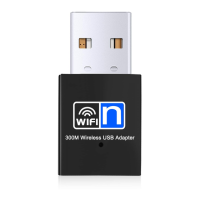
Wireless-N USB Adapter
6 Click Install. When prompted for your Name and Password,
enter the name and password you use to login to your
computer. Click Install Software (OS X 10.5 users click OK).
7 Click Continue Installation to install the software now.
When the installation is complete click Restart to restart your
computer.
8 Wait until you see the desktop, and then plug your USB
adapter into one of the available USB slots on your computer.
9 The drivers will install automatically. When prompted to
enable the WLAN card click OK.
10 The System Preferences pane opens. Under Internet &
Wireless click Network.
11 Click + to add a new adapter.
12 When prompted to select the interface, click on the Interface
dropdown menu and select 802.11n WLAN Adapter (OS X
10.5 users select Ethernet Adapter (en x), where x is a
number).
13 Click Create then click Apply. You can now close the
Network pane.
Congratulations! Your Wireless-N USB adapter is now installed.
Please continue to Chapter 5: Connecting to a Wireless Network
in Mac OS X to learn how to connect to an existing wireless
network.
Installing the Wireless-N USB Adapter in
Mac OS X 10.4
Important: Do not plug the Adapter into your computer yet. We
will tell you when to plug it in.
1 Insert the CD into the CD or DVD drive. Click on the MAC
folder to open.


 To Next Page