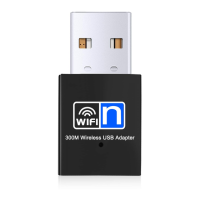
Wireless-N USB Adapter
3
Connecting to a Wireless Network
in Windows
This chapter provides instruction for connecting your Windows
computer to an existing wireless network in Windows 8, 7, Vista
and XP. Your USB adapter uses the built-in Windows
configuration utility to manage your wireless connections.
To connect your computer to an existing wireless network,
please follow the instructions for the operating system of your
computer.
Windows 8 users go to Connecting your Windows 8
Computer to a Wireless Network.
Windows 7 users go to Connecting your Windows 7
Computer to a Wireless Network.
Windows Vista users go to Connecting your Windows Vista
Computer to a Wireless Network.
Windows XP users go to Connecting your Windows XP
Computer to a Wireless Network.
Connecting your Windows 8 Computer to a
Wireless Network
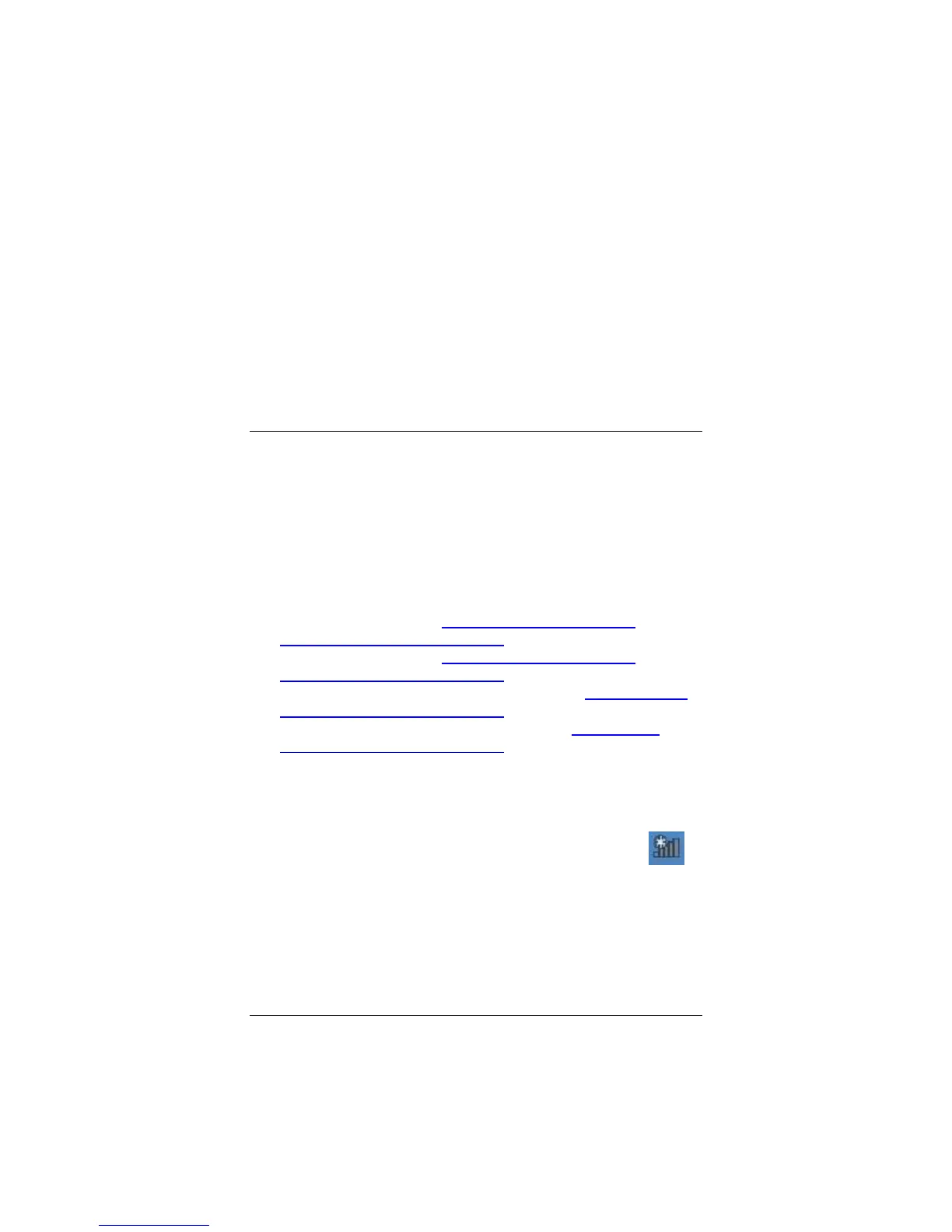
1 Click the Wireless Network Configuration utility icon
in your computer’s system tray.
2 Select the network where you want to connect and then click
Connect. If you want to connect to this network automatically
in the future, check the Connect Automatically checkbox.


 To Next Page