Installing the Wireless-N USB adapter in Windows
Windows 7 / Vista: If a message appears saying that
Windows can't verify the publisher of this driver software,
click Install this driver software anyway.
Windows XP: If you message appears saying that the
software has not passed the Windows logo test, click
Continue Anyway.
4 You will be prompted to restart your computer. Go ahead and
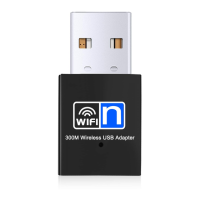
restart it now. When your computer powers off, plug the USB
Adapter into one of the available USB slots on your computer.
Windows will automatically install the drivers for your USB
adapter.
Windows XP users only: If Windows asks you to connect
to Windows Update to search for your software select No,
not this time then click Next. On the next screen select
Install your software automatically and click Next. On
the next screen click Finish to complete the install.
---------------
Congratulations! Your Wireless-N USB adapter is now installed.
Please continue on to Chapter 3: Connecting to a Wireless
Network in Windows


 To Next Page