Wireless-N USB Adapter
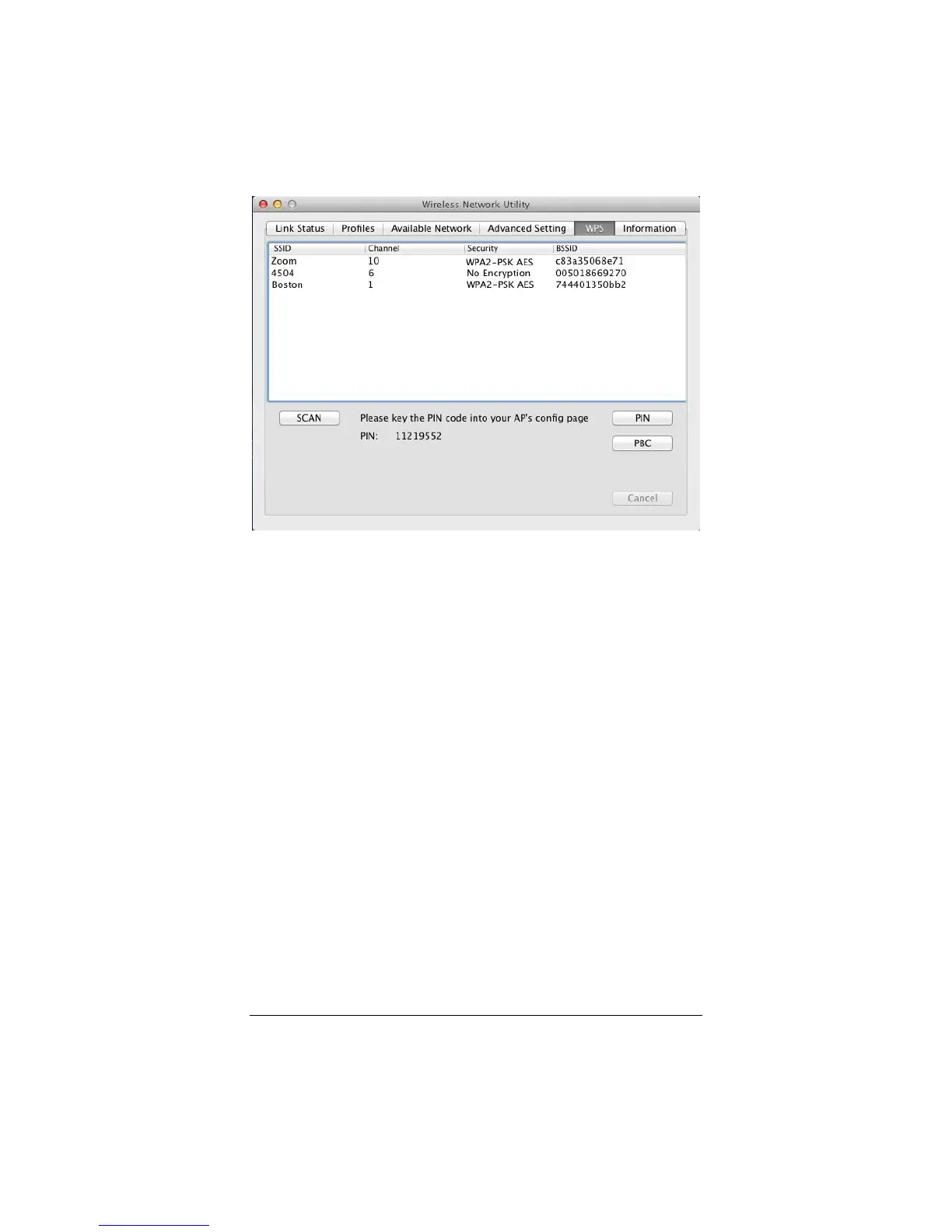
Configure using PIN codes
1 Enter the PIN shown on the WPS page into your Router web
page
2 Trigger the WPS connection on your Router. Please refer to
Router’s documentation on how to enter the PIN code and
how to start the connection.
3 Press the PIN button on the WPS page to connect to your
Router.
Configure using the PBC button
The PBC button on the WPS page works the same as the WPS
button on the side of your USB adapter. You may want to use
the PBC button in the software if the physical WPS button is
hard to reach.
To configure your connection using the PBC button:
1 Press the WPS button on your Router.


 To Next Page