7
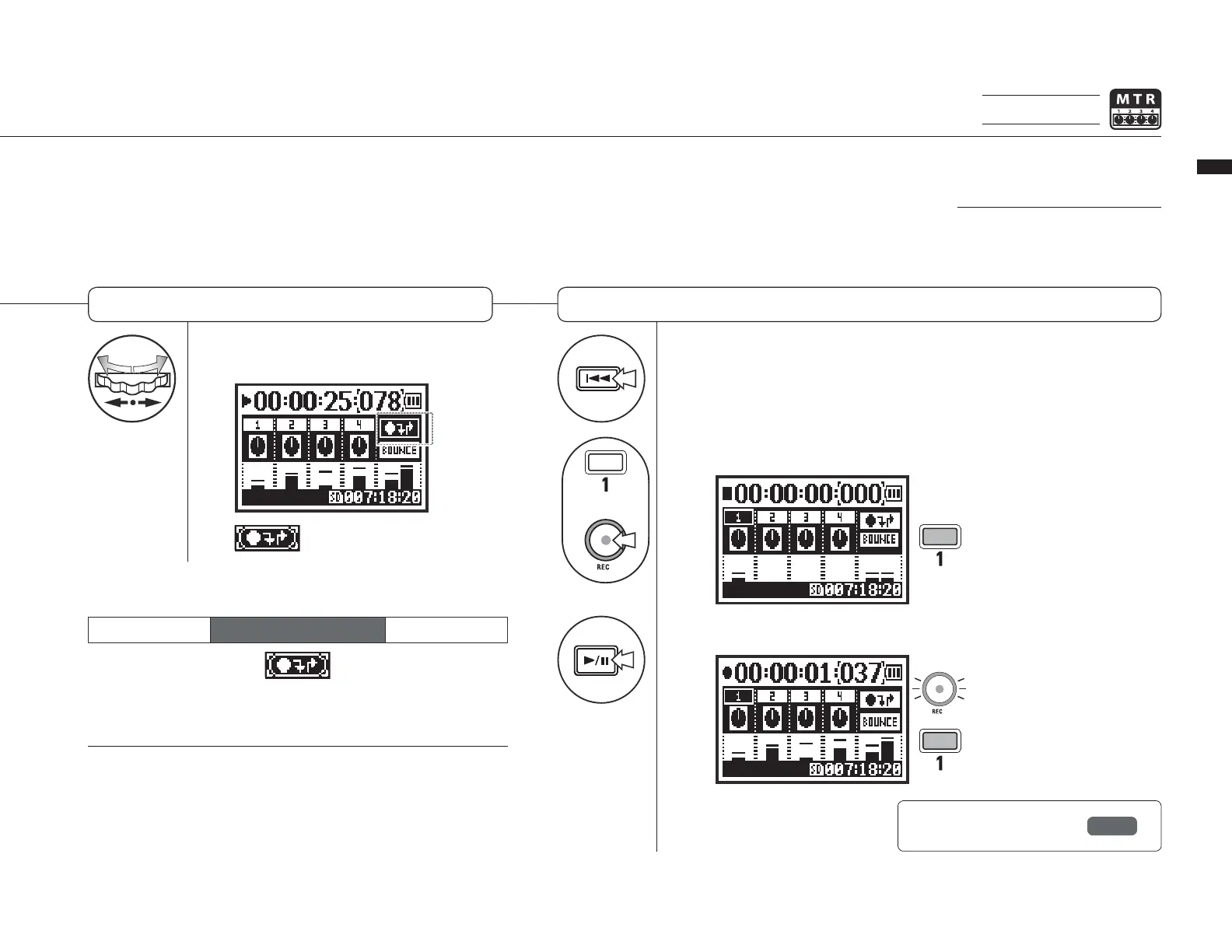
Press the desired punch out
point.
8
9L^PUK[V[OLÄSLILNPUUPUN
JV\U[LYH[VY[VHWVZP[PVU
ILMVYL[OLW\UJOPUWVPU[
+
9
7YLZZ[VW\[;9(*2PU[VYLJVYKPUNZ[HUKI`
10
7YLZZ[VZ[HY[;9(*2WSH`IHJRYLJVYKPUN
→● ■
060
6WLYH[PVUZ:L[[PUNZYLJVYKPUN!(\[VTH[PJYLYLJVYKPUN7<5*/056<;
MTR mode only
:L[[OLYLJVYKPUNLUKW\UJOV\[WVPU[
9LYLJVYKPUN
• You can set the punch in/out points while stopped by using
the counter. First set a time and move the cursor to the
punch in/out icon, and then press the DIAL.
• After setting the punch out point in step 7, pressing the
DIAL again will cancel all the settings.
Setting available only for
OVER WRITE recording in
MTR mode.
PUNCH OUT setting
JVUÄYTLK
Part re-recorded
7\UJOPU
:[HY[ :[VW
7\UJOV\[
PLAY REC PLAY
1 When in punch in/out mode,
the track button lights during
recording and blinks in record
-
ing standby.
When the track reaches the
punch in point, the REC light will
turn on and recording will start.
When the track reaches the
punch out point, the light will
blink and recording will stop.
9LM
Specifying a
counter time
P.102



 To Next Page