EasyManua.ls Logo

Zte Z289L - User Manual

Zte Z289L
32 pages
Print Icon
To Next Page IconTo Next Page
Loading...
ZTE MOBILE HOTSPOT
QUICK START GUIDE

Other manuals for Zte Z289L

Questions and Answers

  • D
    Danny RoyAug 15, 2025
    What to do if my Zte Z289L connected device cannot access the Internet?
    • D
      Daniel WaltersAug 15, 2025
      If your connected device for Zte Wireless Router can't access the internet, ensure your SIM card is installed correctly. Try changing your location to find a spot with a better signal. If problems persist, contact your service provider for assistance.
  • E
    elizabeth17Aug 18, 2025
    How to establish Wi-Fi connection between Z289L device and my Wi-Fi enabled device for Zte Wireless Router?
    • C
      ckingAug 18, 2025
      To establish a Wi-Fi connection between your Wi-Fi enabled device and the Z289L device for Zte Wireless Router, make sure the Wi-Fi function is active. Refresh the network list and select the correct SSID. Check the IP address settings to ensure your device can automatically obtain an IP address in the Internet protocol (TCP/IP) properties. Finally, verify that you're typing the correct network key (Wi-Fi password) when connecting to the Z289L device.
  • C
    Christine SheltonAug 21, 2025
    How to access the web configuration page for Zte Z289L Wireless Router?
    • E
      Ethan SanchezAug 21, 2025
      To access the web configuration page for your Zte Wireless Router, first, enter the correct address (the default address is http://192.168.0.1 or http://mobile.hotspot). Ensure you only use one network adapter in your PC and do not use any proxy server.
  • J
    Jeremy KrauseAug 25, 2025
    How to find the password for Zte Wireless Router?
    • M
      michael27Aug 26, 2025
      To find the password for your Zte Wireless Router, select Device Info on the LCD screen to check the currently setup password, or check the label on the device to get it if you never changed the original password.
  • L
    ldavisAug 28, 2025
    What to do if I cannot connect to my Zte Z289L Wireless Router Wi-Fi?
    • M
      Melissa WhitakerAug 28, 2025
      If you're having trouble connecting to your Zte Wireless Router, first refresh your network list and select the correct SSID. Ensure your client device is set to automatically obtain an IP address in the Internet protocol (TCP/IP) properties. Finally, double-check that you're typing the correct network key (Wi-Fi password) when connecting.
  • C
    Candace BerryAug 31, 2025
    What to do if connected device cannot access the Internet on Zte Wireless Router?
    • Y
      yjonesAug 31, 2025
      If your connected device cannot access the Internet via your Zte Wireless Router: * Ensure your SIM card is properly installed. * Try changing your location to find a place with a stronger signal. * You may contact Consumer Cellular at (800) 686-4460.
  • M
    middletonjamieSep 3, 2025
    How to establish a Wi-Fi connection between my Zte Z289L Wireless Router and my Wi-Fi enabled device?
    • A
      Ann HarrisSep 4, 2025
      To establish a Wi-Fi connection between your device and the Mobile Hotspot, make sure the Wi-Fi function is active. Refresh the network list and select the correct SSID. Check the IP address settings to ensure your device can obtain an IP address automatically in the Internet protocol (TCP/IP) properties. Also, verify that you are typing the correct network key (Wi-Fi password) when connecting to the Mobile Hotspot.
  • Z
    Zachary GriffithSep 7, 2025
    Why my device connected to Zte Wireless Router cannot access the Internet?
    • R
      Ryan HernandezSep 7, 2025
      If your device is connected to the Zte Wireless Router but cannot access the internet, ensure your SIM card is working correctly. Try changing your location to find a spot with a better signal. If the problem persists, it may be necessary to contact your service provider for assistance.
  • W
    wleonSep 10, 2025
    What to do if I cannot visit the webGUI configuration page of my Zte Z289L Wireless Router?
    • R
      ryan02Sep 12, 2025
      If you're unable to access the webGUI configuration page for your Zte Wireless Router, first, ensure you're entering the correct address, which is either http://192.168.0.1 or http://mobile.hotspot. Also, make sure you only have one network adapter enabled on your PC and that you are not using any proxy server.

Summary

Introduction

Need More Information

Provides contact information and website for further assistance.

Getting to Know Your Device

Appearance

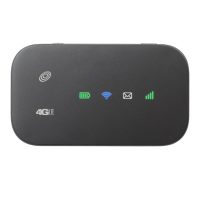
Describes the physical layout and components of the mobile hotspot.

LED Indicators

Explains the status and meaning of various LED indicator lights on the device.

Initial Set-up

Insert the SIM Card

Step-by-step guide on how to insert the micro-SIM card into the device.

Insert the Battery

Instructions for inserting the battery into the mobile hotspot device.

Charging Your Device

Connection Scenario

Connecting to Your Device

Initial Connection Steps

Power on the hotspot and search for wireless networks on your client device.

Select Network and Connect

Choose the hotspot's SSID and initiate the connection process.

Enter Network Password

Input the Wi-Fi password to secure and complete the connection.

Accessing the Internet

How to access the internet after a successful connection to the hotspot.

Configuring Your PC

Access Network and Sharing Center

Navigate to the Network and Sharing Center from the Control Panel.

Open Wi-Fi Properties

Access the Wi-Fi Status window and open the connection properties.

Configure TCP;IPv4 Settings

Select Internet Protocol Version 4 (TCP/IPv4) and its properties.

Set IP and DNS Automatically

Configure automatic IP and DNS server addresses for network connection.

Resetting Your Device

Reset via Web Interface

Steps to reset device settings using the web configuration page.

Reset via Physical Button

How to perform a factory reset using the device's hidden reset button.

Troubleshooting

Wi-Fi Connection Issues

Solutions for problems establishing Wi-Fi connection between hotspot and device.

Internet Access Problems

Troubleshooting steps when a connected device cannot access the internet.

Web Configuration Access

Solutions for issues accessing the device's web configuration page.

Password Recovery

Information on what to do if the web configuration page password is forgotten.

For Your Safety

General Safety Guidelines

Important safety information for device owners regarding usage and environment.

Usage and Environment Precautions

Safety advice for using the device in various environments and near other electronics.

Battery Safety and Handling

Guidelines for safe battery installation, usage, and disposal.

Product Warranty Information

Contact Consumer Cellular

Zte Z289L Specifications

General IconGeneral
BrandZTE
ModelZ289L
Network Type4G LTE
Wireless Standards802.11 b/g/n
Frequency Bands2.4 GHz
Maximum Wireless Speed150 Mbps
Security FeaturesWPA, WPA2

Related product manuals