EasyManua.ls Logo

Zte Z6200 - User Manual

Zte Z6200
36 pages
Print Icon
To Next Page IconTo Next Page
Loading...
1
Z6200
User Manual and Safety Information

Other manuals for Zte Z6200

Questions and Answers

  • H
    Heidi DiazAug 2, 2025
    What to do if the client connected to Zte Z6200 Wireless Router cannot access the Internet?
    • S
      Stephanie LopezAug 3, 2025
      If a client connected to your Zte Wireless Router can't access the internet, make sure your micro-SIM card is working. Also, verify that roaming is enabled. When roaming is on and your device is connected, the LED2 indicator should turn green. You can check the Automatic setting under Settings > Network Settings > WAN Connection Mode Settings on the 4G Mobile Hotspot configuration page. If problems persist, contact your service provider.
  • J
    jaime96Aug 9, 2025
    How to check or reset password on Zte Z6200?
    • R
      Richard RojasAug 9, 2025
      To check the Wi-Fi Network password, go to Settings > Wi-Fi Settings on the 4G Mobile Hotspot configuration page, or check the label on the device. If you forgot the password after changing it, you'll need to reset the device to its factory default settings.
  • B
    Bradley GibbsAug 17, 2025
    Why can't I establish a Wi-Fi connection between my device and Zte Z6200 Wireless Router?
    • E
      Erin ClarkAug 17, 2025
      If you're having trouble establishing a Wi-Fi connection between your device and the Zte Wireless Router, try refreshing the network list and selecting the correct SSID. Ensure your client is set to obtain an IP address automatically in the Internet protocol (TCP/IP) properties. Also, double-check that you're typing the correct network key (Wi-Fi password) when connecting to your device.
  • C
    Cindy GarnerAug 25, 2025
    How to access the 4G Mobile Hotspot configuration page on Zte Wireless Router?
    • M
      Mrs. Angela Johnston DDSAug 25, 2025
      To access the 4G Mobile Hotspot configuration page, make sure you're entering the correct address, which is http://192.168.0.1 by default. Ensure that you are only using one network adapter in your PC and that you are not using any proxy server.

Summary

About This Manual

Notice

Information on manual accuracy, warranty, and safety references.

Disclaimer

States potential differences between manual content and actual product.

Trademarks

Acknowledges ownership of third-party trademarks.

Getting Started

OBD2 Device Overview

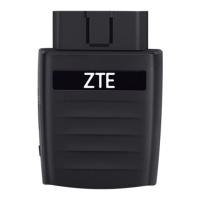
Introduction to the OBD2 device and its function as a Wi-Fi hotspot.

OBD2 Device Status LEDs

Explains the meaning of different LED indicator states on the device.

Resetting the OBD2 Device

Provides instructions for performing a factory reset on the OBD2 device.

Restarting the OBD2 Device

Details the procedure for restarting the OBD2 device.

Micro-SIM Card Installation

Step-by-step guide for correctly inserting the micro-SIM card.

OB2 Device Installation

Connecting Devices to OBD2 Wi-Fi

Guide on connecting smartphones and other devices to the OBD2's Wi-Fi network.

Manual Wireless Device Connection

Instructions for manually connecting a wireless device to the OBD2 Wi-Fi.

Device Management and Settings

Using the OBD2 Device

Covers the main features and usage of the OBD2 device.

4 G Hotspot Configuration

Overview of the configuration page for managing the 4G mobile hotspot.

Device Security Credentials

Information regarding Wi-Fi and Admin login passwords for device security.

Wi-Fi Network Management

Viewing Connected Devices

How to view a list of devices currently connected to the Wi-Fi network.

Setting Max Connected Devices

Option to customize the maximum number of devices that can connect.

Managing Allowed Devices

Procedure for adding or removing devices from the allowed access list.

Network Security Settings

Changing Wi-Fi Name and Password

Steps to modify the Wi-Fi network name (SSID) and password.

Changing Hotspot Admin Settings

Instructions on how to change the Admin Login for the configuration page.

Configuring Wi-Fi Security Types

Options to select different security protocols for the Wi-Fi network.

Configuring Data Network Options

Settings for WAN connection mode and international roaming configuration.

Advanced Device Settings

Advanced Wi-Fi Configuration

Accessing and configuring advanced Wi-Fi settings for the device.

Other Advanced Settings

Covers other general advanced settings not specifically related to Wi-Fi.

Viewing Device Details

Device Information Screen

Displays specific hardware and network status details of the OBD2 device.

Troubleshooting Common Issues

Wi-Fi Connection Issues

Troubleshooting steps for resolving Wi-Fi connection problems between device and client.

Internet Access Problems

Solutions for issues where connected clients cannot access the internet.

Configuration Page Access Issues

Steps to resolve problems when the device's configuration page is inaccessible.

Vehicle Compatibility

Device Working Voltage

Device Specifications

Mechanical Specifications

Details the physical dimensions of the OBD2 device.

Supported RF Bands

Lists the radio frequency bands that the device supports.

Regulatory and Safety Information

Owner Safety Precautions

Outlines crucial safety precautions and guidelines for the device owner.

Device Usage Guidelines

Provides guidance on proper handling, usage, and care of the OBD2 device.

RF Energy Exposure

FCC Compliance Information

Product Warranty Information

Consumer Limited Warranty Details

Specifies the terms and conditions of the limited warranty for the product.

Zte Z6200 Specifications

General IconGeneral
BrandZte
ModelZ6200
CategoryWireless Router
LanguageEnglish

Related product manuals