EasyManua.ls Logo

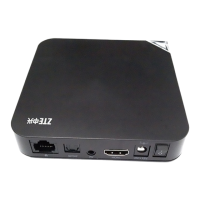
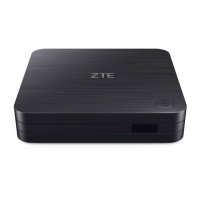
Zte ZXV10 B700 - User Manual

Zte ZXV10 B700
24 pages
Print Icon
To Next Page IconTo Next Page
Loading...
ZXV10B700
IPSet-TopBox
UserManual
Version2A
ZTECORPORATION
ZTEPlaza,KejiRoadSouth,
Hi-TechIndustrialPark,NanshanDistrict,Shenzhen,
P.R.China
518057
Tel:(86)75526771900
Fax:(86)75526770801
URL:http://ensupport.zte.com.cn
E-mail:support@zte.com.cn

Questions and Answers

  • G
    gmartinJul 26, 2025
    Why does my Zte Set-top box remote control fail?
    • P
      Pedro WilsonJul 26, 2025
      The remote control might not be working due to several reasons: * The batteries might be missing or installed incorrectly. Ensure the batteries are correctly installed. * The batteries may be depleted, so replace them. * There might be an obstruction between the remote and the STB, or you might be too far away. Try moving closer to the STB or removing any obstacles.
  • D
    Donald BurnsJul 30, 2025
    How to fix Zte ZXV10 B700 network connection failure?
    • S
      schmidtmatthewJul 30, 2025
      A network connection failure with your Zte Set-top box can occur for a few reasons: * The network cable may not be properly connected. Ensure the network cable is correctly connected, or try replacing it with a new one. * There might be an issue with the service network. In this case, wait for the service to be restored or contact your service provider. * The network configuration may be incorrect. Reconfigure the network parameters.
  • C
    Christy RobinsonAug 4, 2025
    What to do if there is no image on the TV screen from Zte Set-top box?
    • C
      Carolyn WalkerAug 4, 2025
      If you're not seeing an image on your TV screen from the Zte Set-top box, consider these possibilities: * The STB might be in standby mode. Switch the STB to the working status. * The video cable might be loose. Reconnect the video cable. * The TV's video input source might be incorrectly set. Press the TV/AV button to switch the system mode of the TV until the EPG page appears.
  • A
    andrewbrooksAug 8, 2025
    How to fix no sound from Zte Set-top box speaker?
    • C
      chasebeckerAug 8, 2025
      If you're experiencing no sound from the speaker connected to your Zte Set-top box: * The STB might be in standby mode. Ensure it is switched to the working status. * The audio cable might not be properly connected. Reconnect the audio cable. * The STB or TV might be muted, or the volume is set too low. Adjust the volume on both the STB and the TV, and ensure they are not muted.
  • R
    ruizanaAug 12, 2025
    Why is the indicator off on my Zte Set-top box?
    • E
      Eric BrownAug 12, 2025
      If the indicator light is off after you've switched on your Zte Set-top box, it could be due to these reasons: * The power adapter may not be properly connected. Make sure the power adapter is correctly connected. * The power adapter might be damaged. Contact your service provider to replace it. * The power outlet may not be working. Check the power outlet to ensure it's providing power.
  • S
    Sarah CollinsAug 16, 2025
    What to do if the sound does not match the image on Zte Set-top boxes?
    • J
      John TaylorAug 16, 2025
      If the sound doesn't match the image on your Zte Set-top box, it might be because some video programs are broadcast in multiple audio tracks. Try pressing the L/R button on the remote control to switch the audio mode.
  • C
    christinefriedmanAug 21, 2025
    What to do for other problems with Zte ZXV10 B700?
    • R
      Ricky WallaceAug 21, 2025
      Restart the STB or call the customer service hotline.

Summary

Safety Instructions and Precautions

General Safety Notes

Important notes for safe operation, ventilation, and device handling.

Operational Precautions

Precautions for voltage, heat, placement, and environmental conditions.

Service and Maintenance Guidelines

Guidelines for device disassembly and contacting service providers for issues.

Package Contents and Device Overview

Package Contents List

Lists all items included in the product package for user reference.

Device Panels and Connectors

Front Panel Overview

Describes the buttons and indicators located on the front of the STB.

Rear Panel Overview

Details the various ports and connectors found on the rear of the STB.

Connecting and Powering Up the STB

Network Connection Methods

Explains different methods for connecting the STB to a network.

Video and Audio Connection Interfaces

Details connecting the STB to TVs using AV and component video cables.

Powering On the Device

Step-by-step instructions for properly powering on the STB.

Automatic Software Upgrades

Information regarding the device's automatic software update process.

STB Remote Control Functions

STB Remote Control Layout

Details the buttons and their corresponding functions on the STB remote.

TV Learning Button Functionality

Instructions on programming the STB remote to control TV functions.

STB Operation Guide

Device Status Control

How to switch the STB and TV between standby and working modes.

EPG (Electronic Program Guide) Operations

Navigating and using the EPG for program information and selection.

Program Playback Controls

Controls for volume, audio channels, and channel switching during playback.

Program Playback Management

How to pause, resume, fast forward, and rewind programs.

Time-Shift TV (TSTV) Program Viewing

Using the time-shifted function to watch missed live TV programs.

Troubleshooting Common Issues

Common Device and Network Issues

Addresses issues like no indicator, network failure, no image, or no sound.

Remote Control and Audio;Video Issues

Solutions for remote control failures and audio/video synchronization problems.

Technical Specifications

Device Specifications Overview

Details technical specifications including power, environment, protocol, and dimension.

Text Input Methods

Text Input via Remote Control

Explains how to input text, numerals, and symbols using the remote control.

Numeral Input Methods

Details two methods for inputting numerical characters.

Letter Input Methods

Provides steps for inputting letters, including uppercase.

Symbol Input Methods

Outlines three methods for inputting various symbols.

Text Input via Soft Keyboard

How to activate, use, and switch interfaces on the soft keyboard.

Wireless Network Card Usage Guidelines

Wireless Network Card Restrictions

Notes on designated wireless cards and recommended gateway devices for optimal performance.

Installation Prerequisites

Conditions required for optimal performance of the wireless network card.

Wireless Network Card Operation Steps

Step-by-step guide for connecting the STB to a wireless network.

Checking Wireless Signal Status

How to check the signal intensity and status for wireless connectivity.

Wireless Network Troubleshooting

Solutions for common problems encountered with wireless network connections.

Zte ZXV10 B700 Specifications

General IconGeneral
ModelZXV10 B700
CategorySet-top Box
Ethernet10/100 Mbps
USBUSB 2.0
Power Supply12V DC
TypeIPTV
Video DecodingMPEG-2, H.264
Audio DecodingMPEG-1 Layer I/II, AAC
Output Resolution1080p, 1080i
Video OutputComposite

Related product manuals