
 Need help?
Do you have a question about the ZyXEL Communications Q1000z and is the answer not in the manual?
Lists prerequisites for setting up the Q1000Z router, including ISP account details and browser compatibility.
Instructions on how to test the internet connection after connecting the hardware and powering on the Q1000Z.
Steps to configure the router's internet access settings, including accessing the default IP address.
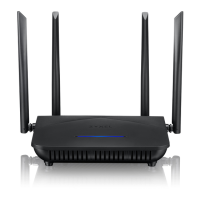
The ZyXEL Q1000Z is an 802.11n VDSL2 4 GE Port USB Router designed for use over POTS (Plain Old Telephone Service). This device functions as a high-speed Internet router, providing access through a telephone line, and supports high-bandwidth applications such as video streaming, online gaming, and peer-to-peer (P2P) connections. It also features a secure wireless network connection, which can be easily set up using the WPS button, and allows for the connection of a telephone to make and receive PSTN calls.
The primary function of the Q1000Z is to provide super high-speed Internet access by acting as a VDSL2 router. It leverages existing telephone lines to deliver broadband connectivity, making it suitable for residential or small office environments where VDSL2 service is available. The router includes four Gigabit Ethernet (GE) ports, enabling high-speed wired connections for multiple devices. Additionally, it features 802.11n wireless technology, offering robust Wi-Fi coverage for wireless devices within its range. The integrated USB port is reserved for future use, indicating potential for expanded functionality through external storage or other peripherals.
A key feature of the Q1000Z is its ability to support both Internet and telephone services. Users can connect their telephone directly to the router, allowing them to continue making and receiving traditional PSTN calls while simultaneously using the Internet. This integration simplifies home networking by consolidating multiple services through a single device. The router's design emphasizes ease of use, with a Quick Start Guide provided to facilitate initial setup and configuration.
Setting up the Q1000Z involves a straightforward process of hardware connections and initial configuration. The device panels are clearly labeled, with distinct ports for LINE (DSL), PHONE, ETHERNET, USB, RESET, and POWER. The LINE (DSL) port connects the router to the telephone jack or wall outlet, establishing the VDSL2 connection. The PHONE port allows users to connect a telephone for PSTN calls. The ETHERNET ports are used to connect computers or other network devices via Ethernet cables, providing wired Internet access and enabling initial configuration. The POWER socket connects to the provided power adapter.
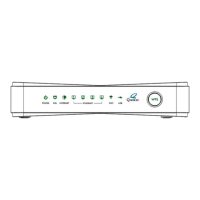
LED indicators on the top panel provide visual feedback on the router's operational status. The POWER light blinks during startup and turns green when the Q1000Z is ready. The DSL light is green when a physical DSL connection is established and blinks during data transmission. The INTERNET light turns green when Internet access is available. ETHERNET lights illuminate when an Ethernet port is properly connected and blink during data transfer. The WIFI light turns on when the wireless network is enabled. These LEDs help users quickly assess the status of their connections and troubleshoot minor issues.
For Internet access, users typically need to enter account information provided by their Internet Service Provider (ISP), such as a username and password. The Quick Setup feature in the web-based configuration interface guides users through this process. If the ISP does not provide a username and password, an Advanced IP Configuration option is available for more detailed setup. Once configured correctly, both the DSL and INTERNET lights on the router should turn green, indicating a successful connection.
The Q1000Z also supports WPS (Wi-Fi Protected Setup) for easy and secure wireless network connections. By pressing the WPS button on the front panel for more than 5 seconds, users can activate the WPS function. To add a WPS-enabled device, users simply place the device near the router and press the WPS button on both the router and the compatible device within a two-minute window. The WPS light on the Q1000Z blinks during the connection process and shines steadily once a secure connection is established.
The Q1000Z is designed for minimal maintenance, with status indicators that help users identify and resolve common issues. The LED lights on the device provide immediate feedback on the status of power, DSL, Internet, Ethernet, and Wi-Fi connections. If any of the LEDs are off, users are advised to check their connections, ensuring the power adapter is properly connected and the power source is on. A simple power cycle (turning the Q1000Z off, waiting a few seconds, and turning it back on) can often resolve minor operational glitches. If issues persist, users are encouraged to contact their local vendor for support.
The device's web-based configuration interface, accessible via a standard web browser at http://192.168.0.1, allows for ongoing management and troubleshooting. This interface provides access to various settings, including quick setup, wireless setup, utilities, and advanced setup, enabling users to monitor their network, adjust settings, and perform diagnostics as needed.
For physical maintenance, the Q1000Z offers a wall-mounting option, which can help in optimizing placement for better signal coverage and keeping the device out of the way. The wall-mounting process involves drilling two holes 110 mm apart, inserting screws, and then aligning the holes on the back of the Q1000Z with the screws. Care must be taken to avoid damaging internal pipes or cables when drilling. The screws should be snugly fastened to support the router's weight and connected cables.
In terms of regulatory compliance, the Q1000Z adheres to FCC rules, specifically Part 68 for telephone network connections and Part 15 for digital devices. This ensures that the equipment is designed to operate without causing harmful interference and to accept any interference received. Users are advised to follow instructions for repairing the device and to avoid altering or repairing any parts themselves, except as specified. In the event of equipment malfunction, all repairs should be performed by ZyXEL or an authorized agent.
The manual also provides important information regarding telephone line connections, such as the ringer equivalence number (REN) and FCC registration number, which are crucial for ensuring compatibility with the telephone network. Users with specially wired alarm equipment connected to the telephone line are advised to ensure the router's installation does not disable their alarm system and to consult their telephone company or a qualified installer if necessary.
For RF exposure, the device must be installed and operated to maintain a separation distance of at least 20 cm from all persons, and its antenna(s) should not be co-located or operating in conjunction with any other antenna or transmitter. If the equipment causes harmful interference to radio or television reception, users are encouraged to try measures such as reorienting or relocating the receiving antenna or increasing the separation between the equipment and receiver. These guidelines ensure safe and compliant operation of the wireless features.
 General
| Model | Q1000Z |
|---|---|
| Type | Wireless Router |
| Wireless Standard | 802.11b/g/n |
| Frequency Bands | 2.4 GHz |
| Ethernet Ports | 4 x 10/100 Mbps |
| Antenna Type | Internal |
| Wireless Speed | 300 Mbps |
| Device Type | Router |
| WAN Ports | 1 x DSL |
| Security | WPA, WPA2 |


 To Next Page