2 EASY
CONFIGURATIONS
TONE UPDATESOFTWARE UPDATE
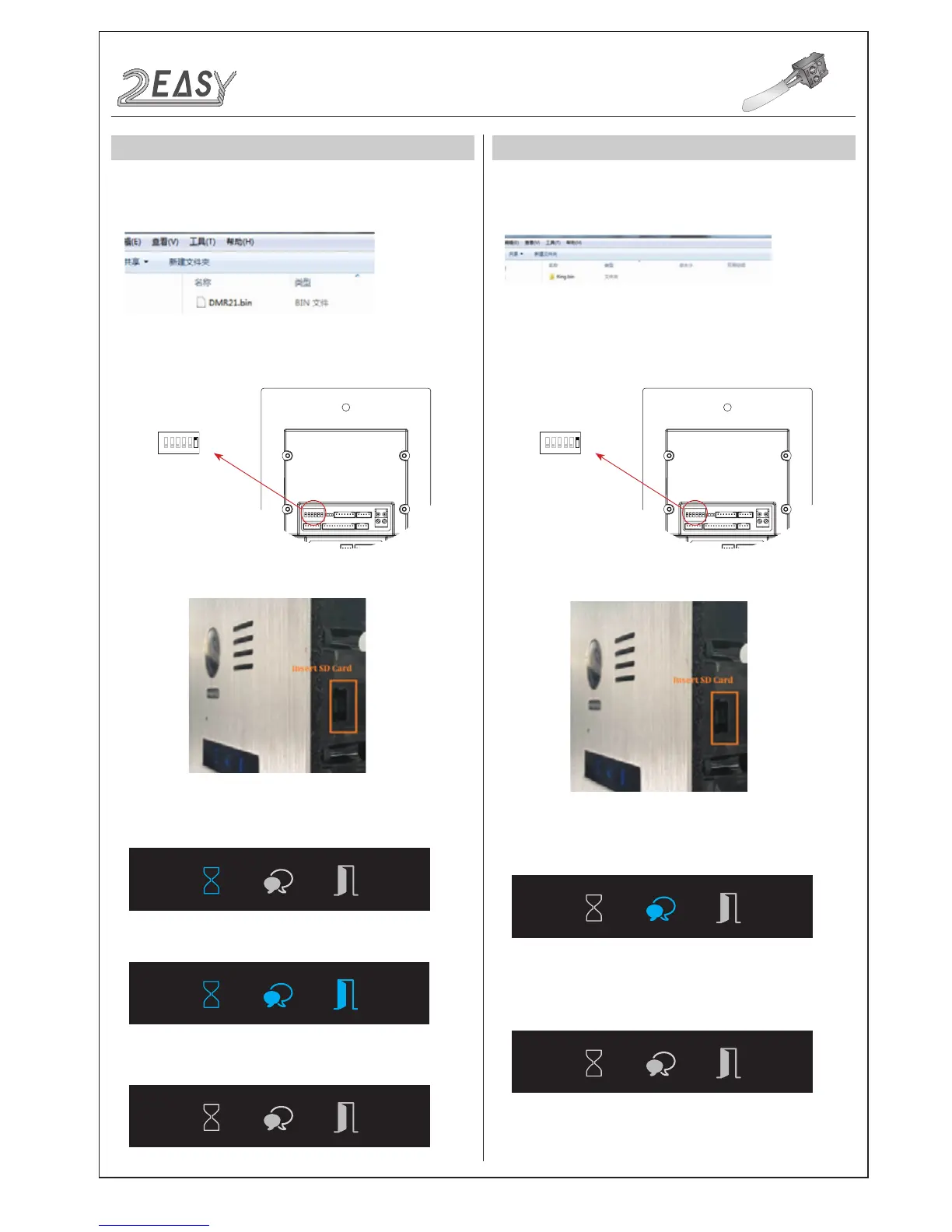
1. Format SD card
2. Copy the Update Ring.bin le to SD card by computer.
1. Format SD card
2. Copy the Update DMR21.bin le to SD card by computer.
3.Update ringtone:
i) Power on the DMR21, and set DIP6 switch to ON, as the following
picture shows:
3.Update software:
i) Power on the DMR21, and set DIP6 switch to ON, as the following
picture shows:
ii) Insert SD card to slot.
ii) Insert SD card to slot.
iii) A long warning sound of “BP+” will be sent out, and the Talk indi-
cator is turned on.
iii) A long warning sound of “BP+” will be sent out, and the Status
indicator is turned on.
iii) After 3 seconds, all the indicators are turned on.
iiii) After 20 seconds, a long sound of “BP+” will be sent out, and all
indicators are turned off.It means Software update is nished.
iiii) After 20 seconds, a long sound of “BP+” will be sent out, and the
Talk indicator is turned off, It means Tone update is nished.
DIP6=ONDIP6=ON
1 2 3 4 5 6
ON
1 2 3 4 5 6
ON



 To Next Page